
This function allows you to maintain debtors of your company. Debtors are also known as your customers, usually used at your sales entries.
To access Debtor, click on the Master Data icon > Debtor.


Creating a new Debtor
To create a new Debtor, click on the “+New” button.


Fields
Account
Active: Indicate if debtor is still active. Unticking this will cause you unable to select this debtor at your entries.
Control Account: Choose the control account of your debtor.
Debtor Code: Key in your debtor code. You may also click on the “+” to auto generate a debtor code. The auto generated debtor code format is based on your account code format under Setting à Account Code Format.
Company Name: Key in company name of the debtor. Example: ABC SDN BHD.
Alternate Company Name: Key in alternate company name of the debtor.
Registration No: Key in company registration number of the debtor.
General
Billing Address: Key in billing address of this debtor. This address will be captured in sales entries.
Delivery Address: Key in delivery address of this debtor. This address will be captured in sales entries.
Billing Post Code: Key in billing post code.
Delivery Post Code: Key in delivery post code.
Area: Select the area for this debtor.
Phone: Key in phone number of this debtor.
Phone 2: Key in alternate phone number of this debtor.
Fax: Key in fax number of this debtor.
Fax 2: Key in alternate fax number of this debtor.
Email Address: Key in email address of this debtor.
Website: Key in website of this debtor.
Attention: Key in attention person of this debtor.
Business Nature: Key in nature of business of this debtor.
Others
Agent: Assign a sales agent to handle this debtor. This agent will be captured at sales entries.
Currency: Select operating currency of this debtor.
Credit Term: Assign a credit term for this debtor.
Tax: Select default tax code of this debtor. This tax code will be auto captured in sales entries.
Tax Registration No: Key in tax registration number of this debtor.
Note: Key in any additional notes or remark of this debtor.
Click “Save” to commit the changes once you had done keying in or editing the required information.
Print Debtor Listing
You can print Debtor Listing for reference or any other purpose.
1. At Debtor main page, click on the “Print Listing” button.

2. Select Report Name.

3. Define your filters and options. This will determine the results and presentation of the generated report.

4. Click on the “Run Report” button to generate the report.

5. The report will be generated based on your selection.

6. You can now print or export to the format that you want.

Credit Limit Control
The Credit Limit Control function sets the maximum outstanding amount allowed for a customer who purchases on credit. Setting a credit limit for each customer helps reduce the risk of bad debts and manage credit exposure.
Example:
A customer has a credit limit of RM5,000 and an outstanding balance of RM3,000. If a new invoice for RM2,500 is created, the total outstanding amount will be RM5,500. This exceeds the credit limit by RM500.
There are four credit limit control options: Disabled, Need approval when exceed credit limit, Block when exceed credit limit and Suspend.
Table of Contents
Set Up Customer Credit Limit
- Go to Master Data > Customer.
- Click + New or edit the customer whose credit limit you want to maintain.
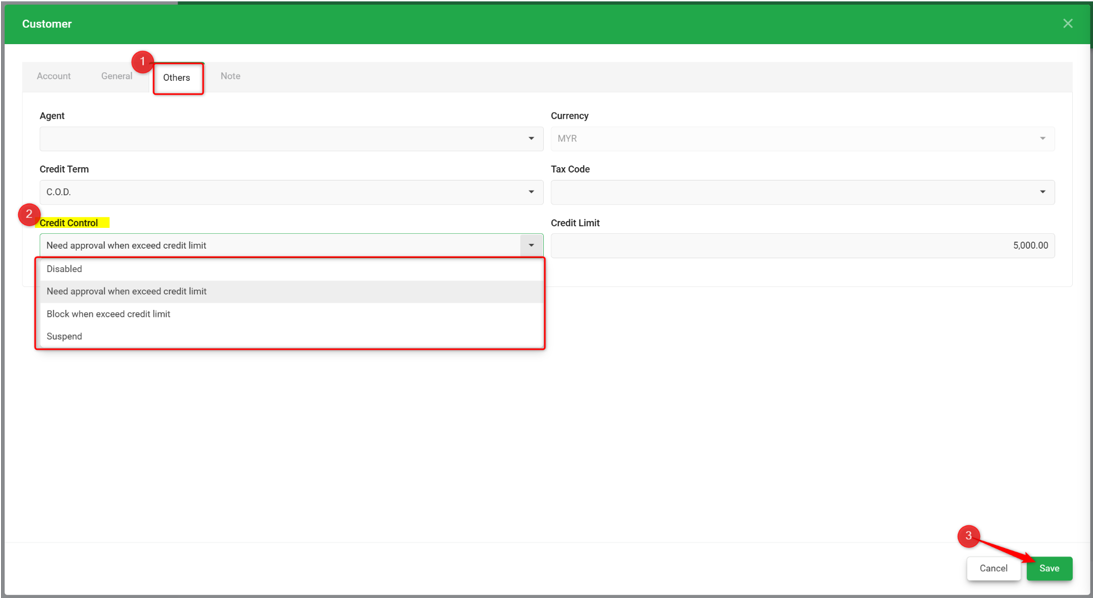
- Go to the Others tab.
- Under Credit Control, select one of the following options:
- Disabled: No credit limit control is applied.
- Need approval when exceed credit limit: Transactions that exceed the credit limit require approval from a user with the appropriate access rights.
- Block when exceed credit limit: Restricts transactions from being saved when the credit limit is exceeded.
- Suspend: Prevents transactions from being saved for the suspended customer, regardless of whether the credit limit has been exceeded. Use this option for customers with a poor credit history and when the company decides to suspend further sales to them.
Option 1: Need Approval When Exceed Credit Limit
This option allows transactions that exceed the customer's credit limit to be approved and saved by an authorised user. Only users assigned the Sales and/or Administration role with the appropriate access rights can approve and save these transactions.
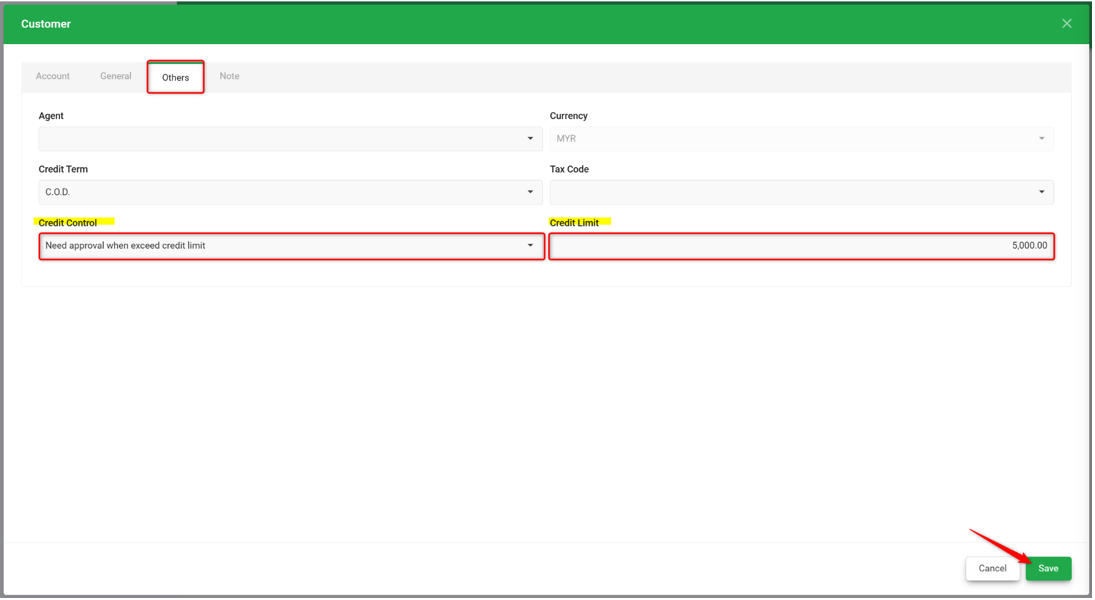
- Open the customer record and go to the Others tab.
- Set the Credit Limit amount.
- Create the sales transaction.
- When you save the transaction, one of the following messages will appear:
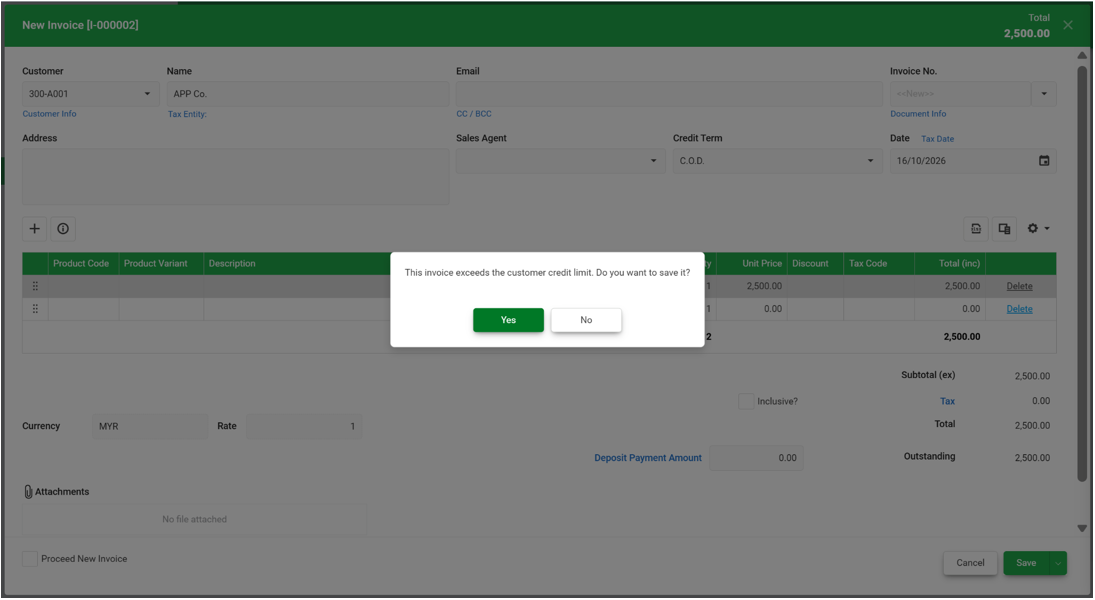
- If you have approval access: The system prompts, "The invoice exceeds customer credit limit. Do you want to save it?". Click Yes to proceed.
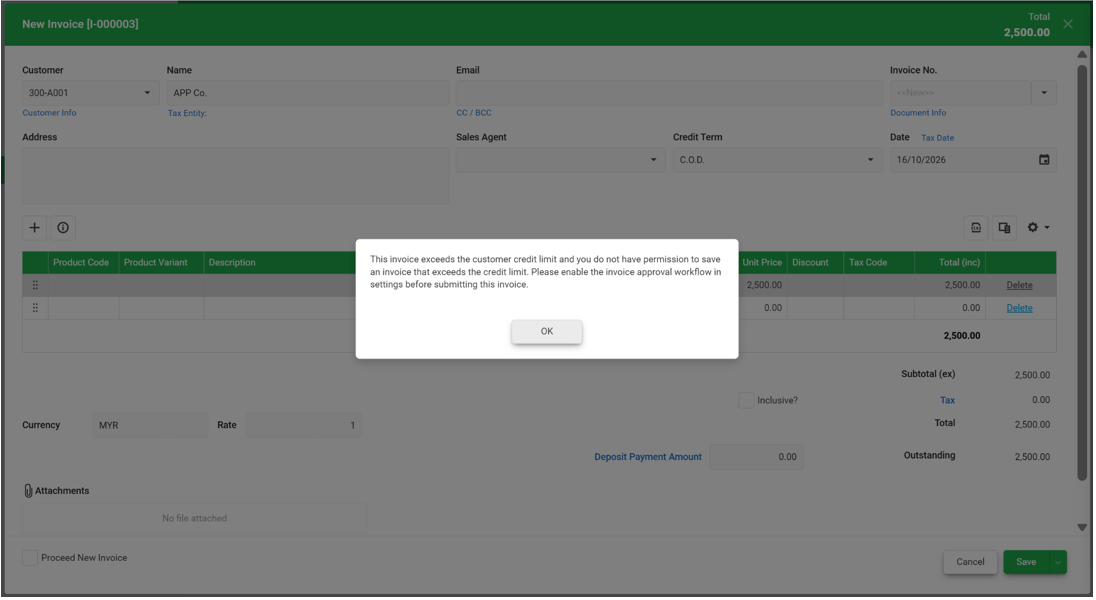
- If you do not have approval access: The system shows, “This invoice exceeds the customer credit limit and you do not have permission to save an invoice that exceeds the credit limit. Please enable the invoice approval workflow in settings before submitting this invoice.” You must request approval from an authorised user with approver access rights to approve the invoice.
Option 2: Block When Exceed Credit Limit
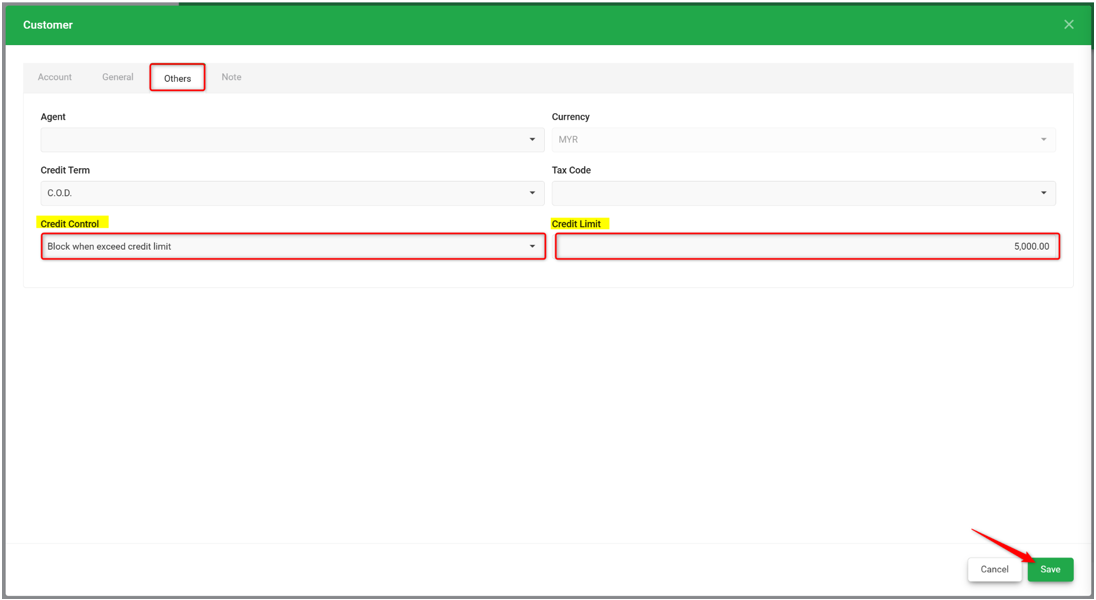
This option prevents transactions from being saved when the customer's credit limit is exceeded. The transaction cannot be saved until the credit limit condition is resolved.
- Open the customer record and go to the Others tab.
- Set the Credit Limit amount.
- Create a sales transaction that exceeds the credit limit.
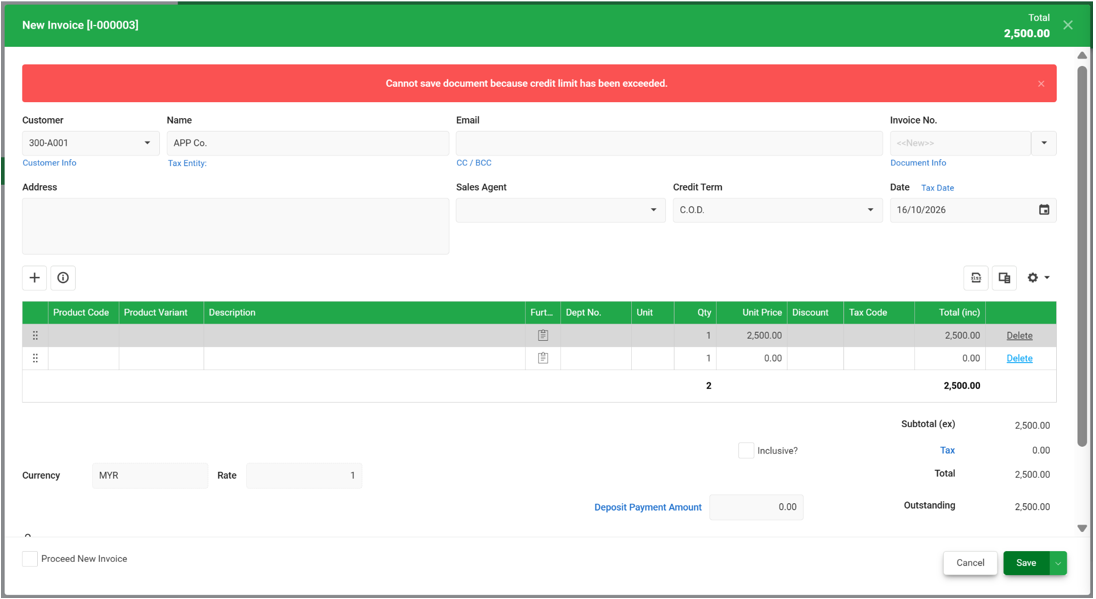
- When you attempt to save the transaction, the following error message appears:
"Cannot save document because credit limit has been exceeded."
Option 3: Suspend
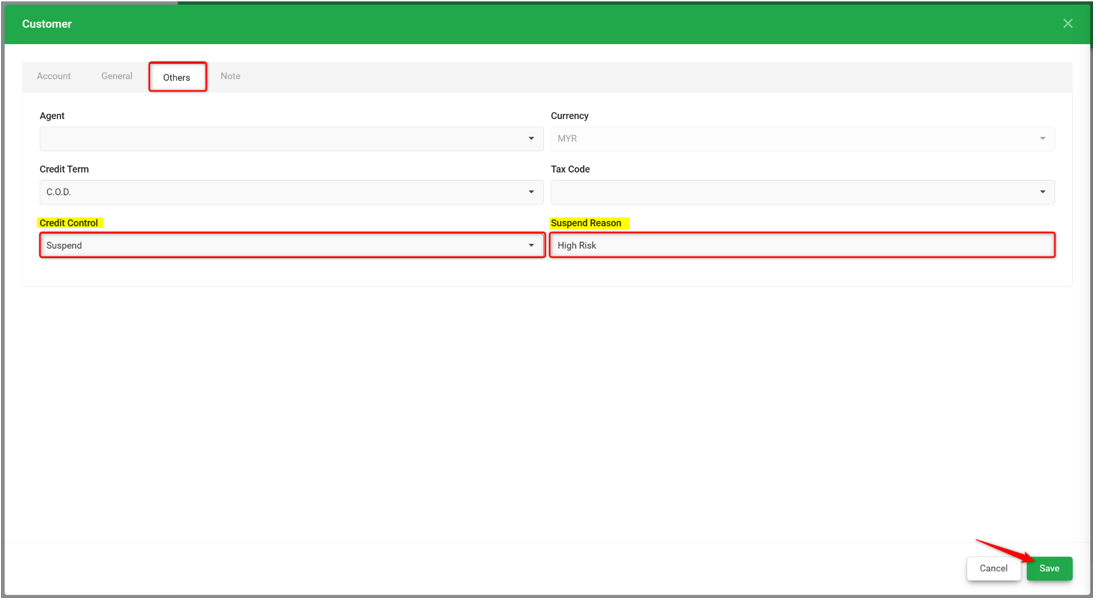
Use this option to prevent further transactions for a customer whose account has been suspended, even if the credit limit has not been exceeded.
- Open the customer record and go to the Others tab.
- Enter the Suspend Reason.
- Create a sales transaction for the suspended customer.
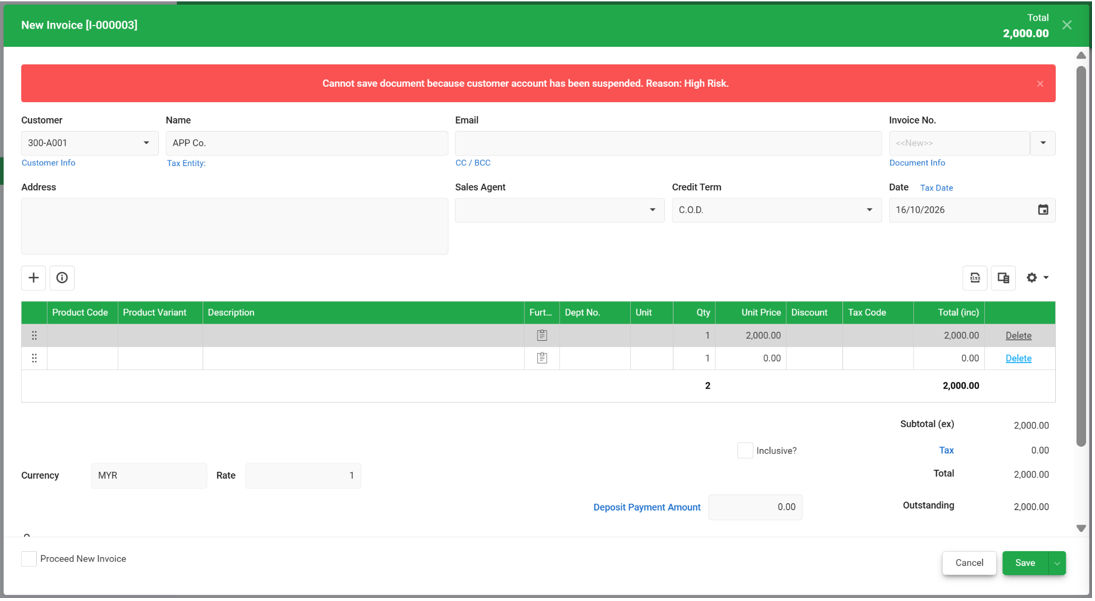
- When you attempt to save the transaction, the following error message appears:
"Cannot save document because customer account has been suspended. Reason: (Suspend Reason Entered)."
Enable Users to Approve Transactions That Exceed the Credit Limit
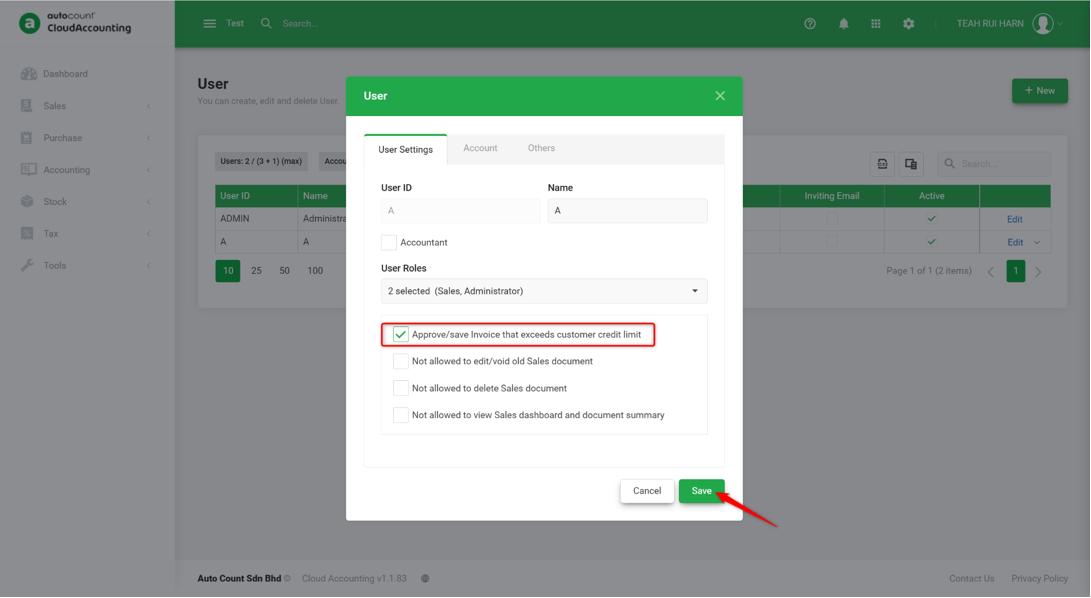
To allow selected users to save invoices that exceed a customer's credit limit:
- Go to Settings > User.
- Click + New to create a new user or edit an existing user.
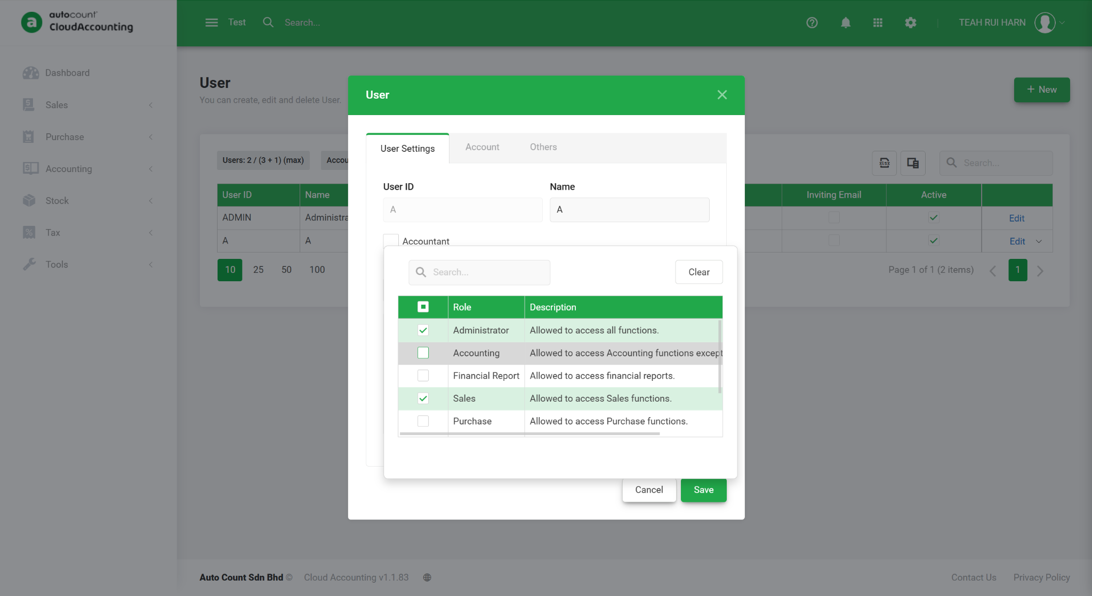
- Under User Roles, select Administration and/or Sales, as applicable.
- Enable Approve/save Invoice that exceeds customer credit limit.
- Click Save.
Prepared by Rui Harn & checked by Seck Voon