
Question:
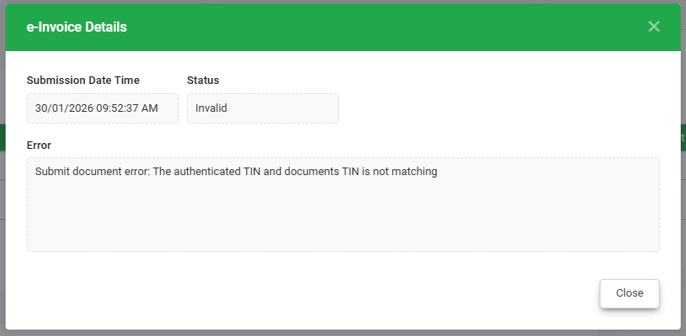
Why does saving an Invoice fail with the error “The authenticated TIN and documents TIN is not matching”?
Possible Reason:
This occurs when the TIN ownership was previously validated as an individual. If the Tax Entity Classification is later changed to Business (e.g., IG with BRN), the system detects a mismatch and triggers this error.
Solution:
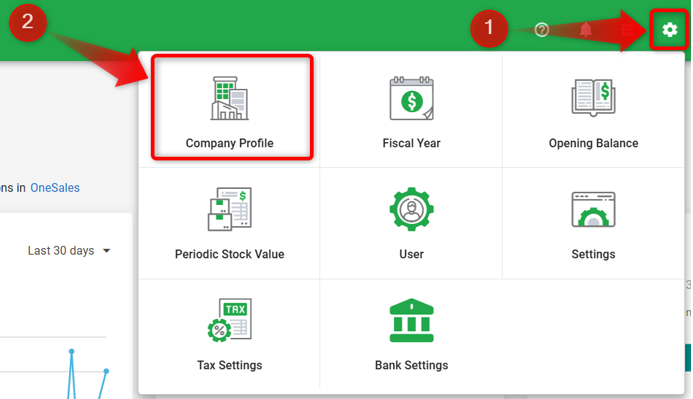
1) Go to Account Book icon > Company Profile.
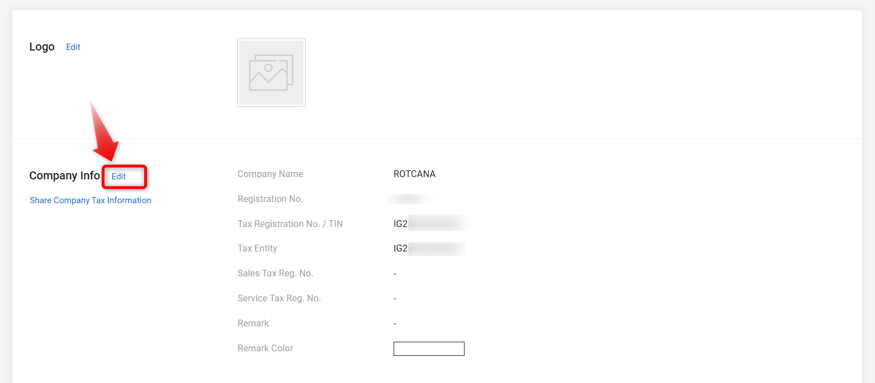
2) Click Edit beside Company Info.
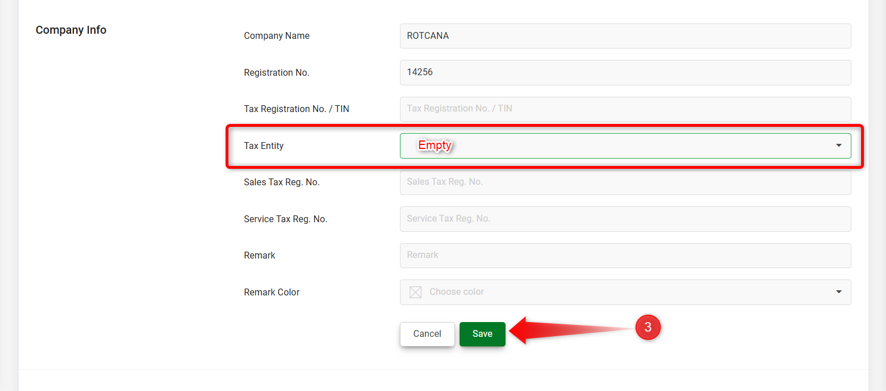
3) Locate Tax Entity, click on the dropdown icon, select Clear to remove the Tax Entity, and click Save.
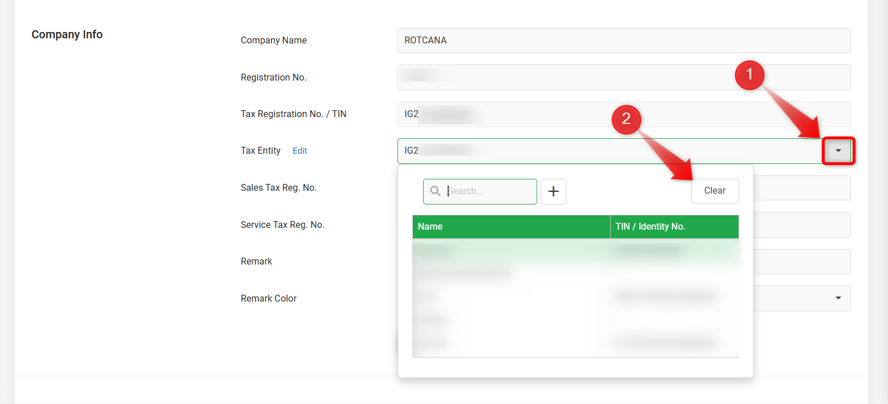
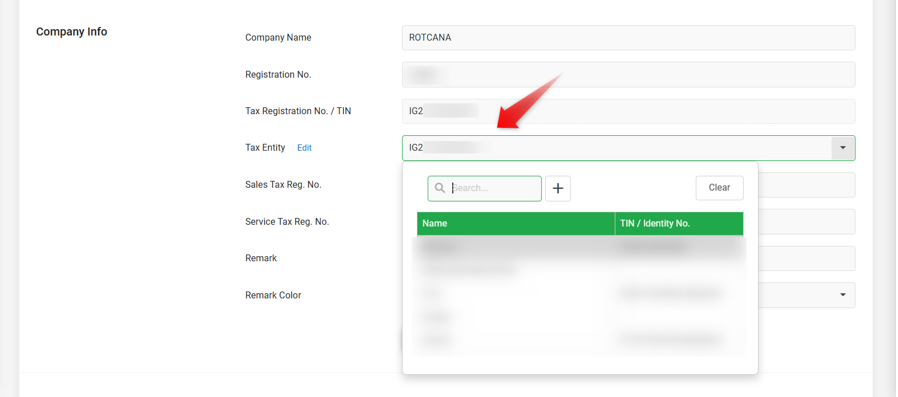
4) Edit Company Info again, re-select the correct Tax Entity, then click Save.
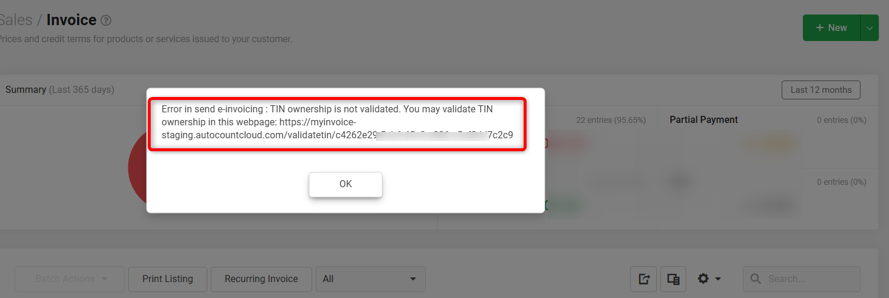
5) Next, Edit and Save again the invoice. System will trigger the TIN Ownership validation link.
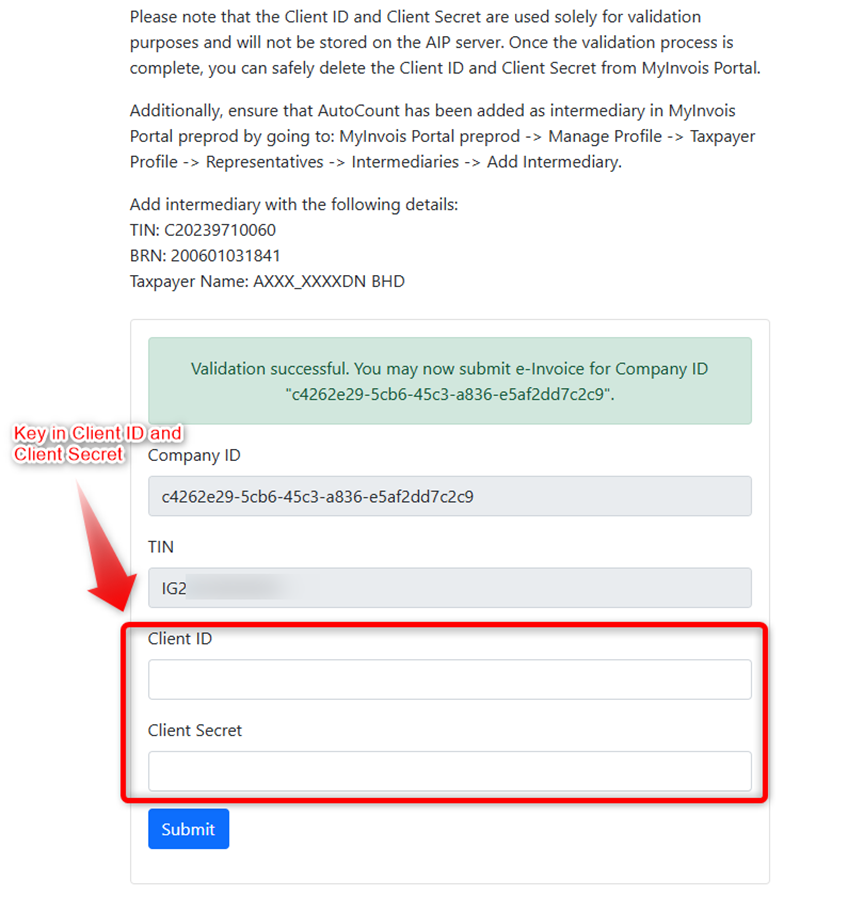
6) Copy the link to a new browser and enter your Client ID and Client Secret from business profile in MyInvois Portal, then click Submit. A validation successful message will be shown if Client ID and Secret are correct.
Note: If your business profile (Sole Proprietorship / Enterprise / Partnership) is not yet registered in MyInvois Portal, follow this guide:
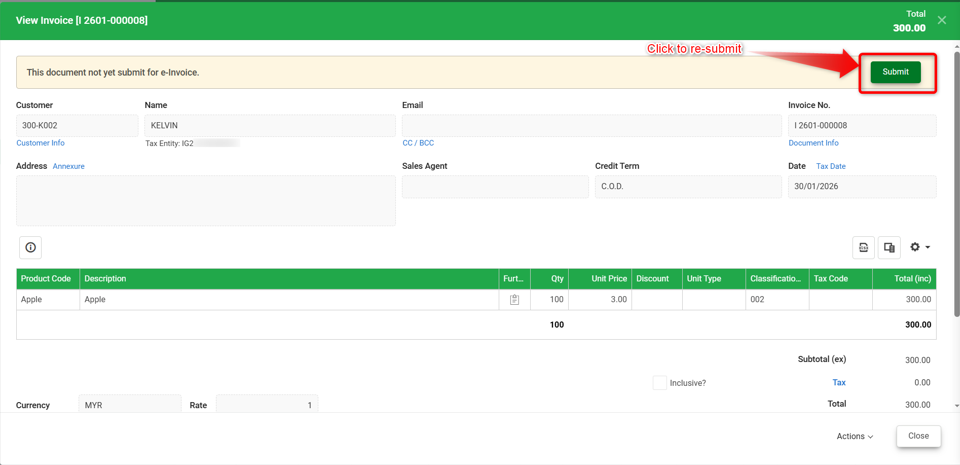
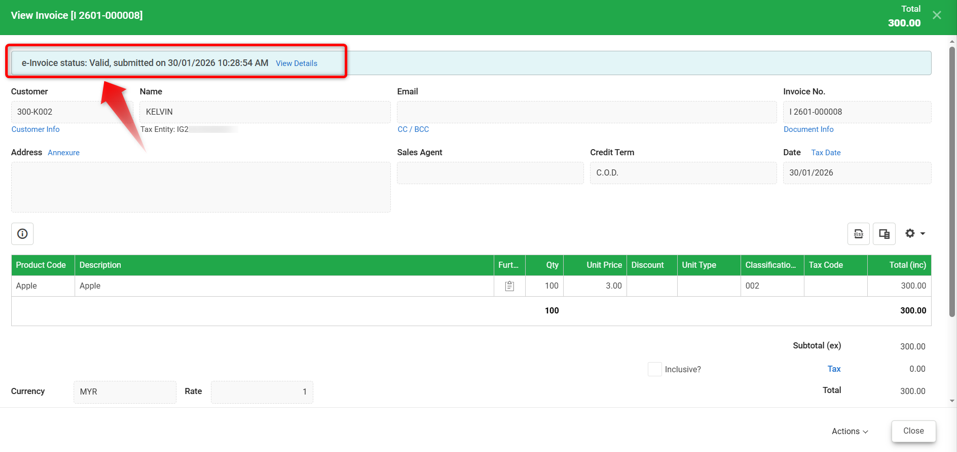
7) Return to Cloud Accounting, view the Invoice and click Submit. The Invoice should now be successfully submitted to LHDN as an e-Invoice.
By: Rotcana 260203, Lay Swan 260226