
Question:
How can I display Tax Rate with a percentage symbol (%) in an Invoice report?
Answer:
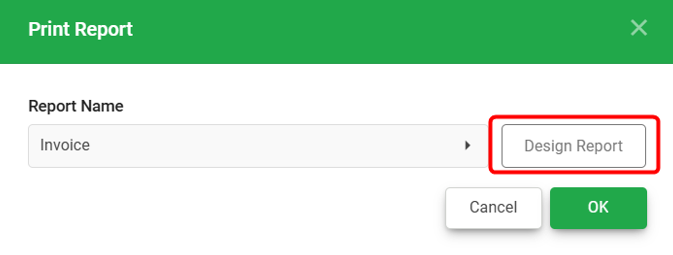
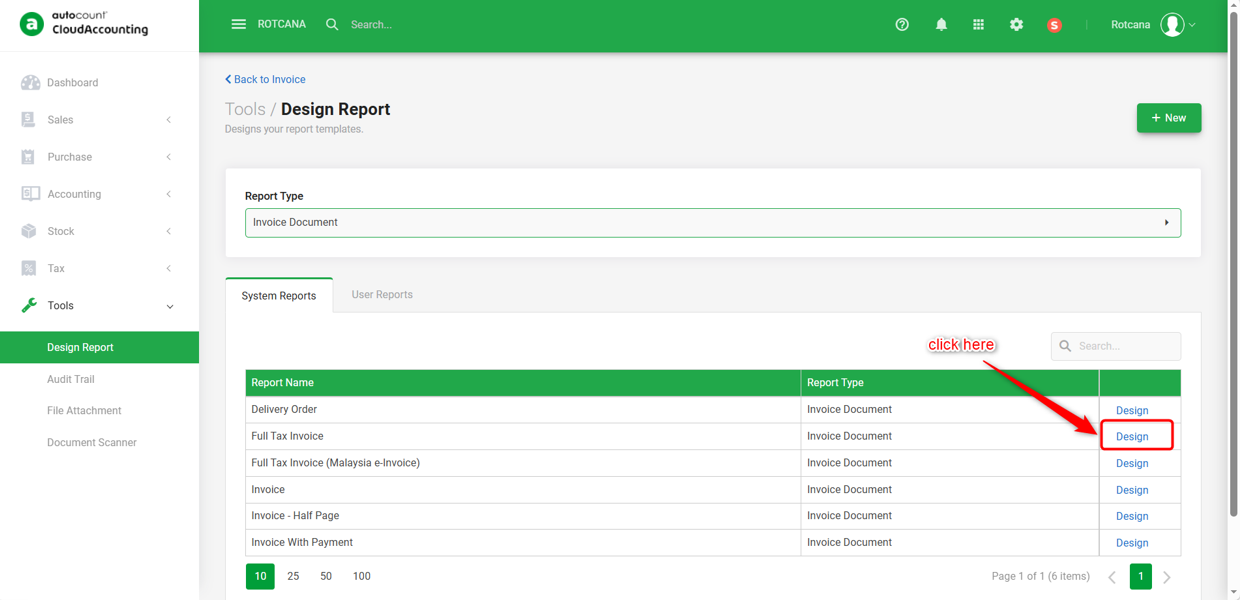
1) To design the report, click Print and click 'Design Report' button on the right side. Click 'Design' on the report that you wish to amend.
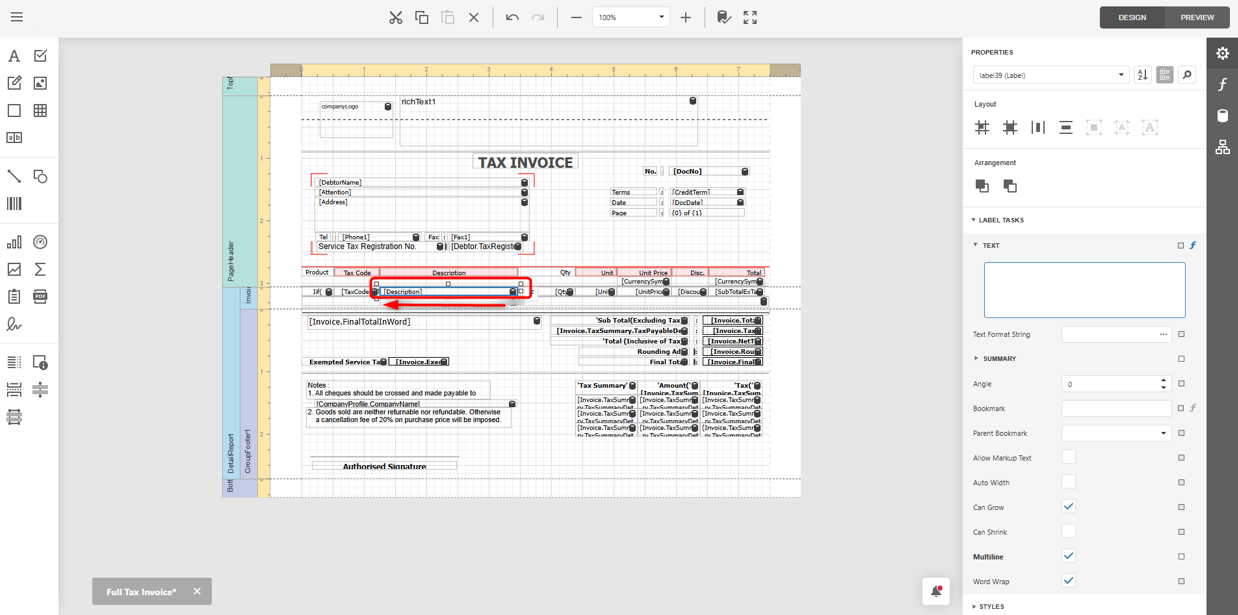
2) Click once on the Description field, then place the cursor at the edge of the field to adjust its size.
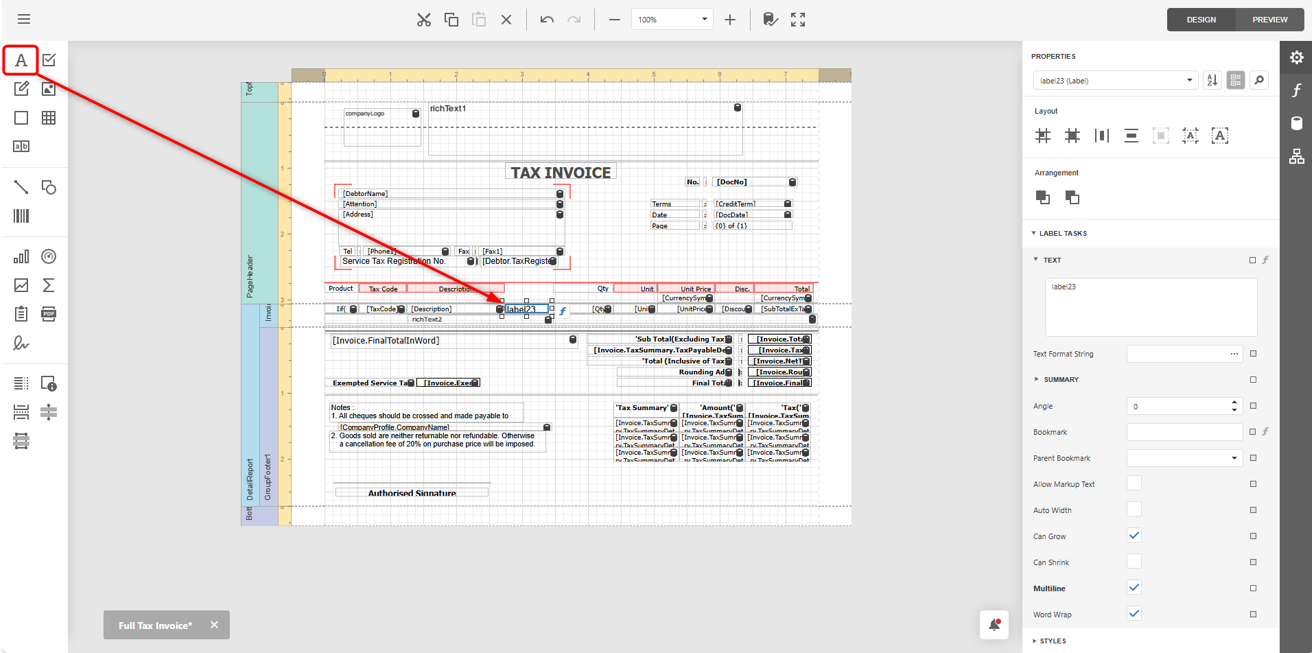
3) To add Tax Rate with percentage symbol (%), drag a Label from left panel with icon 'A' to the desired position on the report.
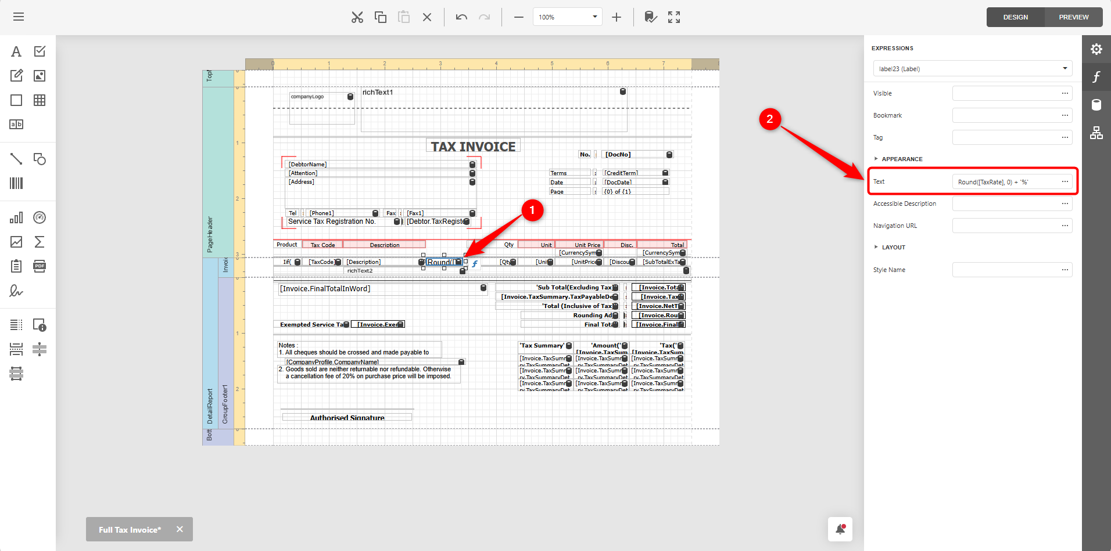
4) With the label field highlighted, click the Expressions icon (symbol ‘f’)(1) > and enter Round([TaxRate], 0) + '%' in the Text column(2).
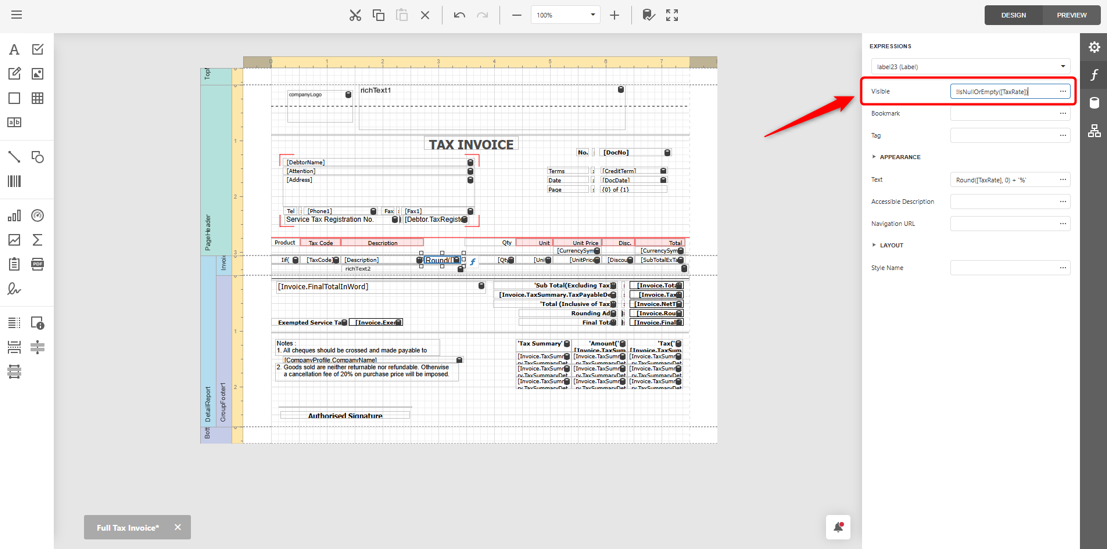
5) In the Visible column, enter !IsNullOrEmpty([TaxRate]) so the field only appears when a tax rate exists.
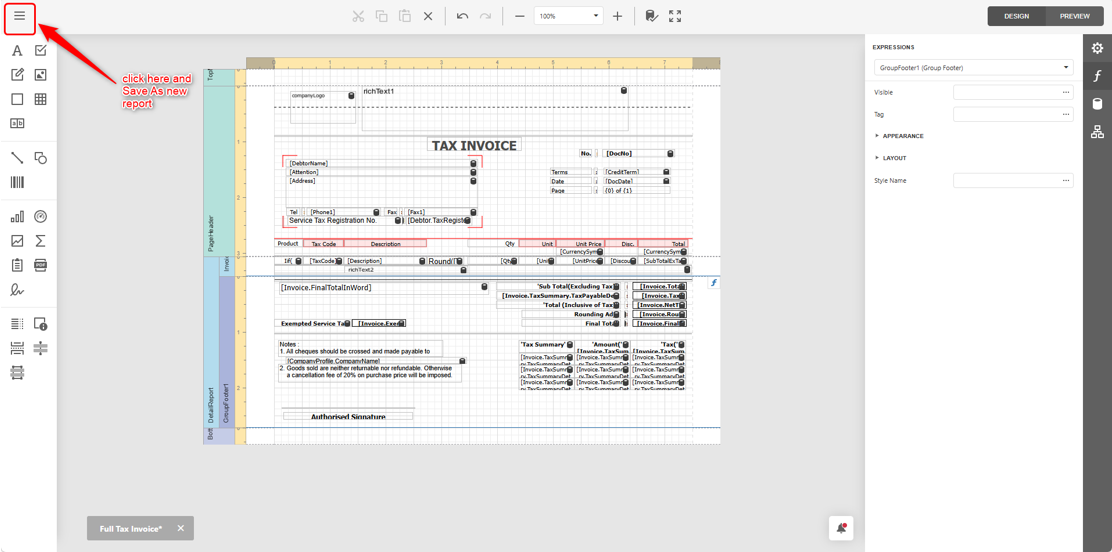
6) After done, click the Menu on the top left, click on Save As and rename to new report as the original system Report is not allowed to amend and save.
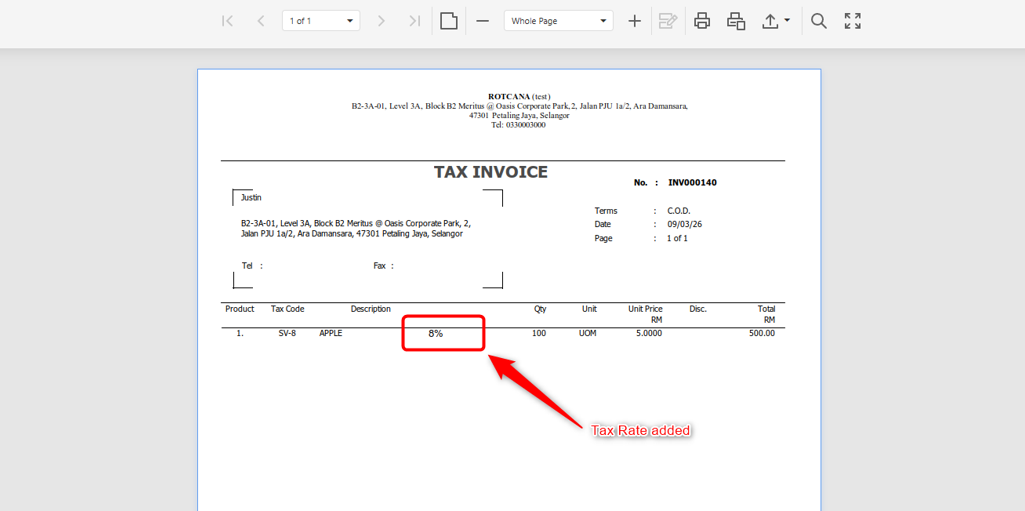
7) When you create and preview/print Invoice with tax, the Tax Rate will appear with the percentage symbol.
Note: To add label for the tax rate, may refer to the link how to add label in design report.
By: Rotcana 260311, Lay Swan 260330