
This guideline will show you how to subscribe and get an e-Invoice for your subscription.
1. Go to Cloud Accounting Dashboard: https://accounting.autocountcloud.com/dashboard
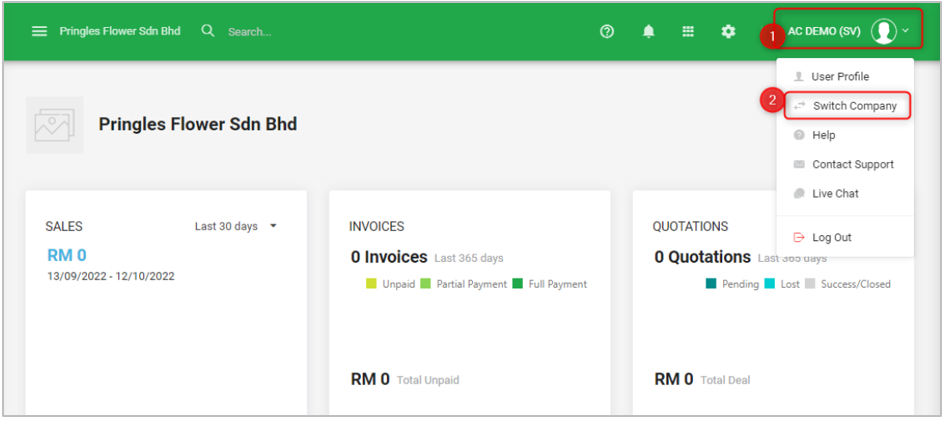
2. On top right, click ‘Switch Company’.
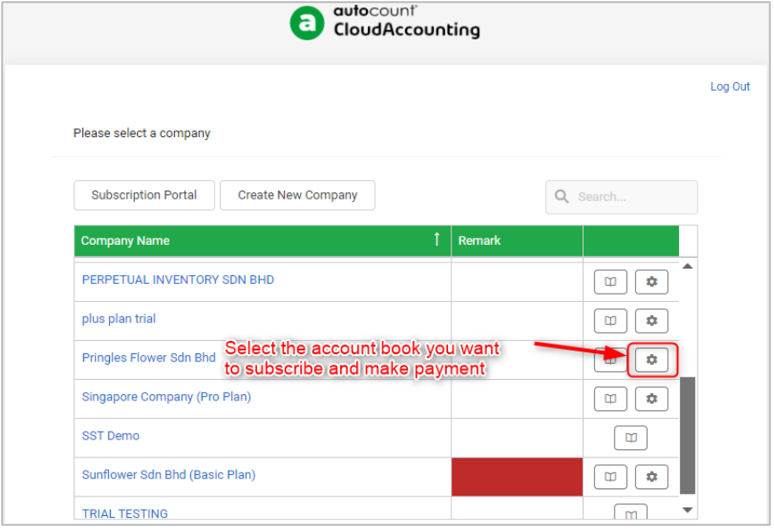
3. Click the 'setting' icon on the Account Book you want to subscribe to.
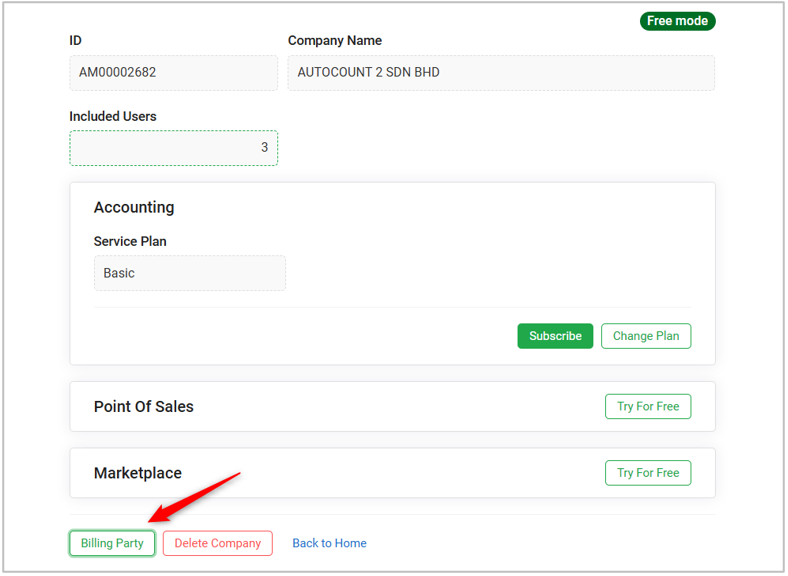
4. At the bottom of the page, click ‘Billing Party’.
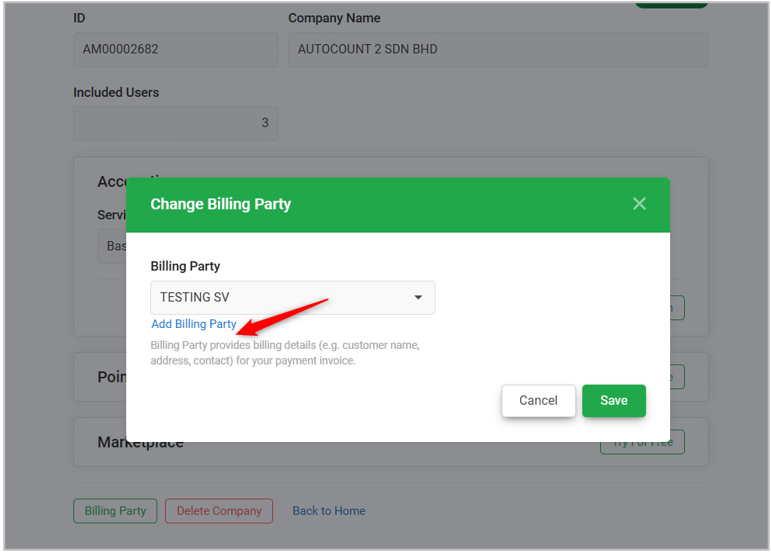
5. Click ‘Add Billing Party’.
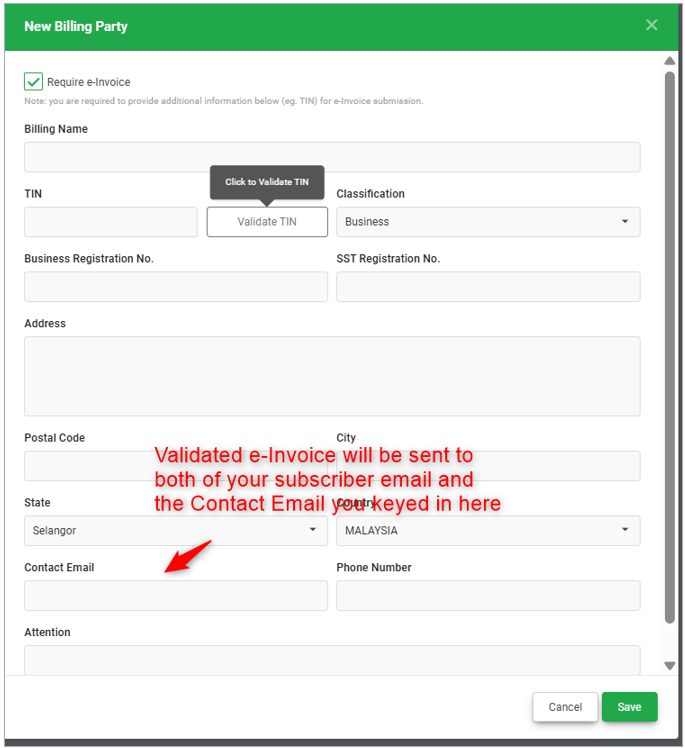
6. You will need to tick: ☑ Require e-Invoice and fill in the required details.
Note: Validated e-Invoice will be sent to your subscriber’s email address and the contact email you fill in here.
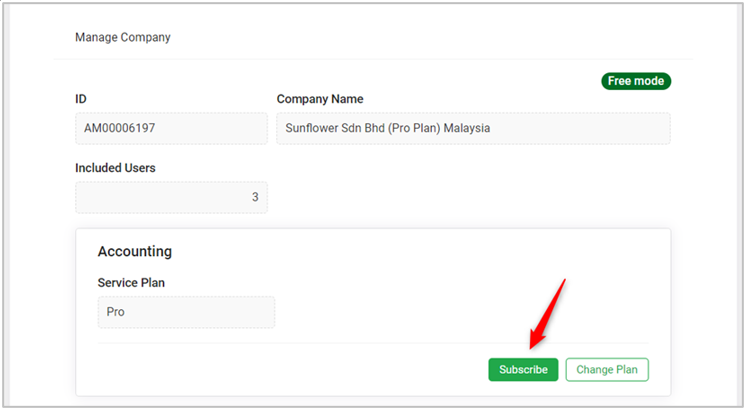
7. Back to the top of the page, click ‘Subscribe’.
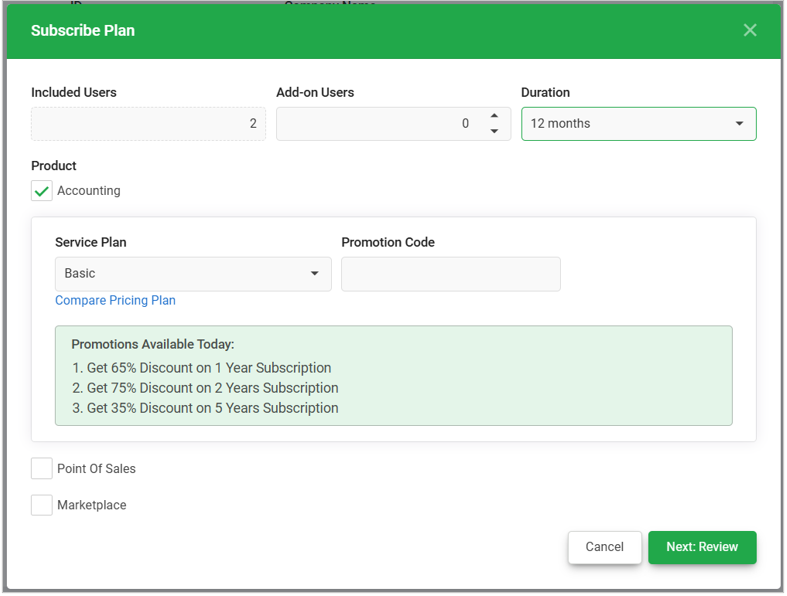
8. Choose your Service Plan and Duration, and click ‘Review’.
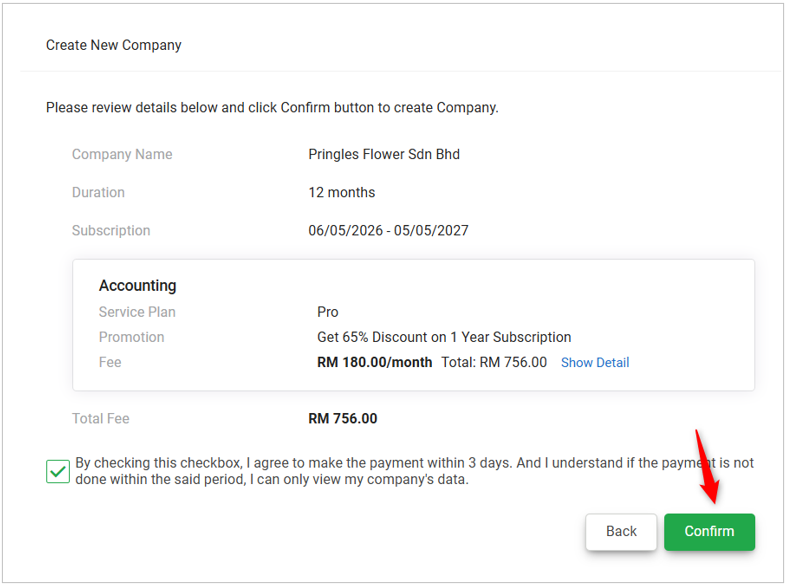
9. Review and click ‘Confirm’.
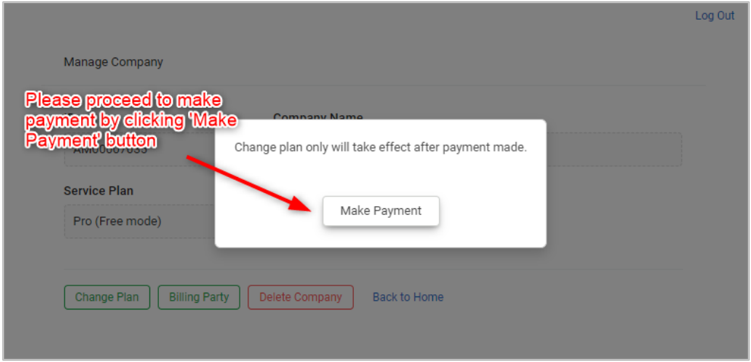
10. Click ‘Make Payment’ and you will be redirected to the subscription portal.
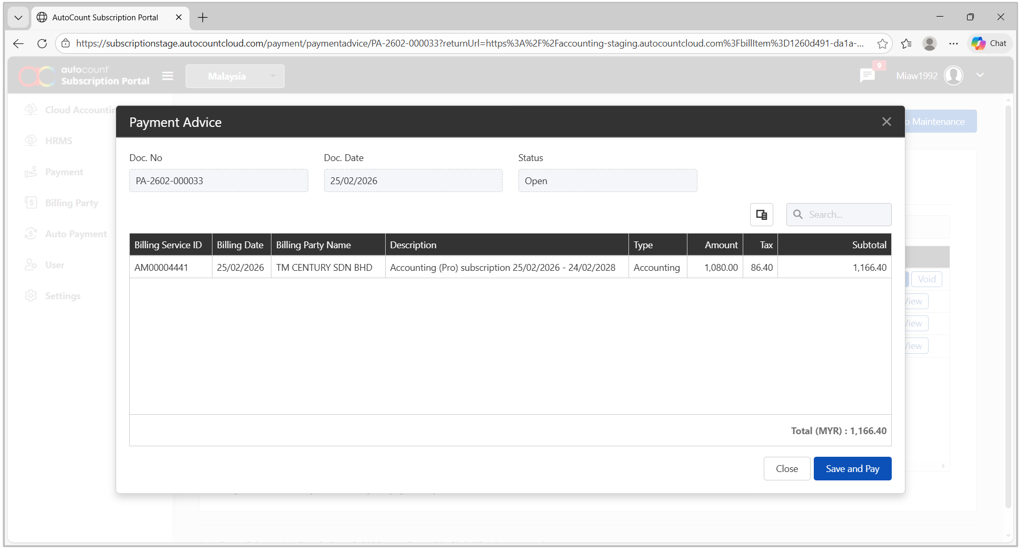
11. You can make payment under ‘Payment Advice’ by clicking ‘Save and Pay’.
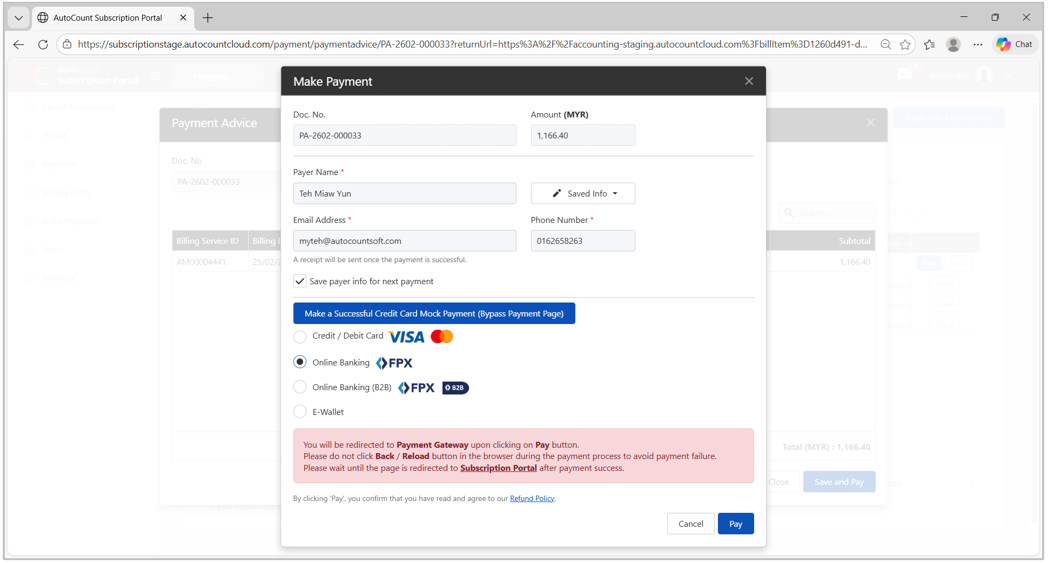
12. Choose your payment method and click ‘Pay’, continue to follow on-screen page to make payment.
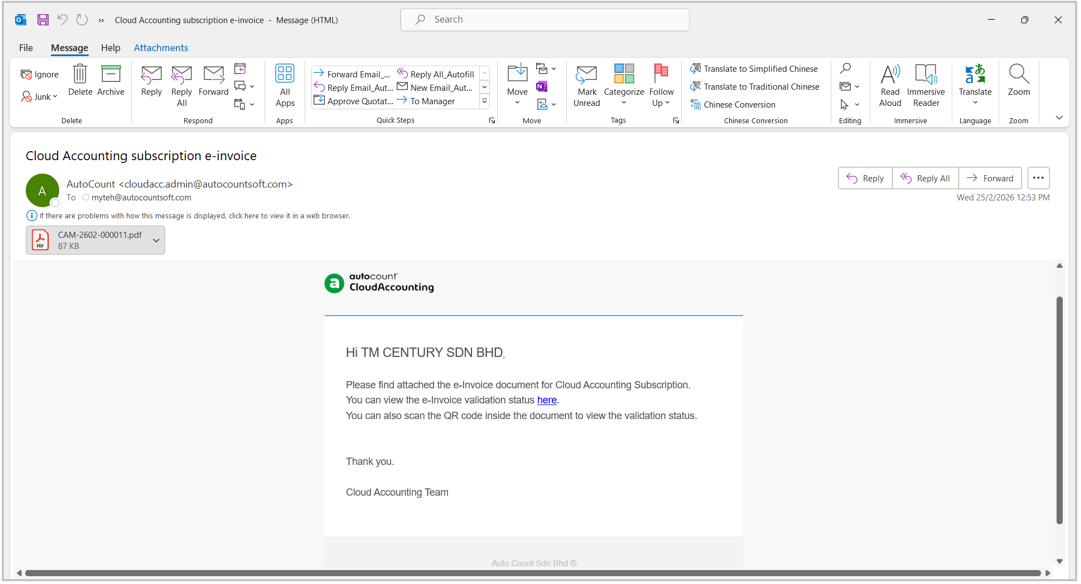
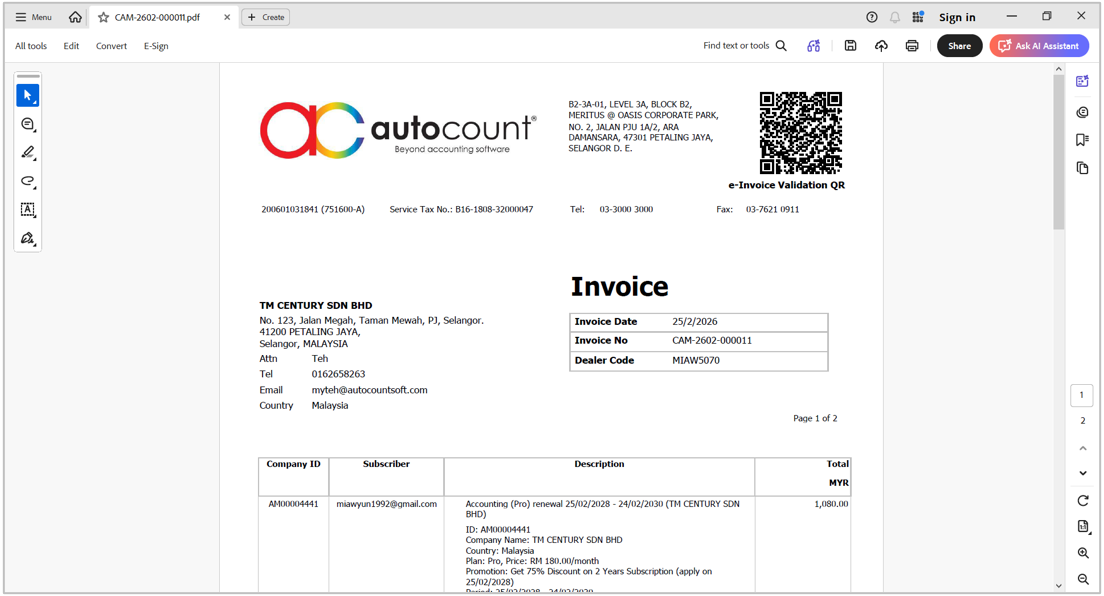
13. Once payment is completed, you will receive the validated e-Invoice via email. Alternatively, you can download the e-Invoice at Subscription Portal’s ‘Invoices’ column.
By: Sophia Hew and Seck Voon 260507