
Introduction
According to LHDN e-Invoice guidelines, self-billed e-Invoices are normally issued one per transaction. Consolidation, combining multiple transactions into a single self-billed e-Invoice, is only allowed for specific circumstances defined by LHDN.
This guide covers how to create a consolidated self-billed e-Invoice in AutoCount Cloud Accounting.
When Consolidation Is Allowed
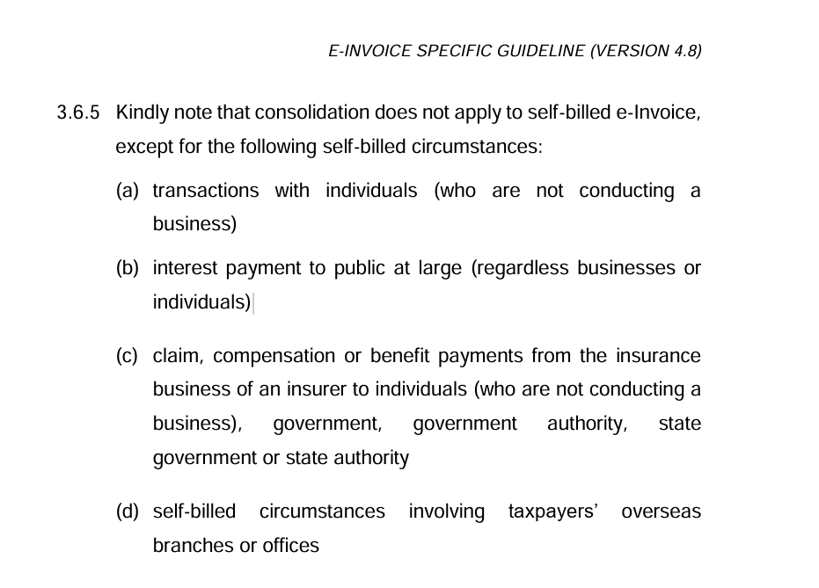
Per LHDN e-Invoice guidelines (section 3.6.5) version 4.8, consolidation does not apply to self-billed e-Invoices, except for the following circumstances:
- Transactions with individuals who are not conducting a business
- Interest payments to the public at large, regardless of whether paid to businesses or individuals
- Claims, compensation, or benefit payments from an insurer to individuals not conducting a business, government, government authority, or state authority
- Self-billed circumstances involving a taxpayer's overseas branches or offices
Note: Do not use the consolidated flow outside of these scenarios. For all other self-billed cases, create one self-billed e-Invoice per transaction.
Steps
Step 1: Create a New Self-Billed Document
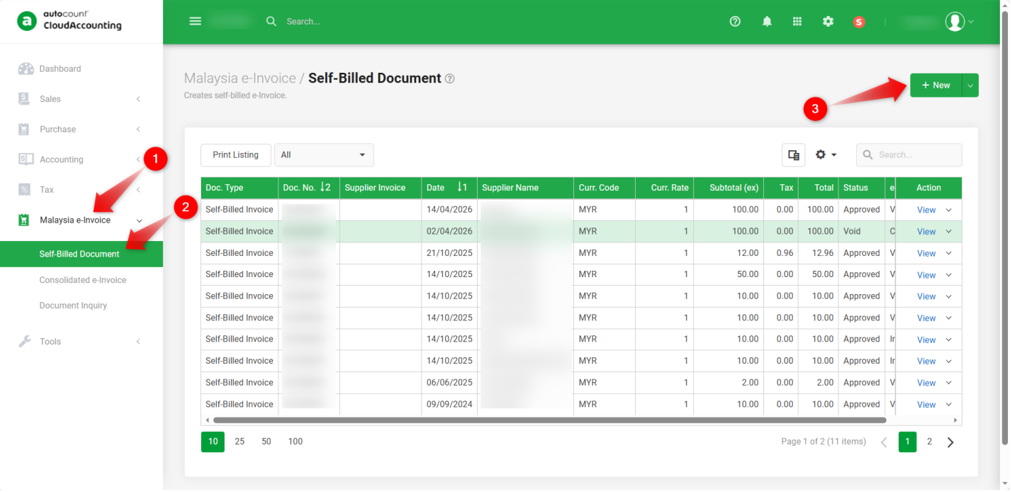
1. Go to Self-Billed Document under Malaysia e-Invoice. Click +New.
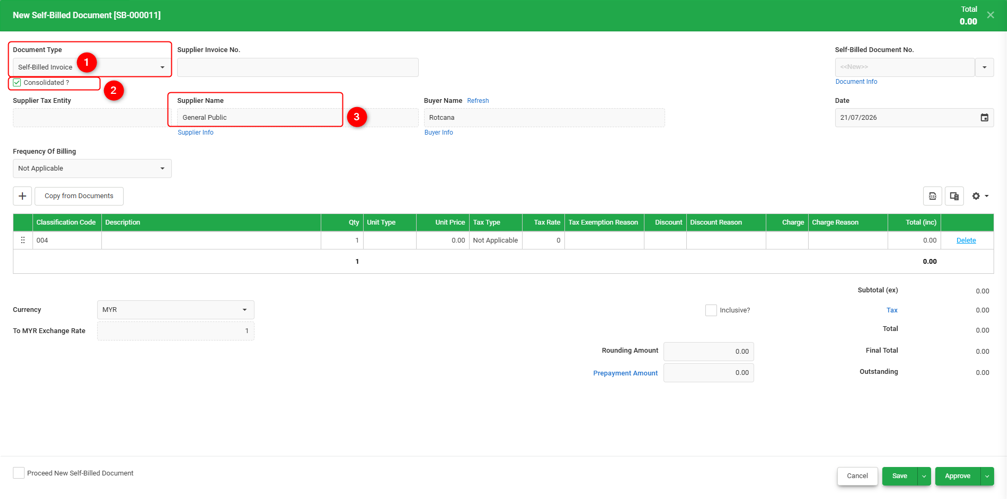
2. Set Document Type to "Self-Billed Invoice". Check the "Consolidated?" checkbox. This automatically sets the Supplier Name to "General Public".
Step 2: Search for Transactions to Copy
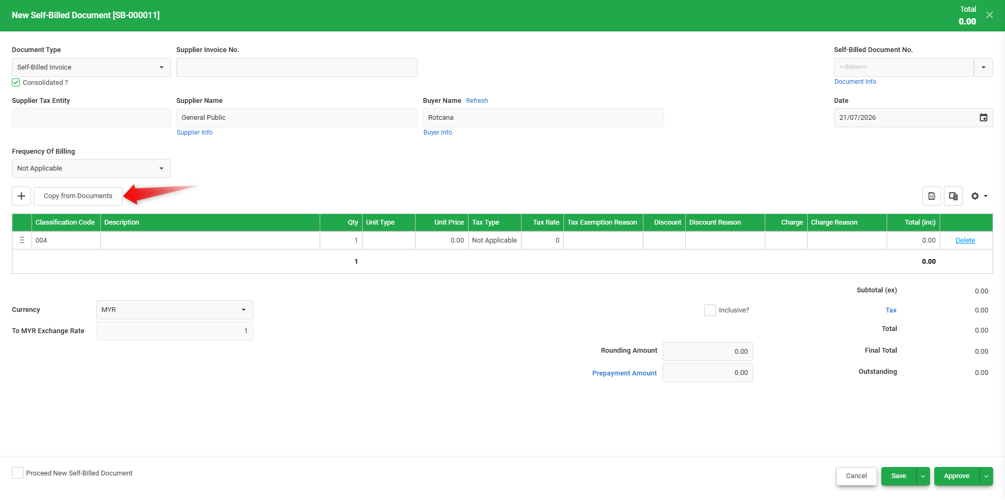
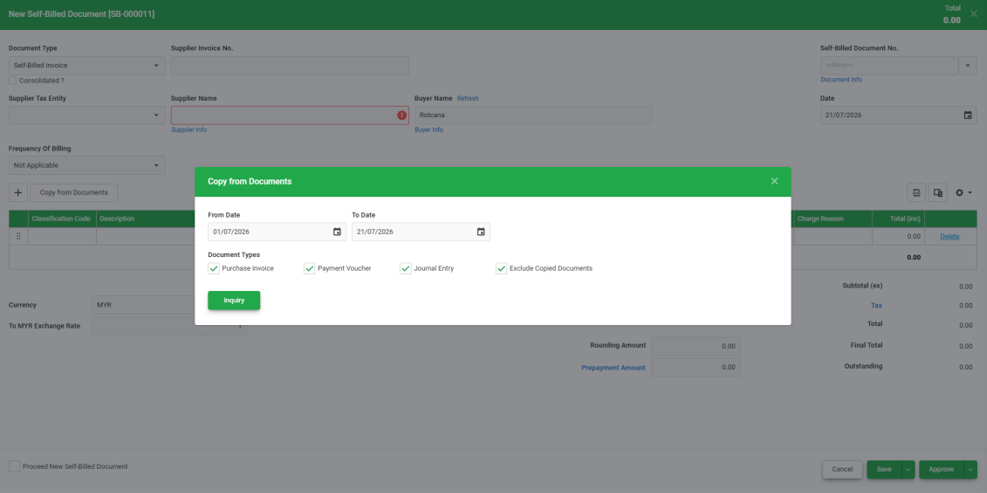
1. Click "Copy from Documents".
2. Set the From Date and To Date to define the transactions period, then select the Document Types to include: Purchase Invoice, Payment Voucher, and/or Journal Entry.
3. Keep "Exclude Copied Documents" checked to avoid pulling in transactions that have already been consolidated into another self-billed document.
4. Click Inquiry to search for matching documents.
Step 3: Select Multiple Documents and Copy
1. Review the list of matching documents, which displays with Doc. No., Document Type, Date, Supplier Name, and Total.
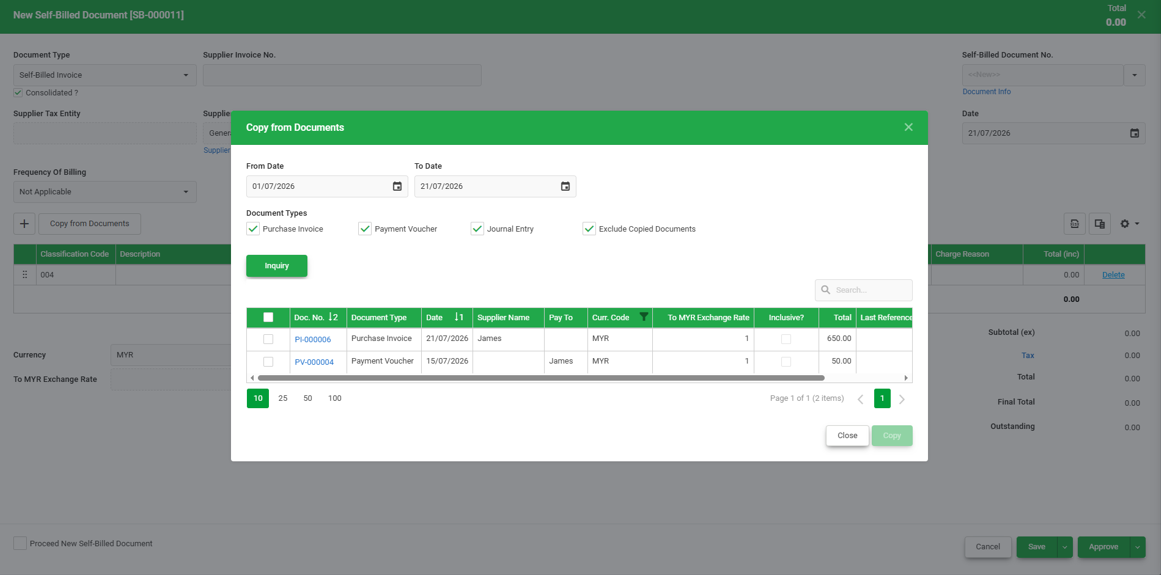
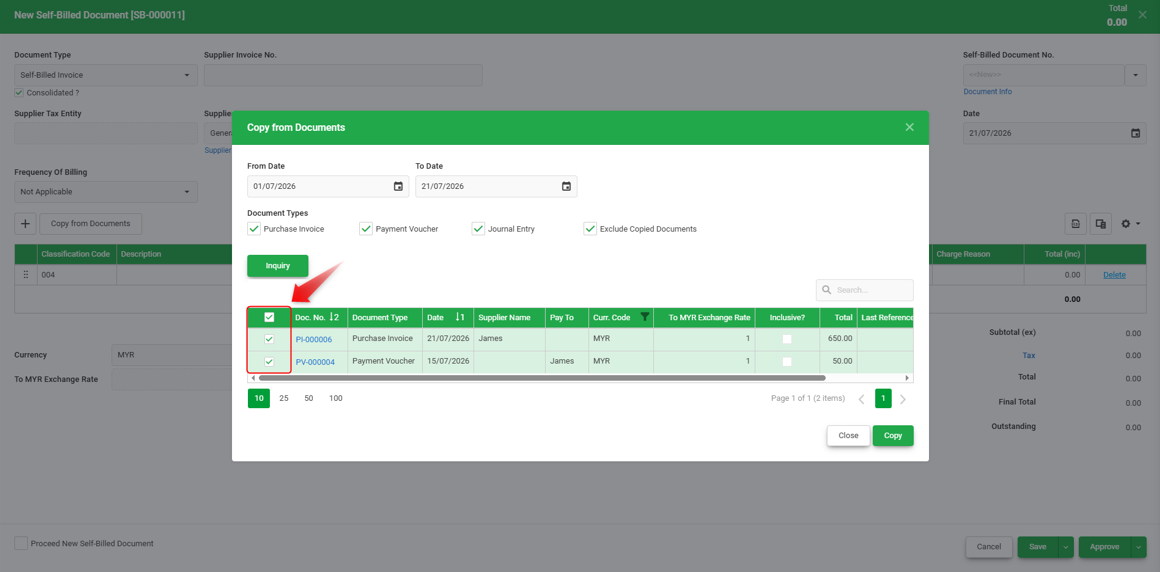
2. Check the checkbox next to each document you want to combine into this self-billed e-Invoice (or check the header checkbox to select all).
3. Click Copy to bring all selected documents into the self-billed document as separate line items.
Step 4: Review and Save
1. The selected documents will appear as line items, each showing the Classification Code, Description, Qty, Unit Price, and Total.
2. The Source Document field displays the number of consolidated documents, along with a link to view them.
3. Review the Subtotal, Tax, Total, and Final Total.
4. Click Save to save the document as a draft, or click Approve to approve it directly.
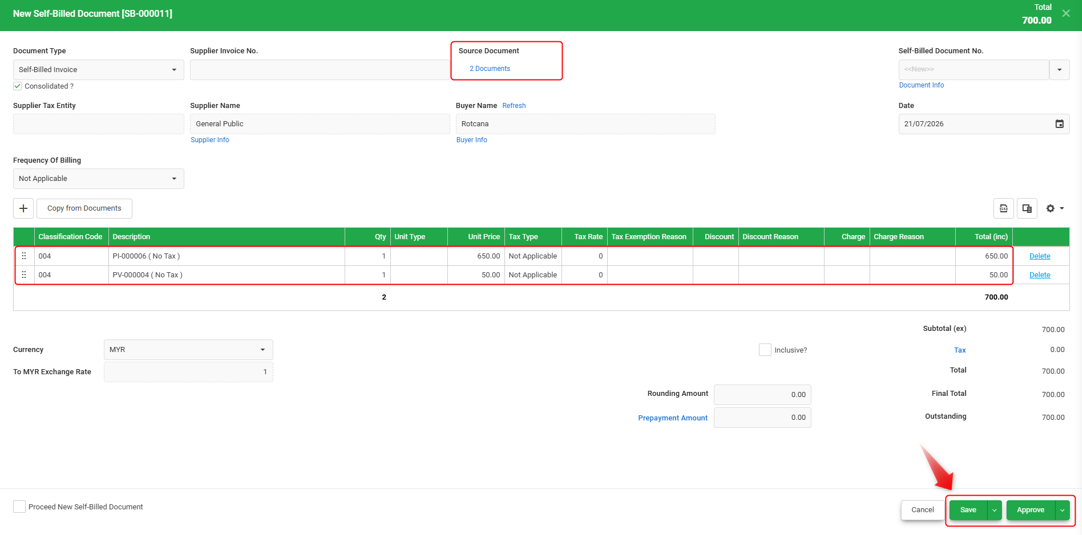
Once approved, the consolidated self-billed e-Invoice will be automatically submitted for e-Invoice validation.
Related Scenario
This article may apply if:
- Consolidated self-billed invoice
- Self-billed e-invoice consolidation
- Copy from documents self-billed
By: Rotcana 260818, Lay Swan 260831