
Search terms: import sales invoice excel, import credit note excel, bulk import sales document, AutoCount invoice import template
Overview
Sales Invoice and Credit Note can each be created in bulk using their dedicated Excel templates. This guide covers both modules together because they use the same import steps and require nearly identical fields. However, each module has its own template file and is imported separately, one document type at a time.
Applies To
- Sales Invoice (Sales > Invoice)
- Credit Note (Sales > Credit Note)
Note: Each module listed above uses its own Excel template, downloaded separately from its respective Import screen. This article groups them together solely because the steps and fields are similar.
Steps
Step 1: Download the Template
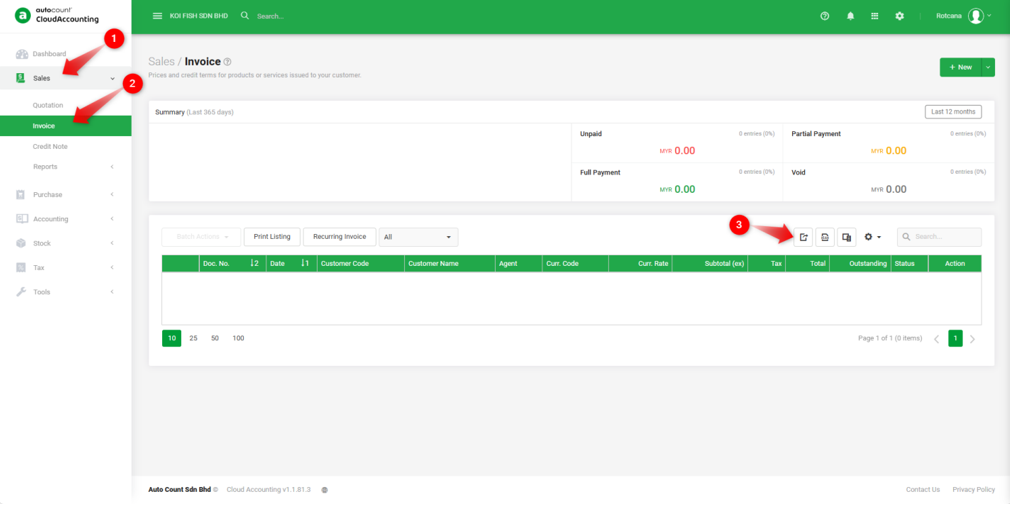
1. Go to the relevant module (Sales Invoice, or Credit Note). Click Import Data icon.
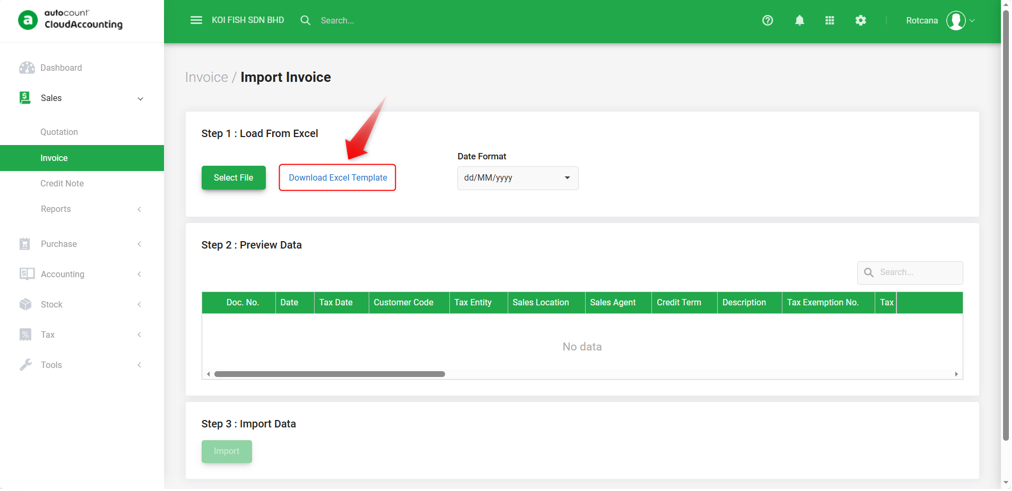
2. Click Download Excel Template to save the import file.
Step 2: Fill in the Excel Template
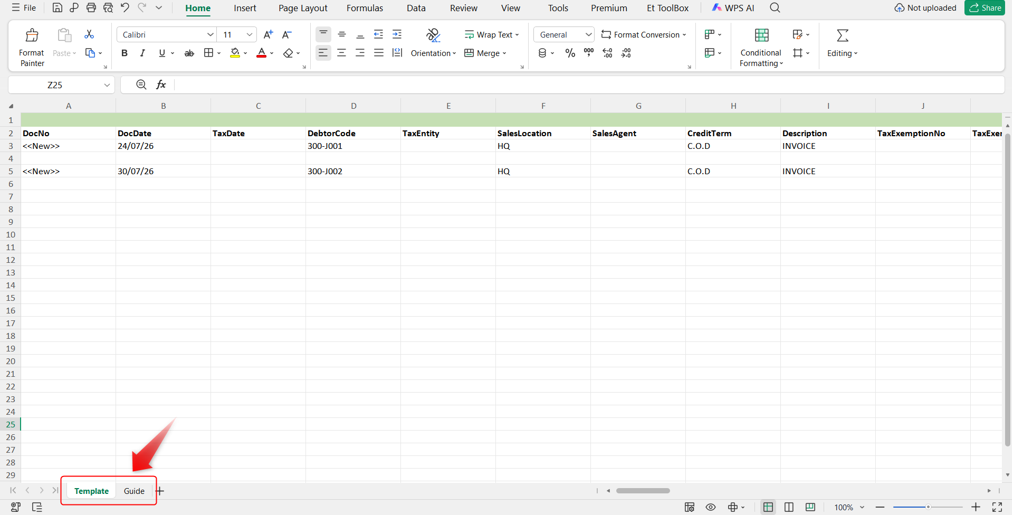
The downloaded file contains two sheets:
Template: Contains Master Columns for the document header and Details Columns for line items.
Guide: Explains every column, including Column Type, Description, Required status, and Sample Data.
Note:
To import a document with multiple line items, fill in the Master Columns (DocNo, DocDate, etc.) only on the first row of that document.
For additional line items belonging to the same document, leave the Master Columns blank and fill in only the Details Columns on the subsequent rows. To start a new document, fill in the Master Columns again on a new row with a new DocNo.
Step 3: Select File and Preview
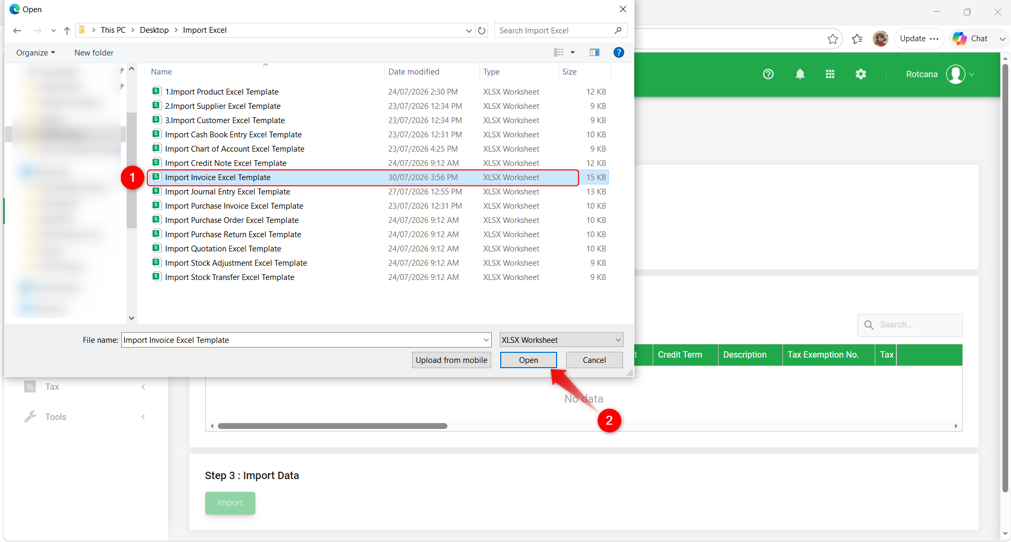
1. Return to the module's Import screen and click Select File to choose your completed Excel file.
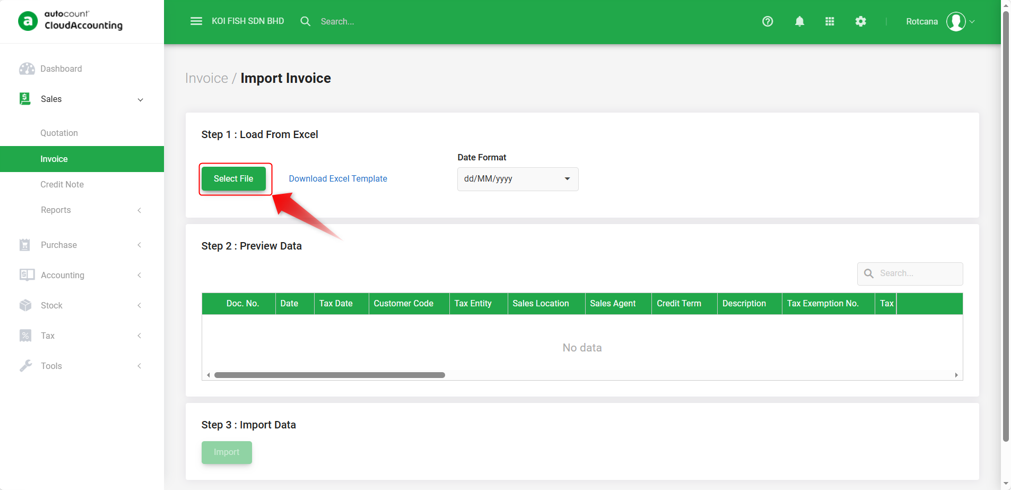
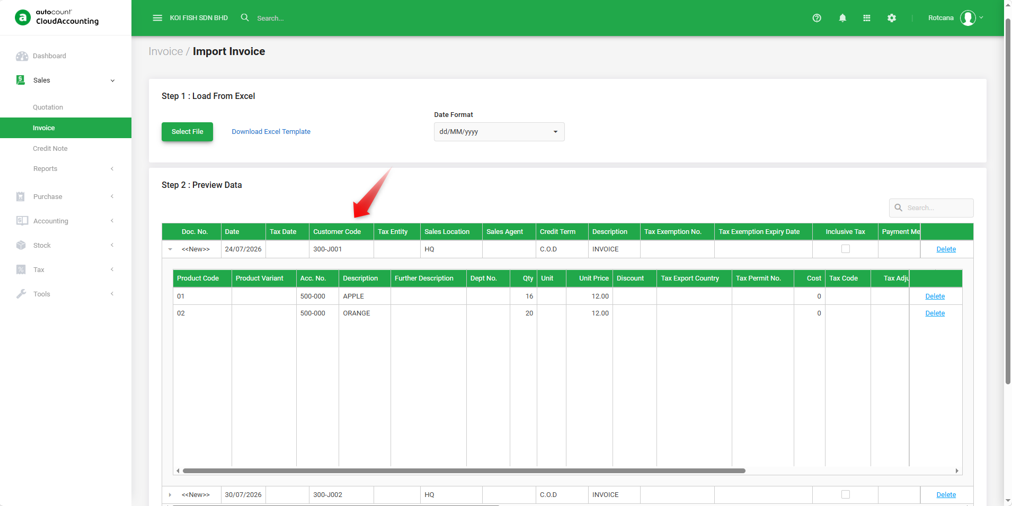
2. Review the data shown in the Preview Data table to verify that the file was read correctly before importing. Verify that all dates, codes, and amounts appear as expected.
Step 4: Import Data
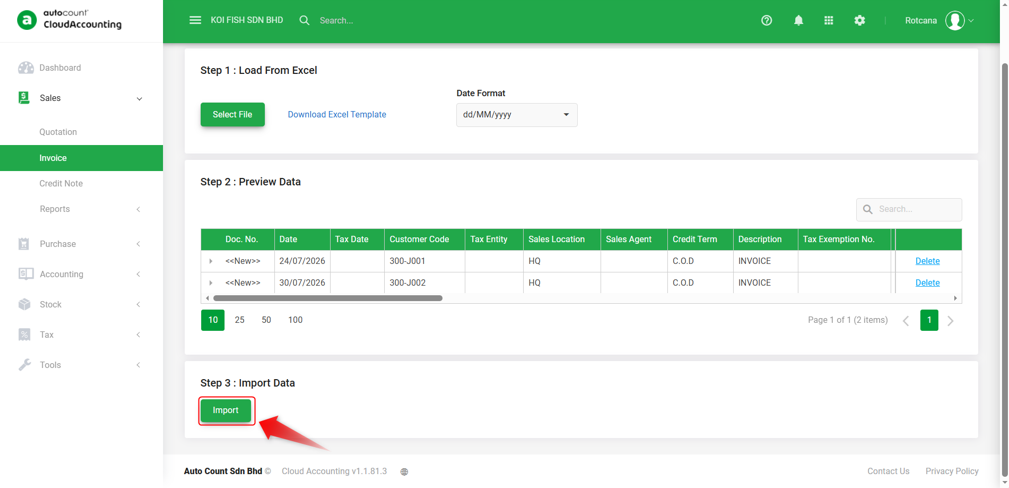
1. Click Import to create the records.
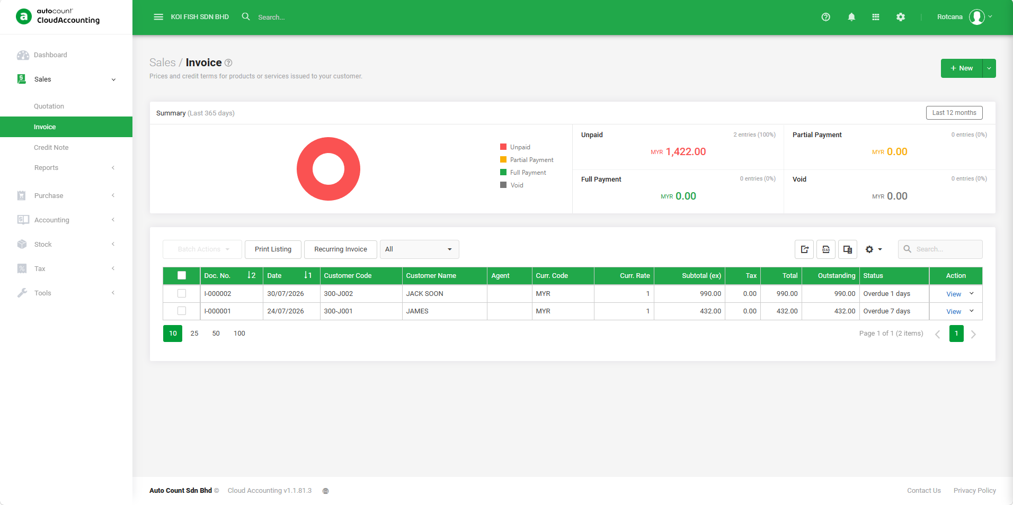
2. Once the import is complete, check the document listing to confirm that all records were created as expected.
Required Fields
Sales Invoice : DocNo, DocDate, DebtorCode, SalesLocation, CreditTerm, SubmitEInvoice (Master); AccNo (Details)
Credit Note : DocNo, DocDate, DebtorCode, SalesLocation, CreditTerm, SubmitEInvoice (Master); AccNo (Details)
Notes on Special Values
- DocNo : Enter <<New>> for auto-numbering.
- EInvoiceUUID : Enter RESET to remove an existing UUID.
- ProductVariant : Separate two variants using pipe | , e.g. Large|Blue.
- Qty : Required only when Unit Price is non-zero.
- SubmitEInvoice / SubmitConsolidatedEInvoice : Set to True to submit as e-Invoice / include in consolidation.
Fields Unique to Each Module
Sales Invoice only: TaxExemptionNo, TaxExemptionExpiryDate, PaymentMethod, PaymentRef, PaymentAmt, DeliverAddress/Contact, export fields (FreightAllowanceCharge, Incoterms, FTA info)
Credit Note only: Reason, OurInvoiceNo (invoice being credited), UnitCost, GoodsReturn (True/False — physical goods return vs. value-only adjustment)
By: Rotcana 260818, Lay Swan 260831