
This helpfile covers two methods for submitting Sales Invoices via InvoiceNow, depending on whether the Invoice Approval Workflow is enabled:
- Submit Sales Invoice via InvoiceNow to IRAS and Customer (Without Invoice Approval Workflow)
- Submit Sales Invoice via InvoiceNow to IRAS and Customer (With Invoice Approval Workflow)
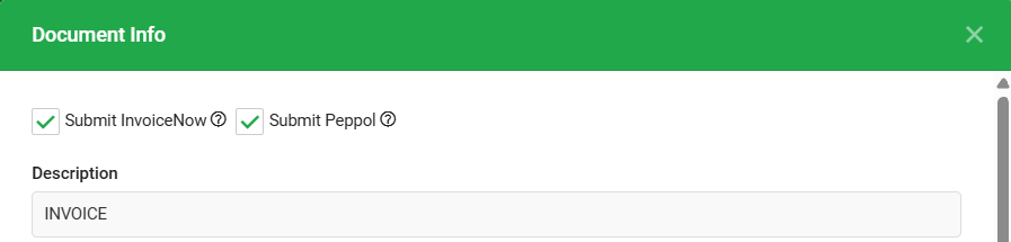
To submit an invoice to InvoiceNow, users can create a sales invoice as usual and save it. Once the InvoiceNow Start Date you set has taken effect, the “Submit InvoiceNow” and “Submit Peppol” option will be ticked by default in the “Document Info” tab.
Before learning how to create a Sales Invoice, please note that there are two separate submission options:
- Submit InvoiceNow - When this option is ticked, the document will be automatically sent to IRAS after the document has been created and saved.
- Submit Peppol - When this option is ticked, the document will be sent to Peppol network so that the other party is able to retrieve the document through the Peppol network.
Note: You need to have set up customer’s Peppol ID before using ‘Submit Peppol’.
Submit Sales Invoice via InvoiceNow to IRAS and Customer (Without Invoice Approval Workflow)
This guide will teach you how to submit a Sales Invoice via InvoiceNow to IRAS and your customer when the Invoice Approval Workflow is not enabled.
1. Go to Sales → Invoice, to create your invoice as usual.
2. Please ensure that the following information is completed before submitting to IRAS and Customer.
- Please make sure your product details are correctly mapped to a Product Unit Code and have an eligible Tax Code assigned. Then, make sure the customer's PEPPOL account is retrieved.
Note: Please note that Sales Invoice containing at least one item with an eligible Tax Code will be submitted to IRAS via InvoiceNow. For example, the eligible Tax Code are “SR”, and “ZR”.
- For other Tax Code will not trigger the InvoiceNow submission.
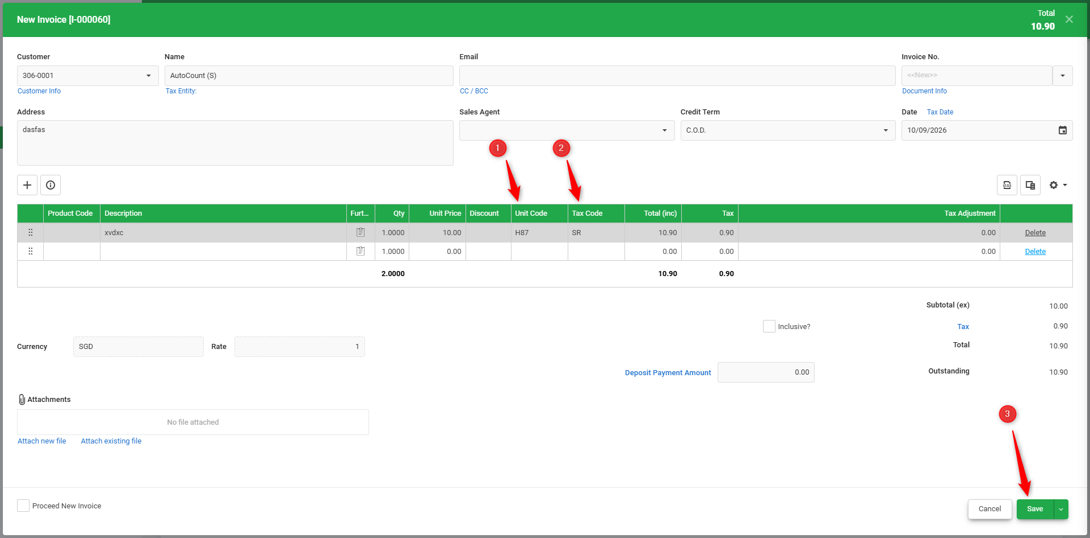
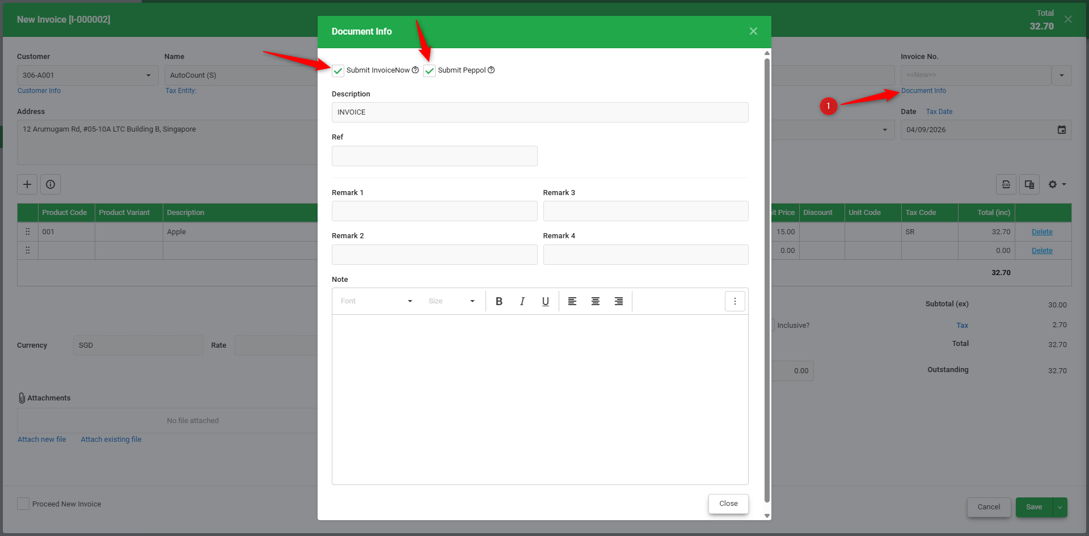
3. To successfully submit a sales invoice to IRAS via InvoiceNow, make sure that “Submit InvoiceNow” option is ticked. To send the sales invoice to your customer, make sure the “Submit Peppol” option is ticked.
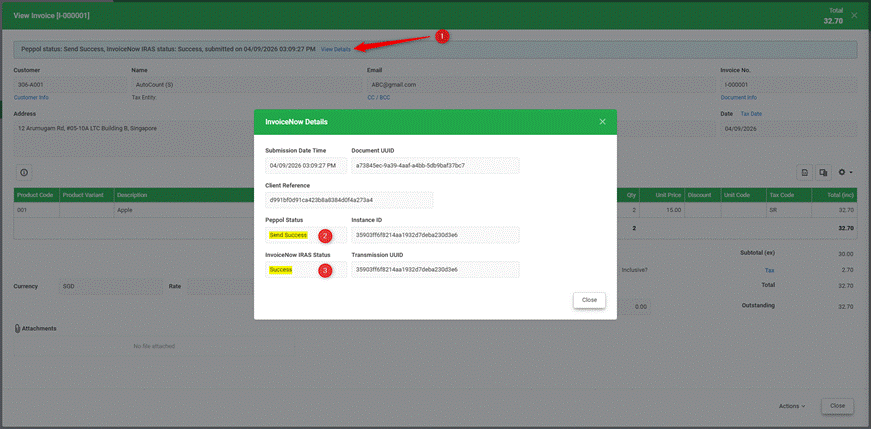
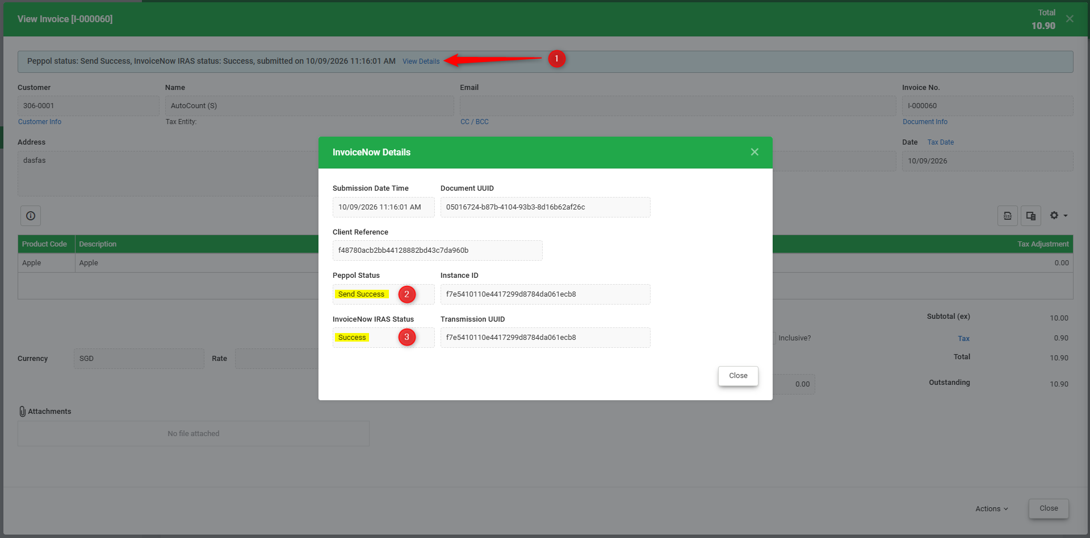
4. Click ‘View Details’ to check the Peppol and InvoiceNow IRAS submission status after saving. The Sales Invoice that is successfully submitted will have the status of success in the Peppol Status and InvoiceNow IRAS Status. The details include the Submission Date Time, Document UUID, Client Reference, Instance ID, Transmission UUID.
Submit Sales Invoice via InvoiceNow to IRAS and Customer (With Invoice Approval Workflow)
This guide teaches on how to submit a Sales Invoice via InvoiceNow when the Invoice Approval Workflow is enabled.
When the Invoice Approval Workflow is enabled, saving a Sales Invoice as a draft will not submit the invoice to InvoiceNow.
Depending on the approval settings, the invoice creator will see either Save, Submit for Approval or Approve:
- Save - Click save to save the invoice as a draft. Saving the invoice as draft does not submit it for approval.
- Submit for Approval - The Sales Invoice must first be submitted for approval and approved by the designated approver before it can be submitted to InvoiceNow.
- Approve - Clicking Approve will directly submit the Sales Invoice to InvoiceNow.
1. Go to Sales → Invoice, to create your invoice as usual.
2. Make sure that the following information is completed before submitting to IRAS and Customer.
- Please make sure your product details are correctly mapped to a Product Unit Code and have an eligible Tax Code assigned.
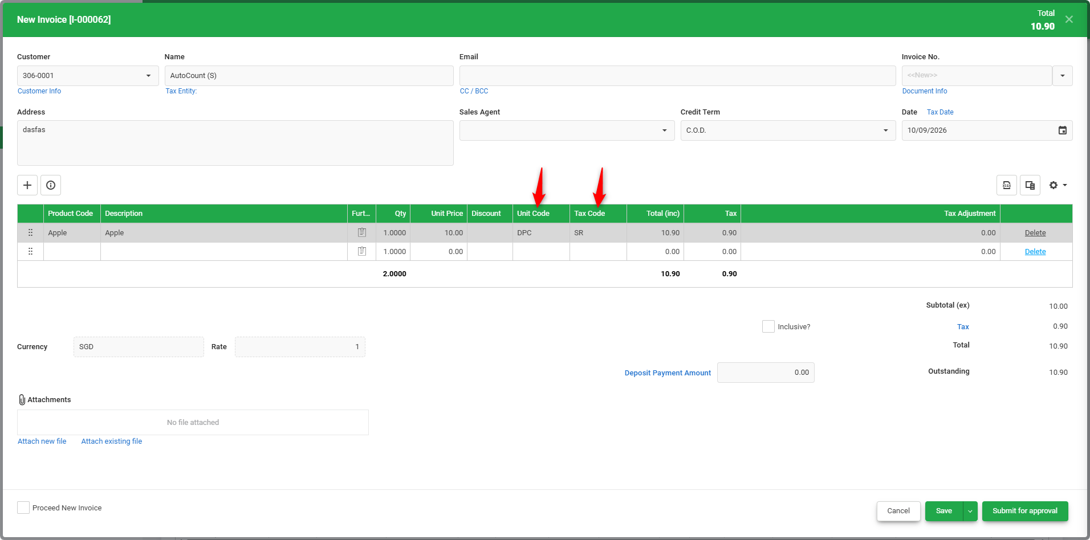
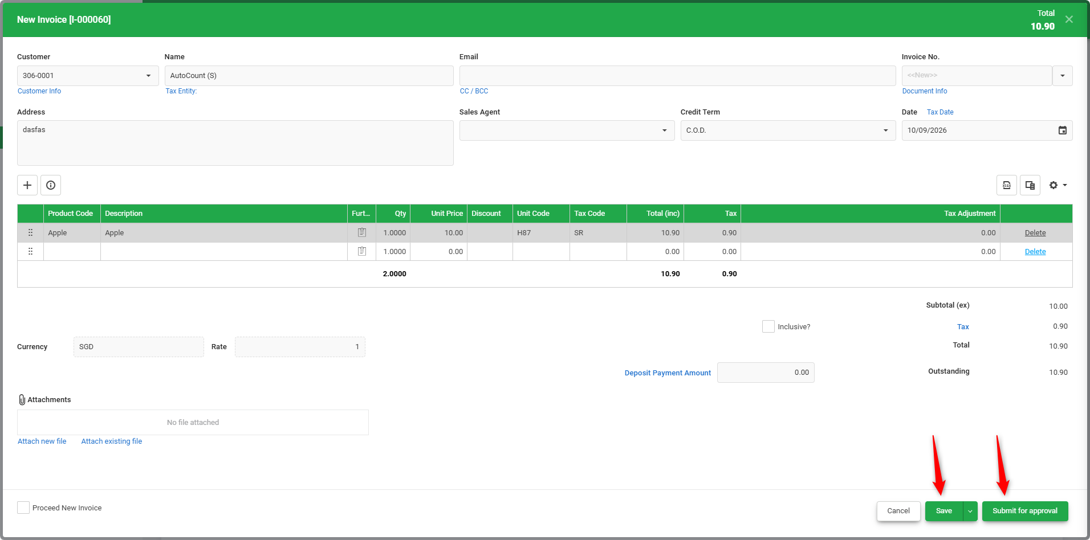
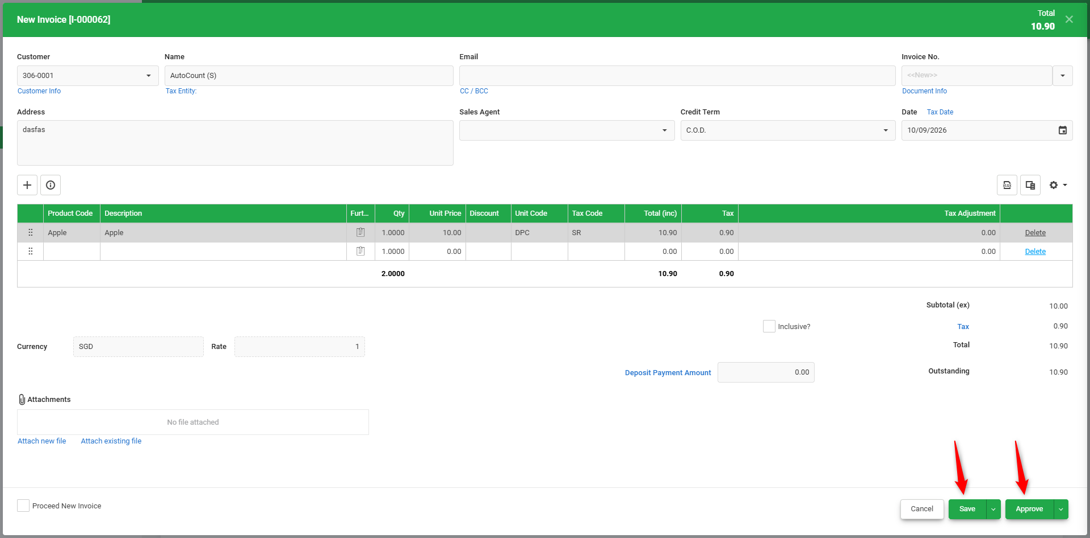
3. After creating the invoice, you can click ‘Save’, ‘Submit for Approval’, or ‘Approve’. The available options depend on the access rights assigned to you.
- If you do not have the Approval Access Right, only the ‘Save’ and ‘Submit for Approval’ buttons will be available. You can click ‘Submit for Approval’ to submit the invoice for approval.
- If you have the Approval Access Right, the ‘Save’ and ‘Approve’ buttons will be available. You can click on ‘Approve’ once all details are confirmed to be correct, and it will be submitted to InvoiceNow.
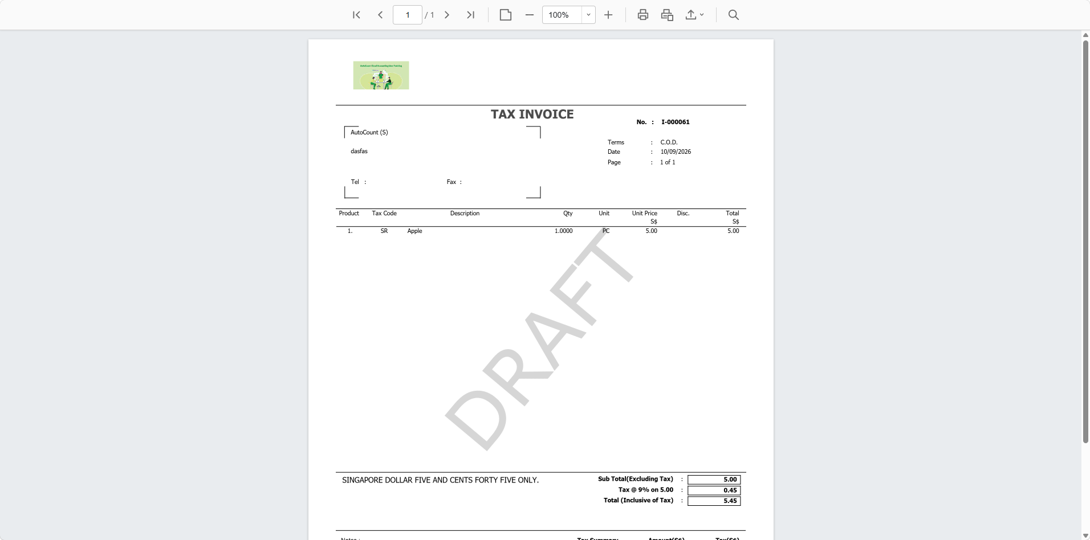
- You can click the ‘Save’ button to save the invoice as a draft, allowing you to double-check the details before submitting for approval. The Invoice will show DRAFT status after you click Save. You can click ‘Submit for Approval’ to submit the invoice for approval.
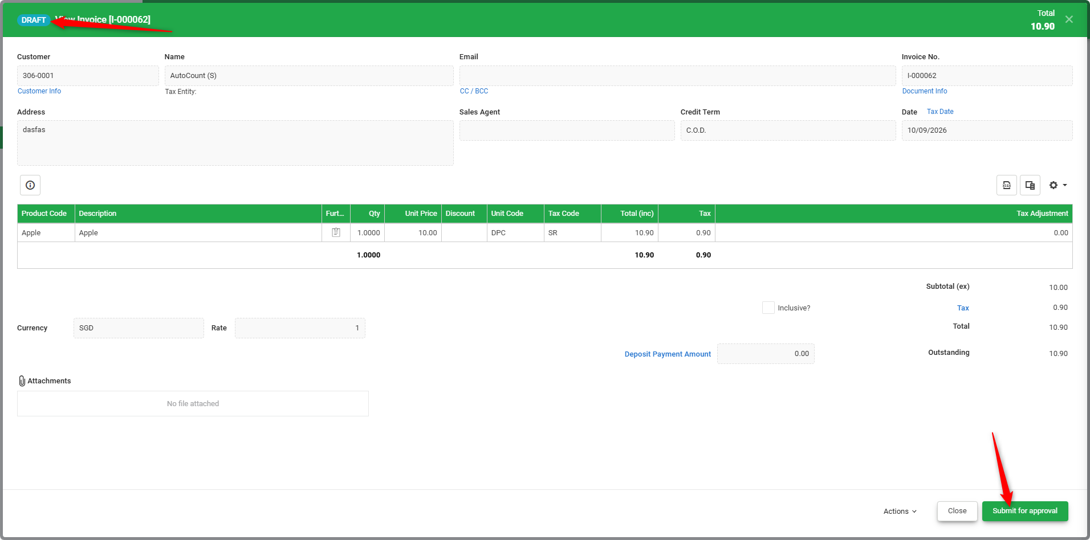
Note: For invoices in Draft status, the printed report will display a DRAFT watermark.
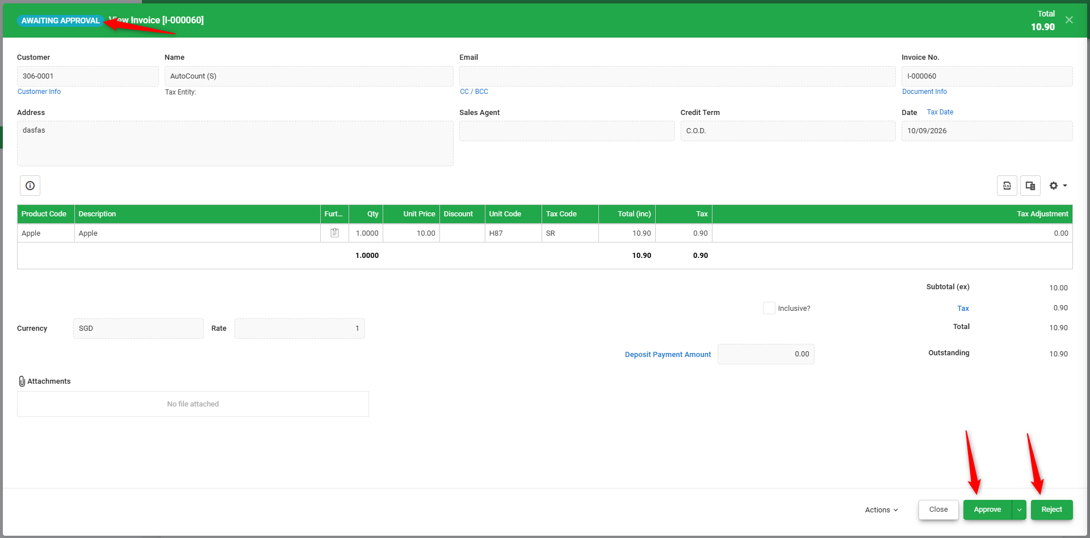
4. If you click ‘Submit for Approval’ the approver can go to the invoice with ‘Awaiting Approval’ status and click ‘Approve ’ or ‘Reject’. Once the approver approves the invoice, the sales invoice will be submitted to InvoiceNow.
Approve - Approve the sales invoice and submit it to InvoiceNow.
Reject - If any information is incorrect or requires amendment, click Reject to return the invoice to the submitter for correction and resubmission.
5. Click ‘View Details’ to check the Peppol Status and InvoiceNow IRAS Status after the invoice has been approved. A successfully submitted Sales Invoice will show Success for both the Peppol Status and InvoiceNow IRAS Status.
You are done!
Prepared by Soon Horng, checked by Seck Voon & Stanley