
Search terms: delivery order missing address, customer address not showing, print delivery order no address, delivery address blank, invoice delivery address not updated
Question:
When printing the Delivery Order template in the Invoice module, the delivery address does not appear on the printout.
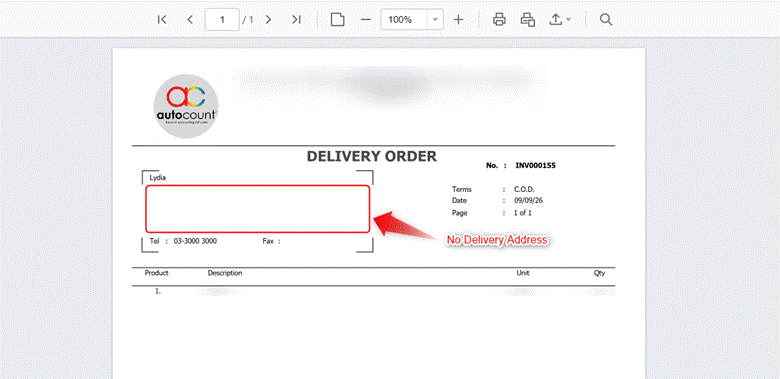
Possible Reason:
Invoice captures the delivery address from Customer Maintenance at the time of creation. If the delivery address was not maintained in Customer Maintenance when the invoice was created, the address will remain blank on the printed Delivery Order template.
Updating Customer Maintenance afterward will not automatically update existing invoices as each created invoice permanently retains the details captured at its creation time.
Solution:
For Future Invoices
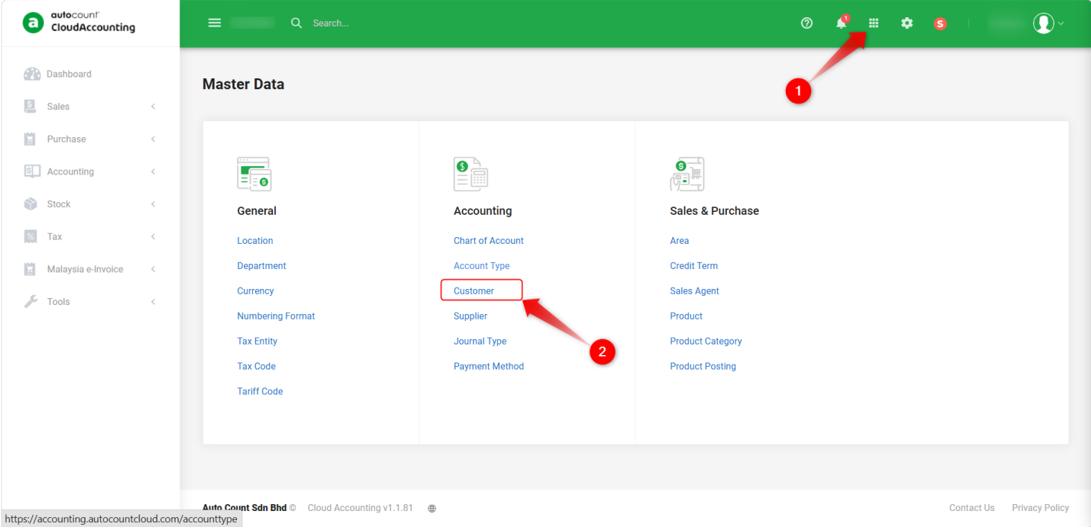
1. Go to Master Data > Customer and click Edit on the relevant customer record.
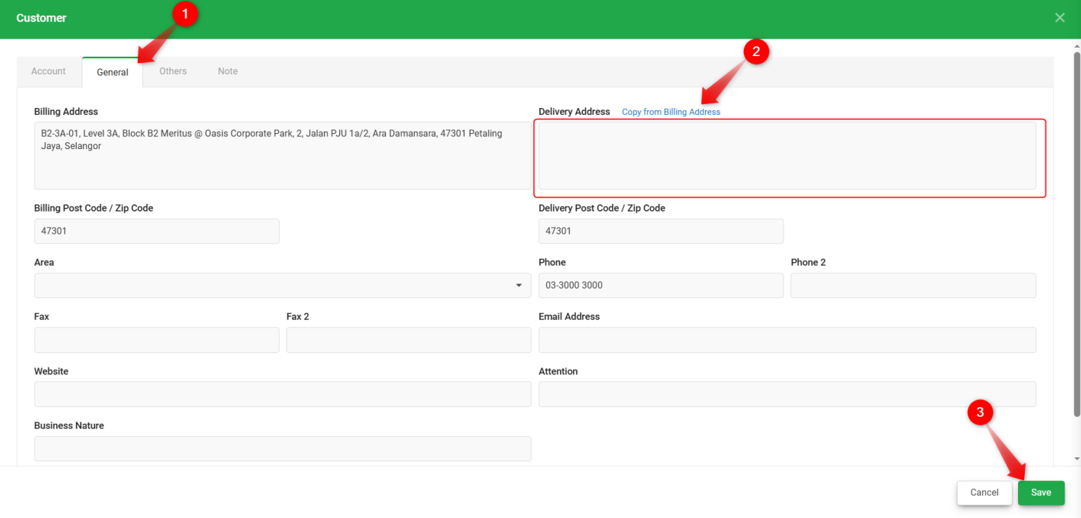
2. Under the General tab, fill in the Delivery Address field.
3. If the delivery address is the same as the billing address, click Copy from Billing Address instead of typing it again.
4. Click Save.
Note: This update will only apply to invoices created after the change. It will not affect previously created invoices.
For Existing Invoices
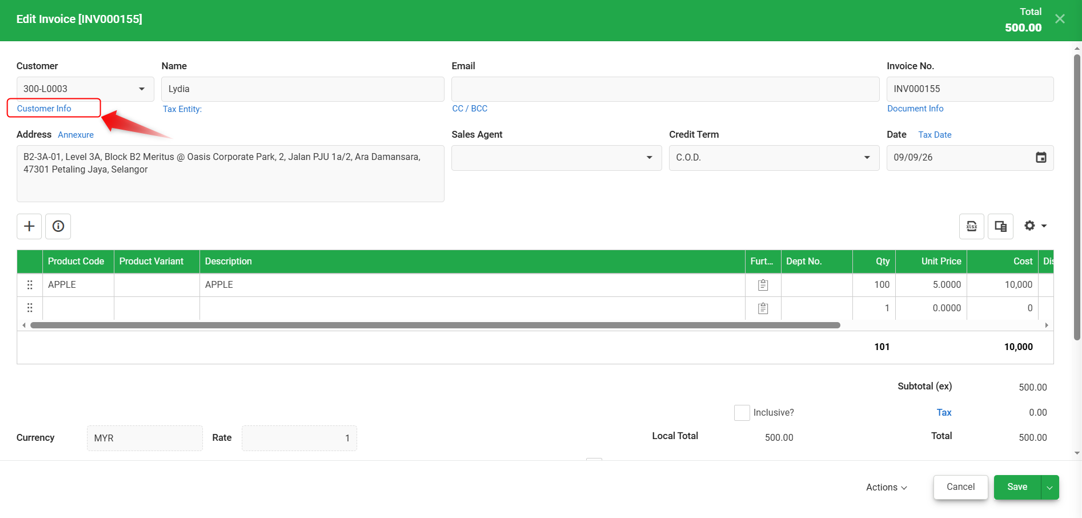
1. Edit the affected Invoice.
2. Click Customer Info just below Customer code.
3. Under Delivery Information, fill in the Delivery Address field.
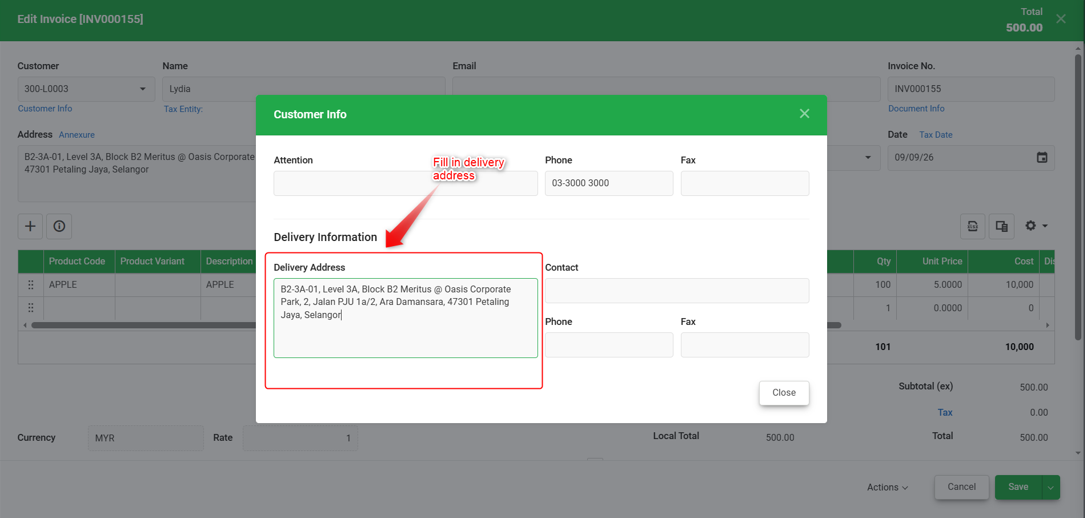
4. Click Close, then Save the invoice.
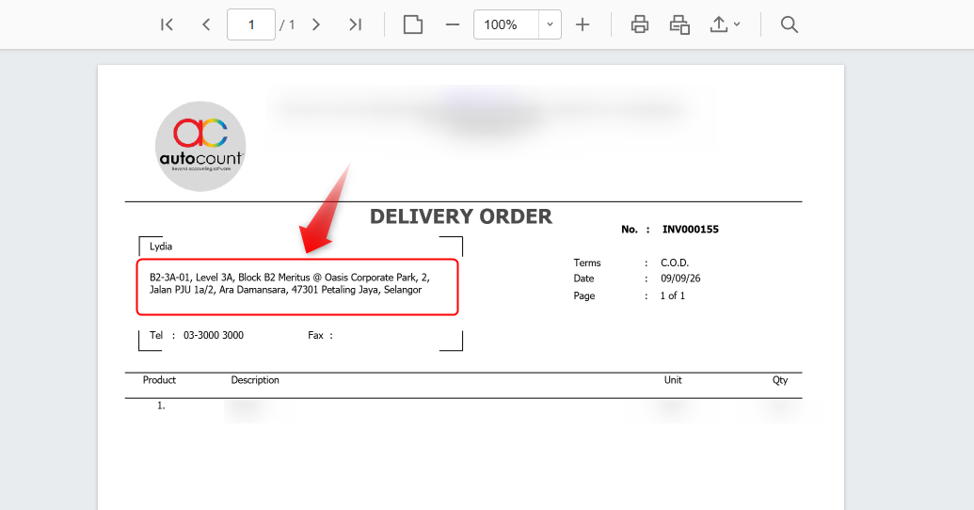
5. Print the invoice using the Delivery Order template to confirm the address now appears.
By: Rotcana 260918, Lay Swan 260930