
Search terms: import cash book entry excel, import receipt voucher excel, import payment voucher excel, bulk import cash book, AutoCount cash book import template
Overview
Cash Book Entry records (Receipt Voucher and Payment Voucher) can be created in bulk using an Excel template. Unlike Sales/Purchase documents, Cash Book Entry uses a three-part template (Master, Details, and Payment Details ). This is because each entry records both the accounting lines and the payment details (payment method, cheque number, bank charges, etc.).
Applies To
- Cash Book Entry - Receipt Voucher and Payment Voucher (Cash Book Entry > Import Cash Book Entry)
Steps
Step 1: Download the Template
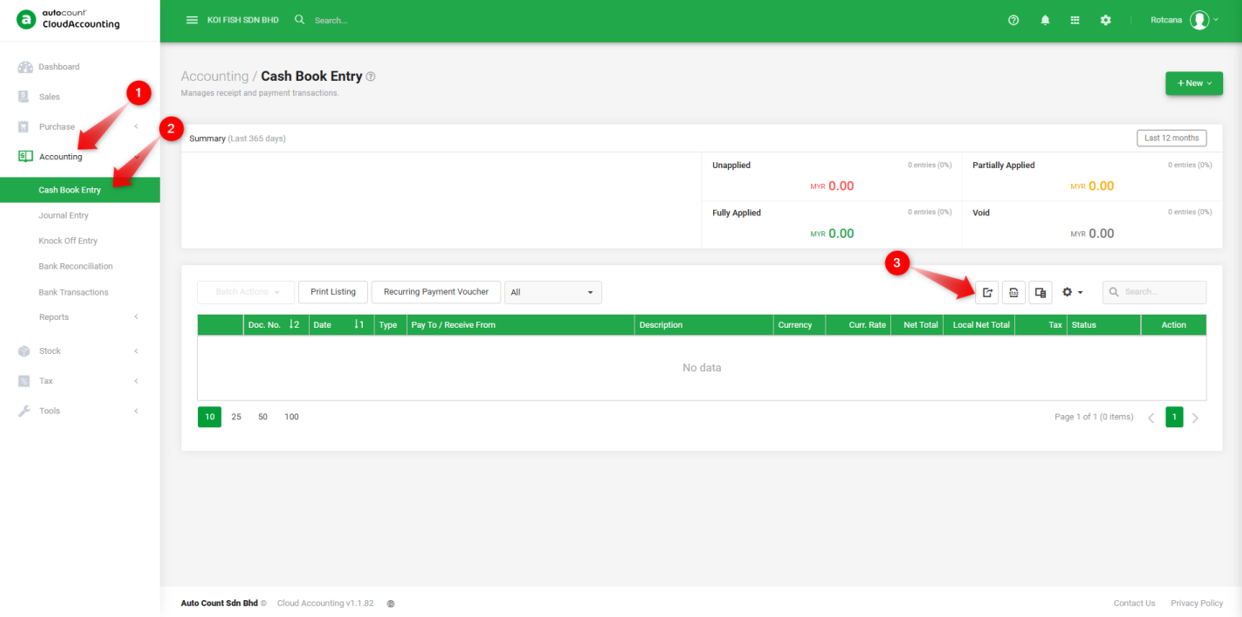
1. Go to Accounting > Cash Book Entry, click the Import Data icon.
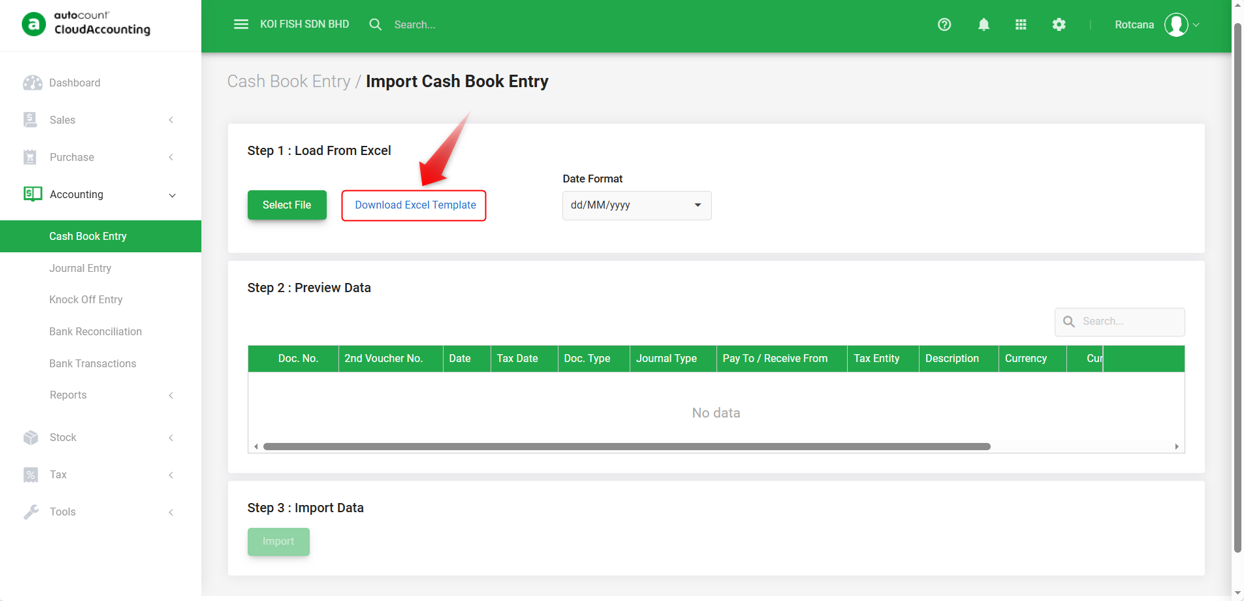
2. Click Download Excel Template.
Step 2: Fill in the Excel Template
The downloaded file contains two sheets:
- Template : Split into three sections—Master Columns (voucher header), Details Columns (accounting lines), and Payment Details Columns (how the payment was made).
- Guide : Explains every column, including Column Type, Description, Required Status, and Sample Data.
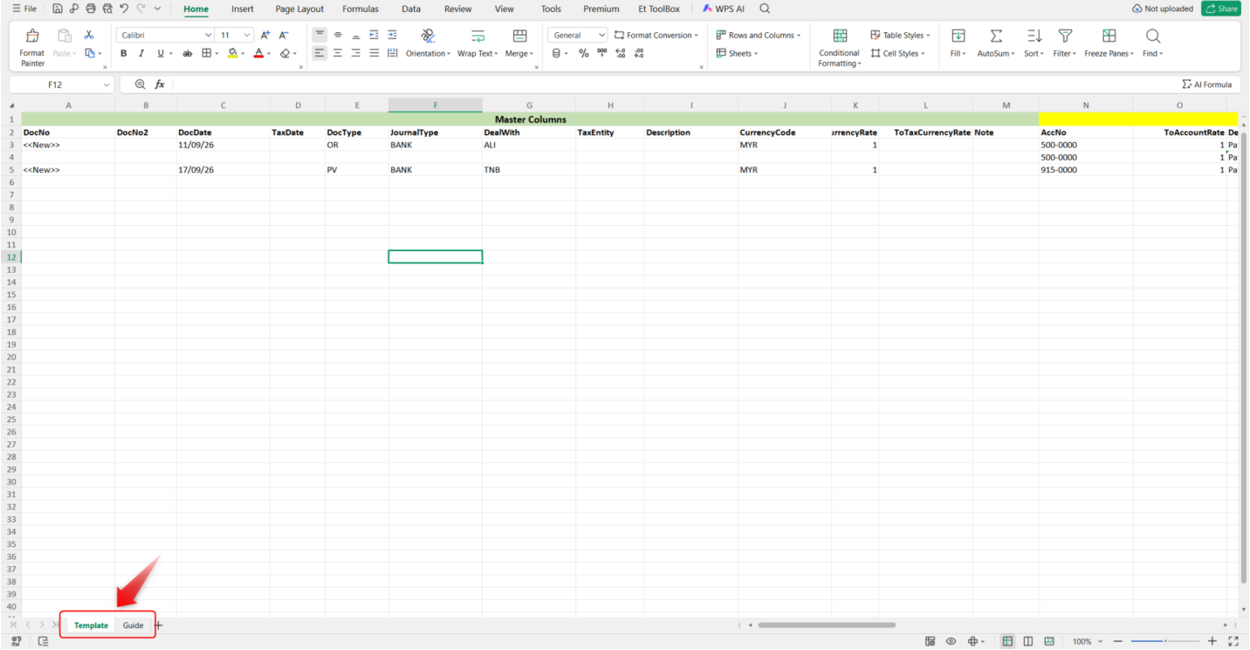
Note: To import a voucher with multiple accounting lines, fill in the Master Columns only on the first row of that voucher. Leave them blank on subsequent rows for the same voucher.
Step 3: Upload and Preview
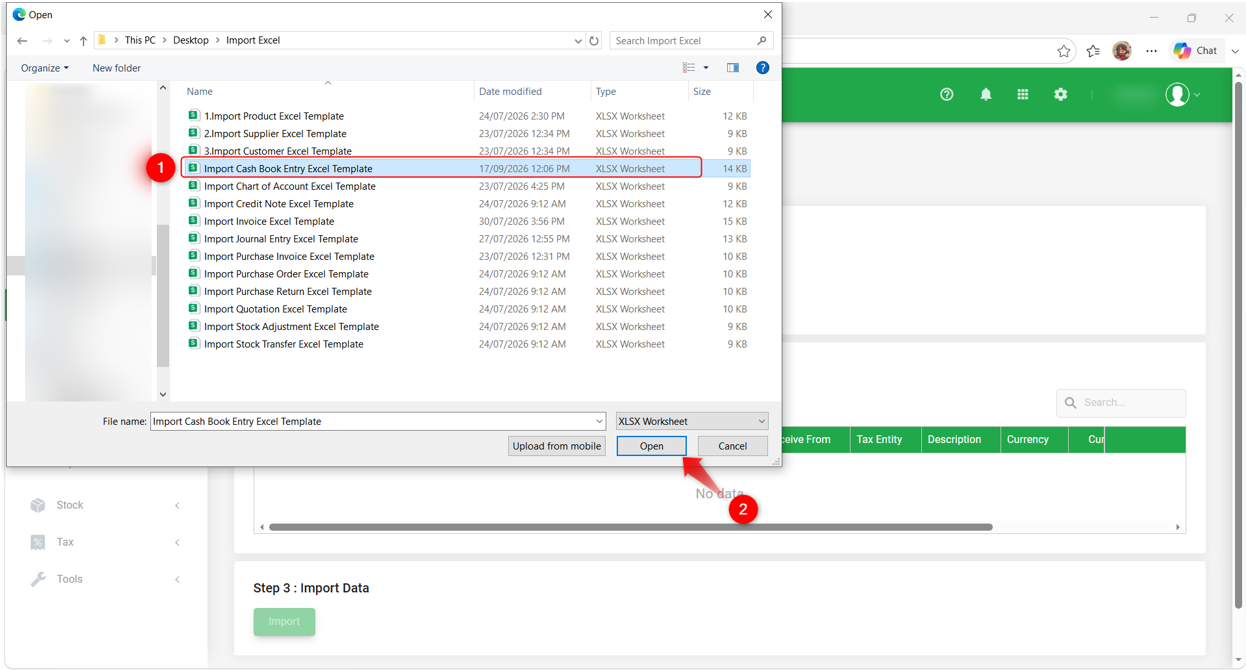
1. Return to the Import Cash Book Entry screen and click Select File to upload your completed Excel file.
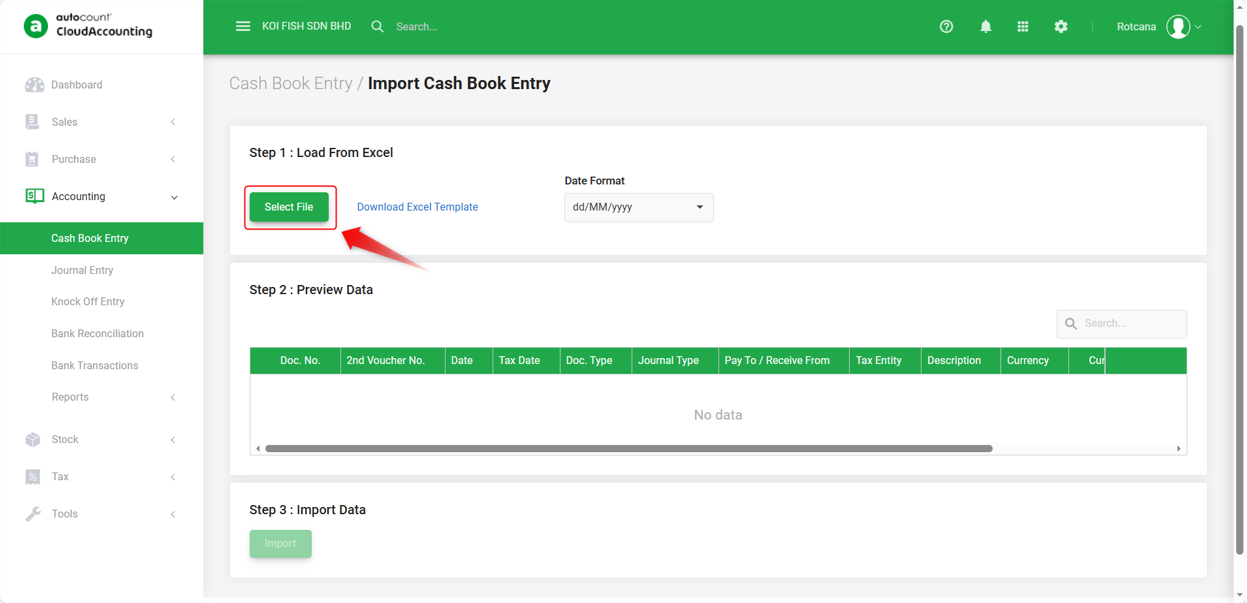
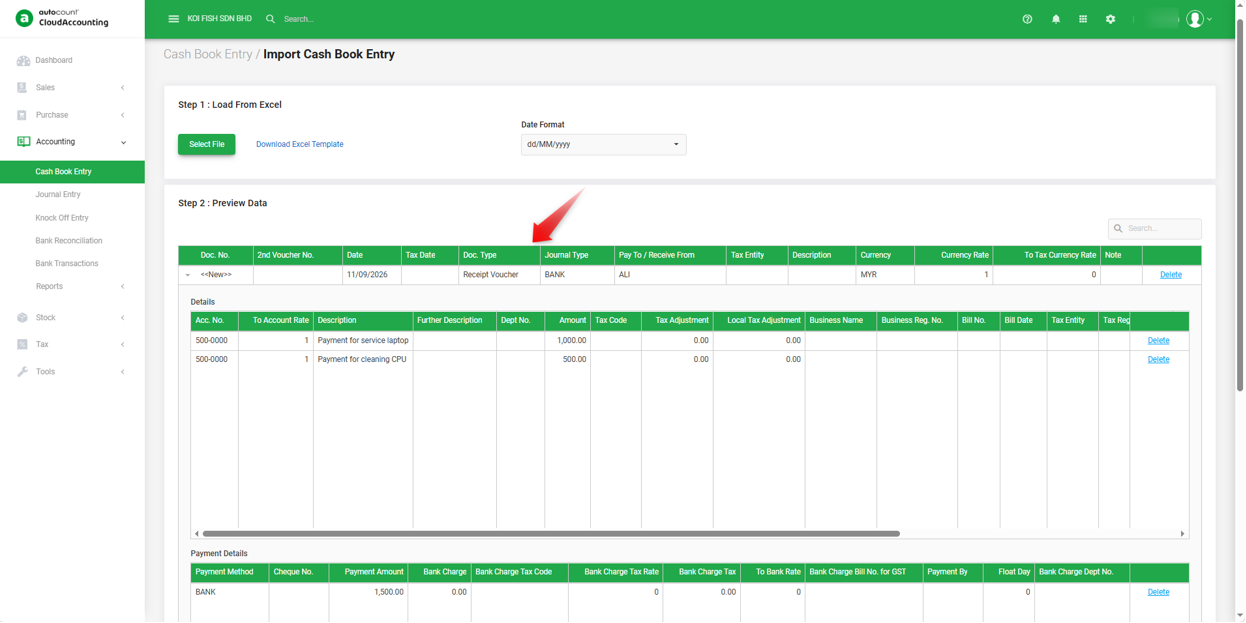
2. Review the data shown in the Preview Data table to confirm it was read correctly.
Step 4: Import Data
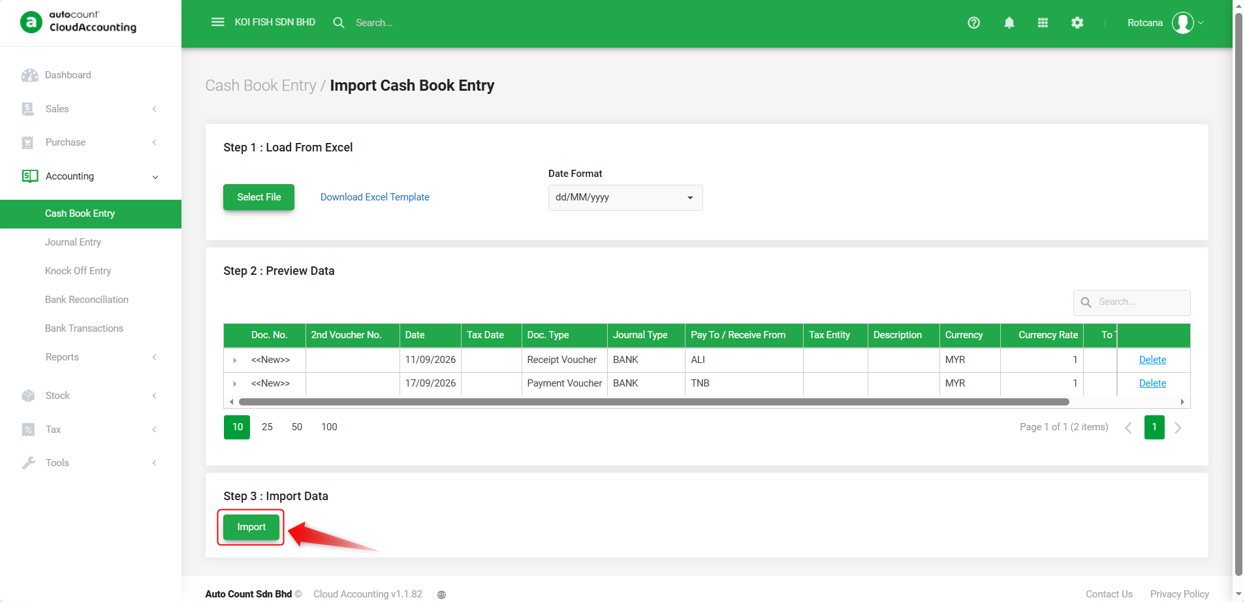
1. Click Import.
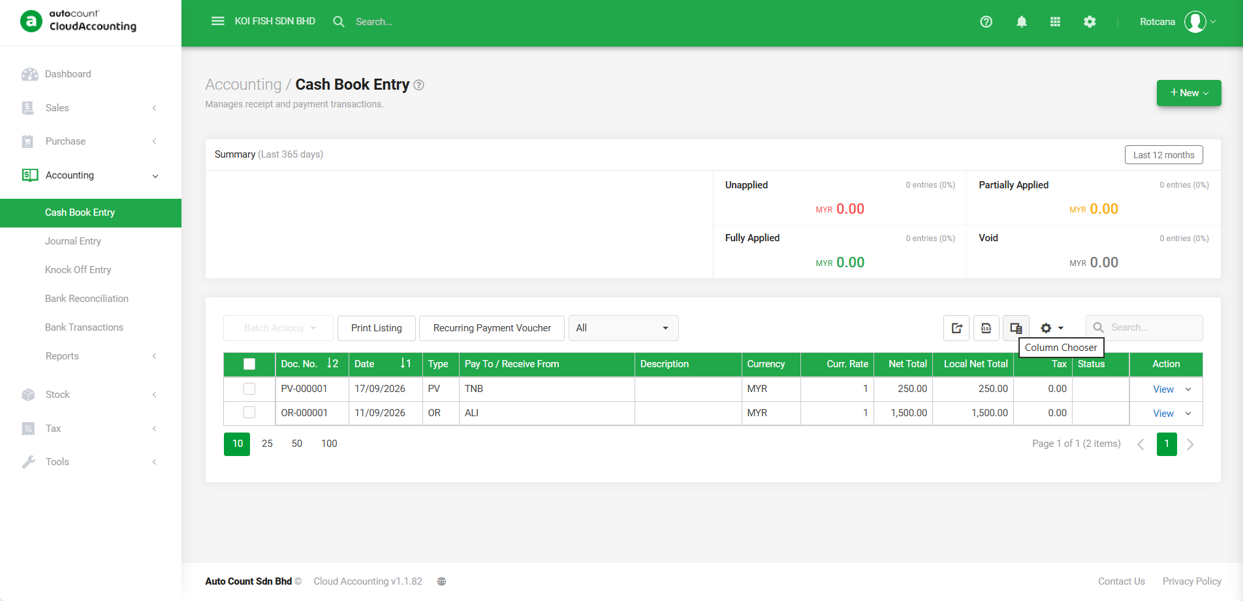
2. Once the import is complete, check the Cash Book Entry listing to confirm that the records were created as expected.
Required Fields
Master Columns: DocNo, DocDate, DocType, JournalType, CurrencyCode
Details Columns: AccNo
Payment Details Columns: PaymentMethod
The DocType Field: Receipt vs. Payment Voucher
The DocType column determines the type of voucher created:
- OR = Receipt Voucher (money coming in)
- PV = Payment Voucher (money going out)
Notes on Special Values
- DocNo — enter <<New>> for auto-generated numbering.
- DealWith — the "Pay To" (for Payment Voucher) or "Receive From" (for Receipt Voucher) party.
- InclusiveTax — set to True/False to indicates whether the line amount includes tax.
By: Rotcana 260918, Lay Swan 260930