
Stock Adjustment records can also be created in bulk using an Excel template, instead of entering each adjustment manually.
Step 1: Download the Template
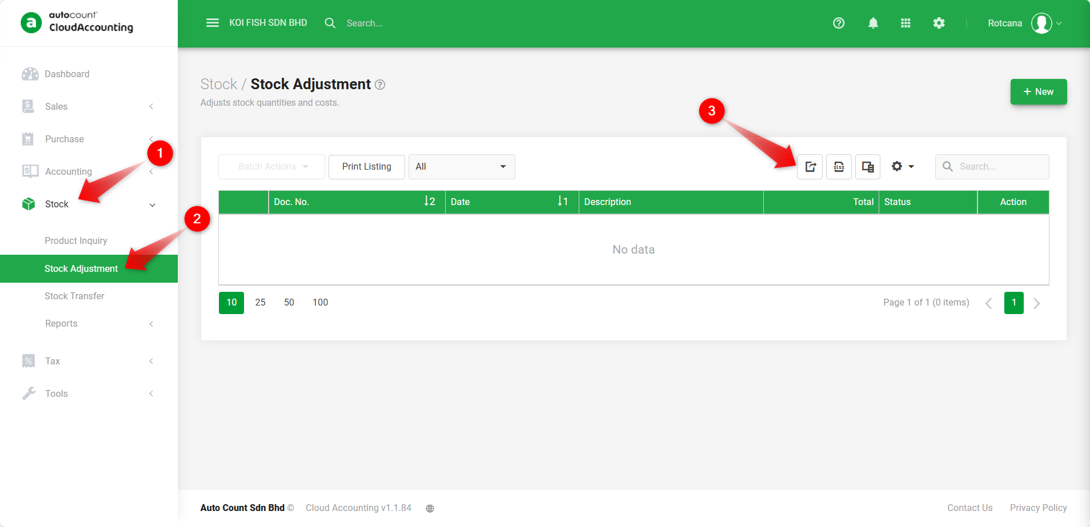
- Go to Stock > Stock Adjustment, click the Import Data icon.
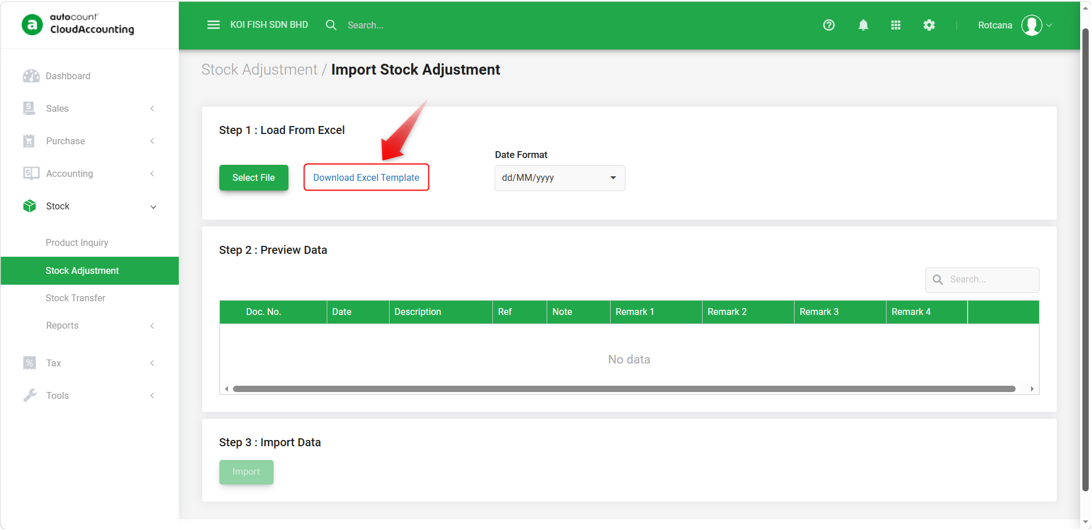
- Click Download Excel Template.
Step 2: Fill in the Excel Template
The downloaded file contains two sheets:
- Template : Master Columns for the document header, Details Columns for stock lines
- Guide : Explains every column, including Column Type, Description, whether it is Required, and Sample Data.
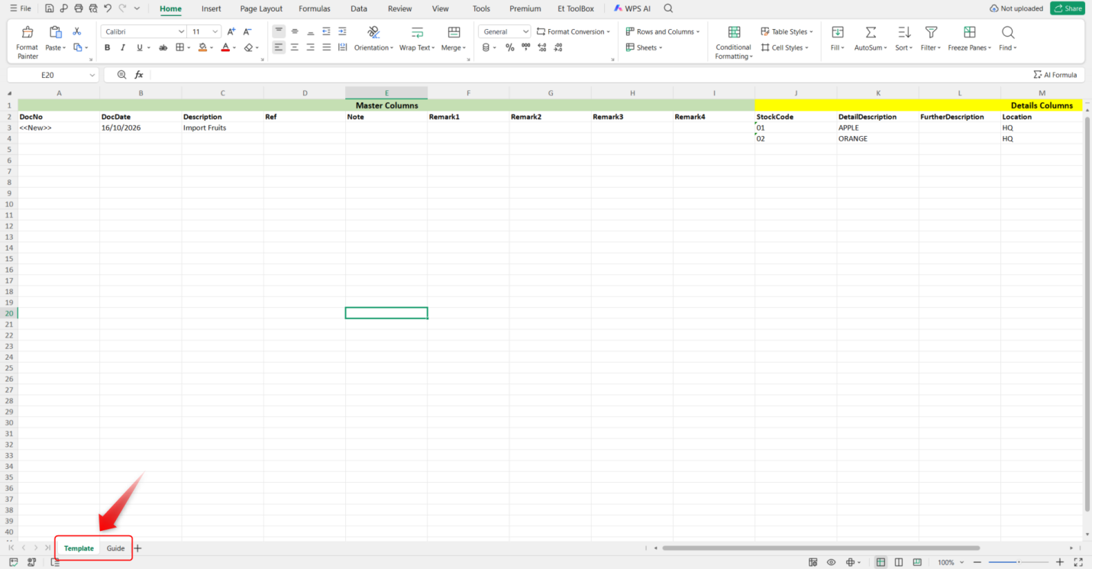
Note: To import a document with multiple stock lines, fill in the Master Columns only on the first row of that document; leave them blank on subsequent rows for the same document.
Step 3: Upload and Preview
- Return to the Import Stock Adjustment screen and click Select File to choose your completed Excel file.
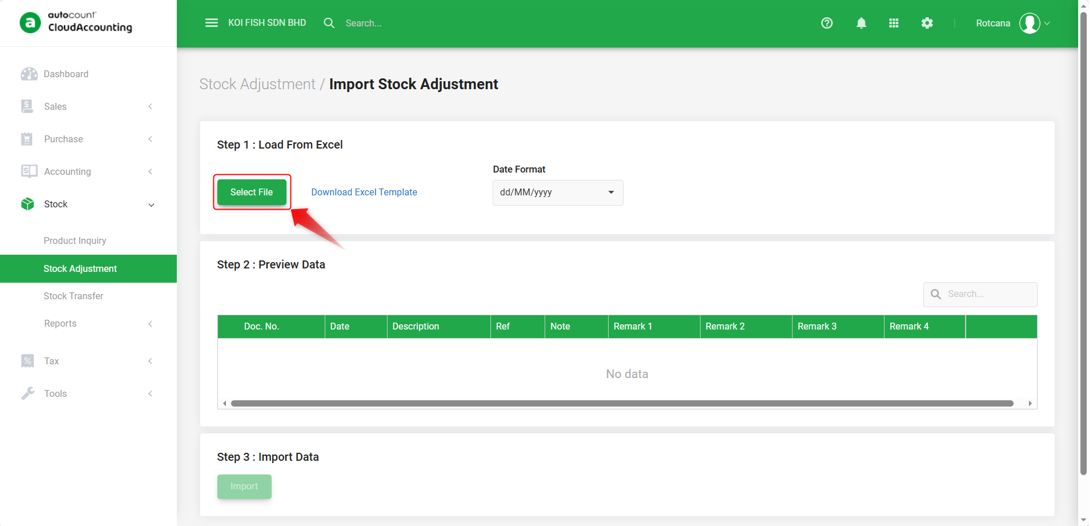
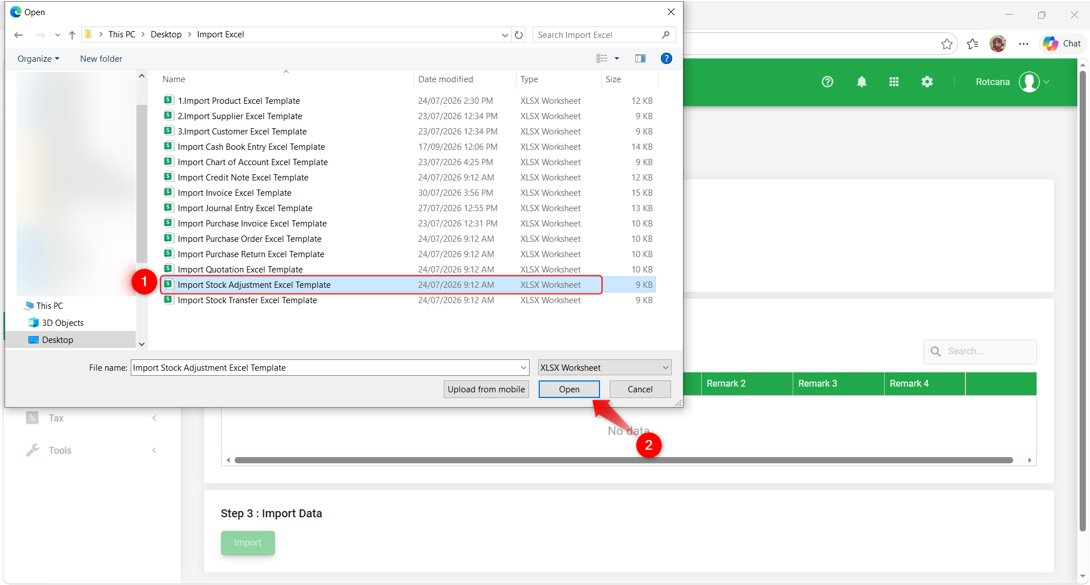
- Review the data shown in the Preview Data table to confirm it has been read correctly.
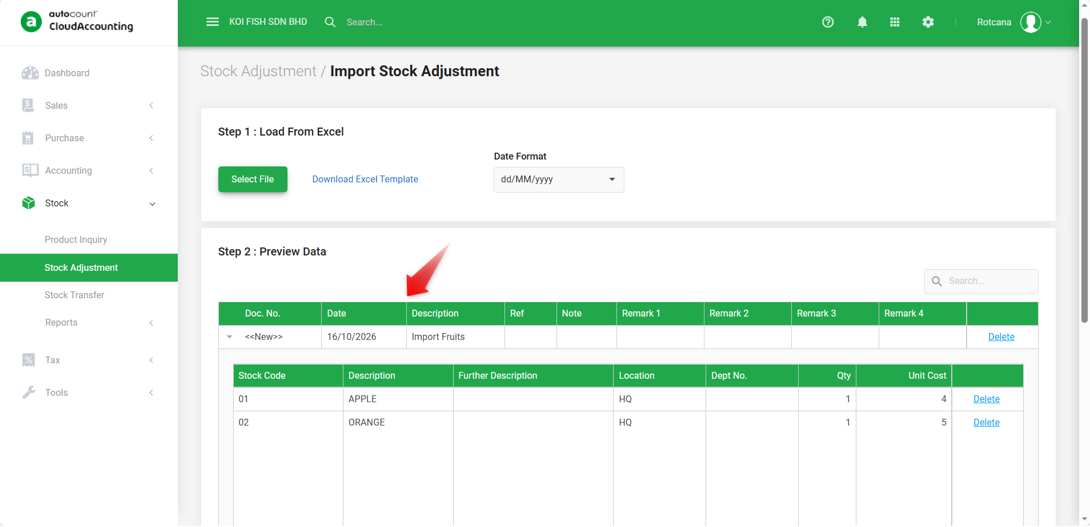
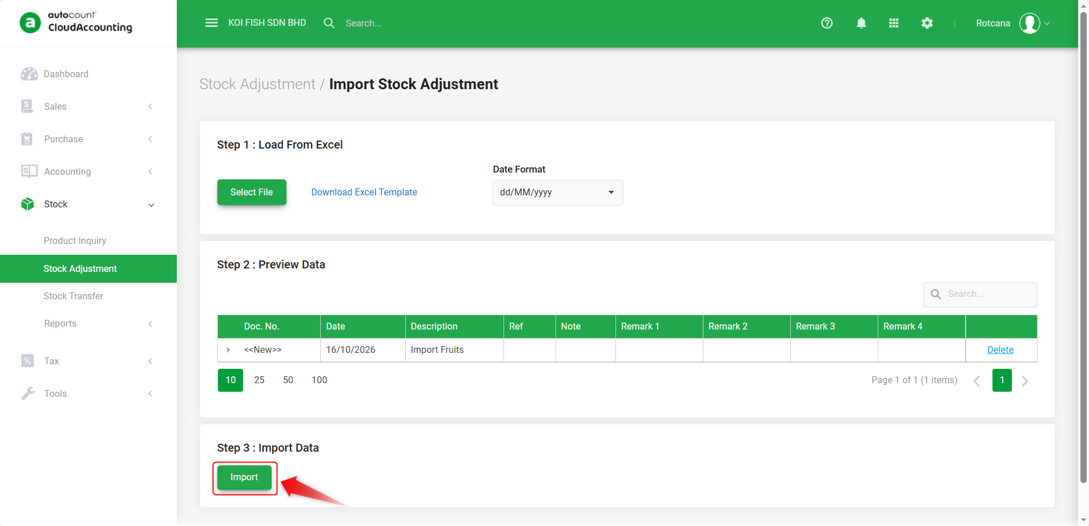
Step 4: Import Data
- Click Import.
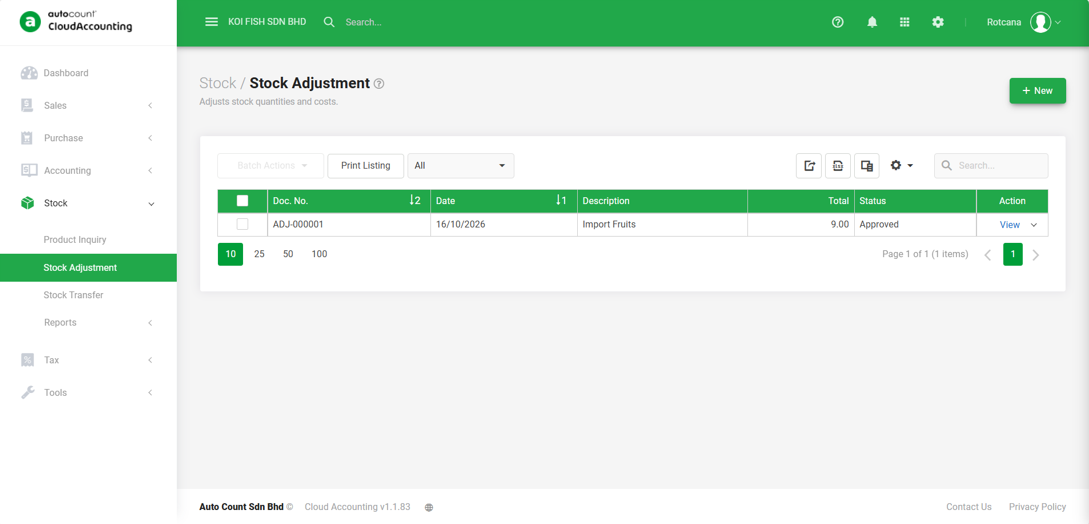
- Once the import is complete, check the Stock Adjustment listing to confirm the records were created as expected.
Required fields:
Master Column: DocNo, DocDate
Details Columns: While not strictly marked as required by the system, StockCode, Location, and Qty must be filled in for the adjustment to be meaningful.
By: Rotcana 261027, Lay Swan 261028