
Stock Transfer records can also be created in bulk using an Excel template, instead of entering each transfer manually.
Step 1: Download the Template
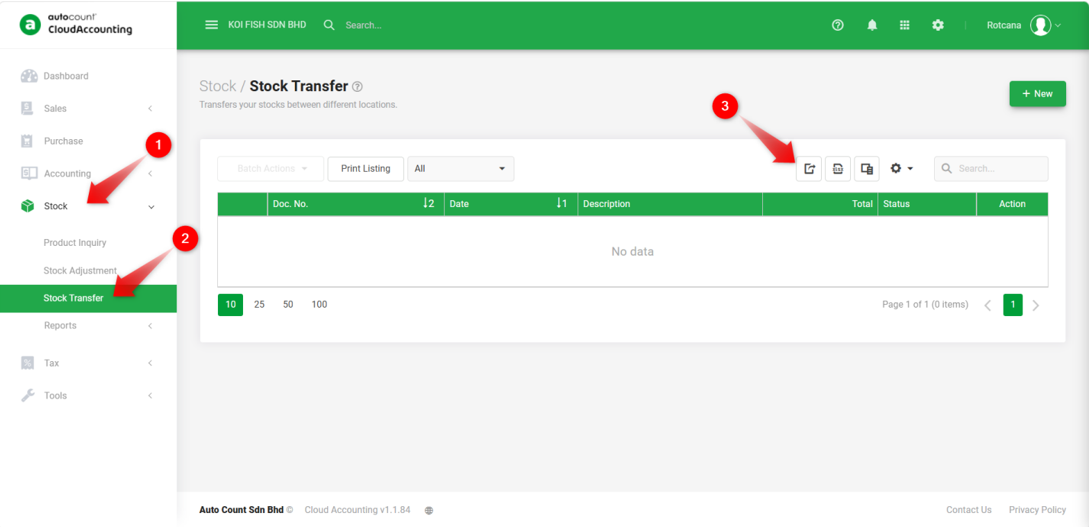
1. Go to Stock > Stock Transfer, click the Import Data icon.
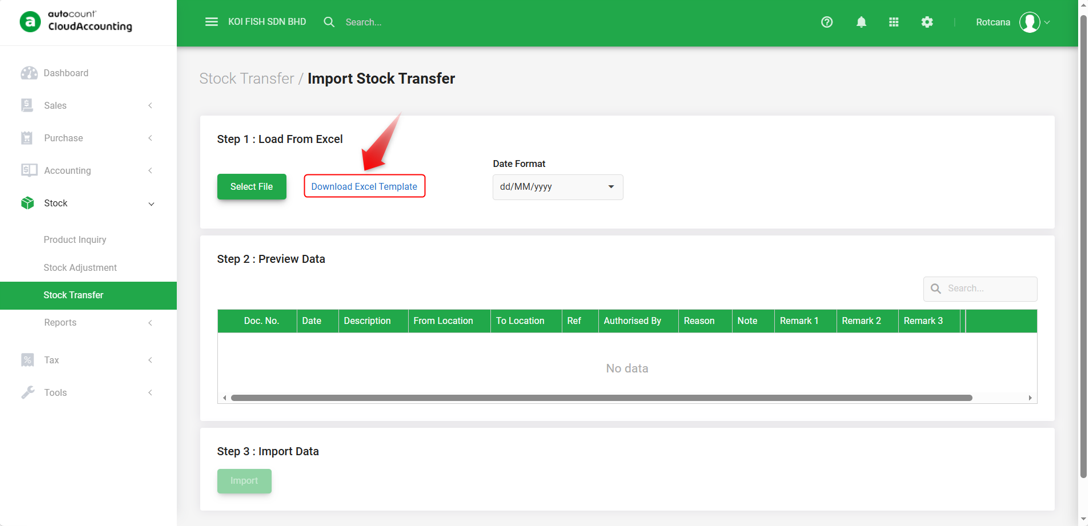
2. Click Download Excel Template.
Step 2: Fill in the Excel Template
The downloaded file contains two sheets:
- Template: Master Columns for the document header, Details Columns for stock lines.
- Guide: Explains every column, including Column Type, Description, whether it is Required, and Sample Data.
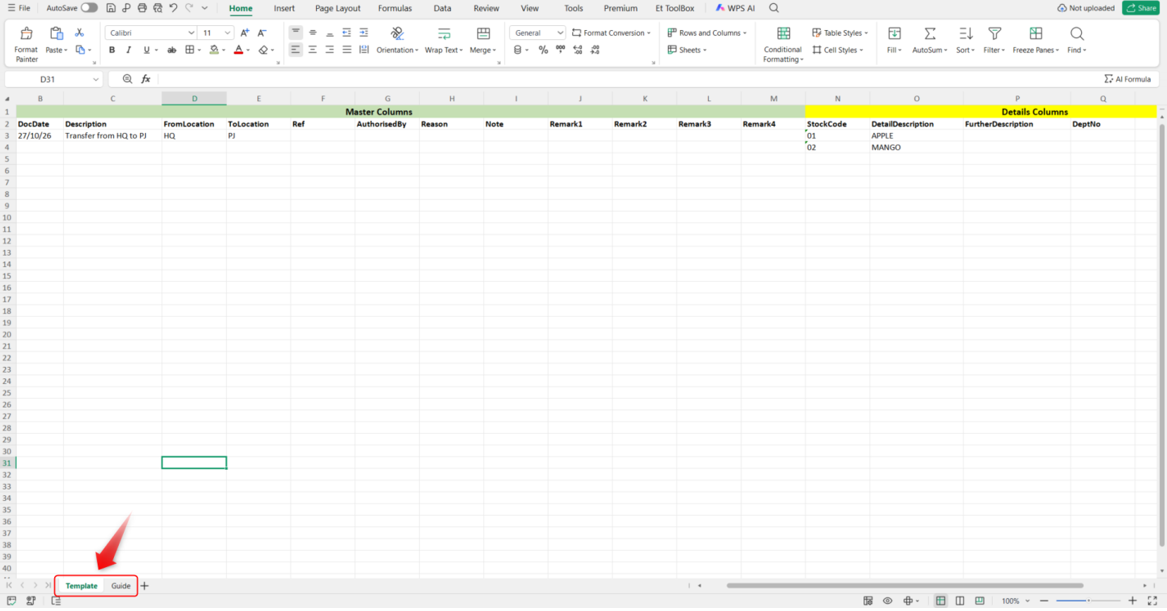
Note: To import a document with multiple stock lines, fill in the Master Columns only on the first row of that document; leave them blank on subsequent rows for the same document.
Step 3: Upload and Preview
1. Return to the Import Stock Transfer screen and click Select File to choose your completed Excel file.
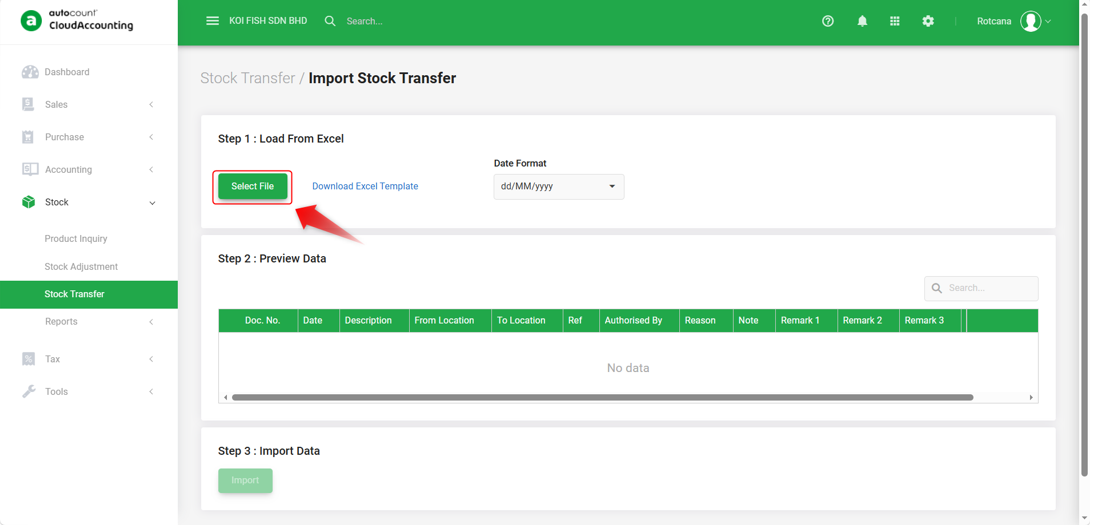
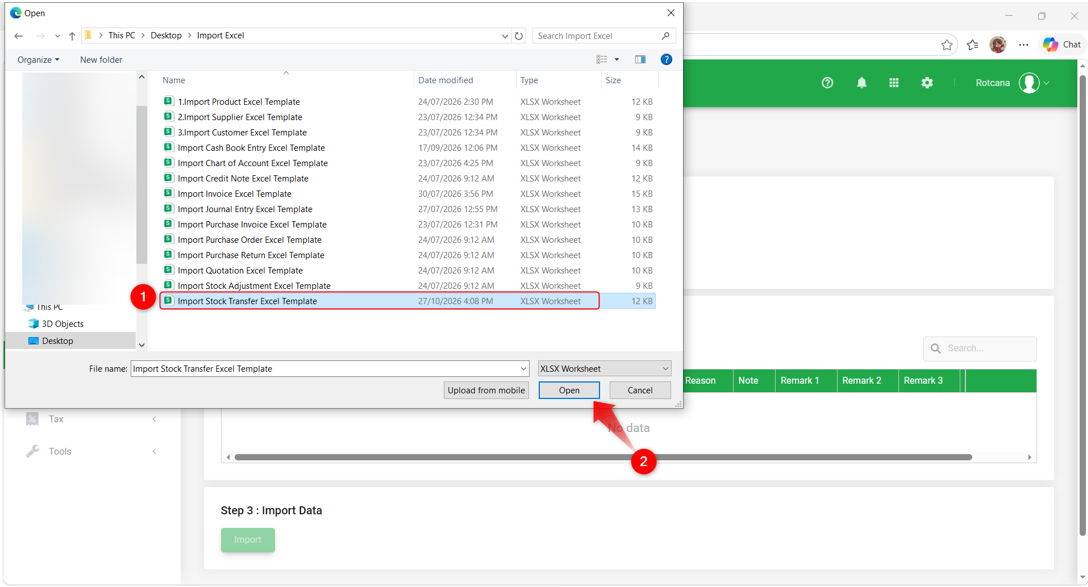
2. Review the data shown in the Preview Data table to confirm it has been read correctly.
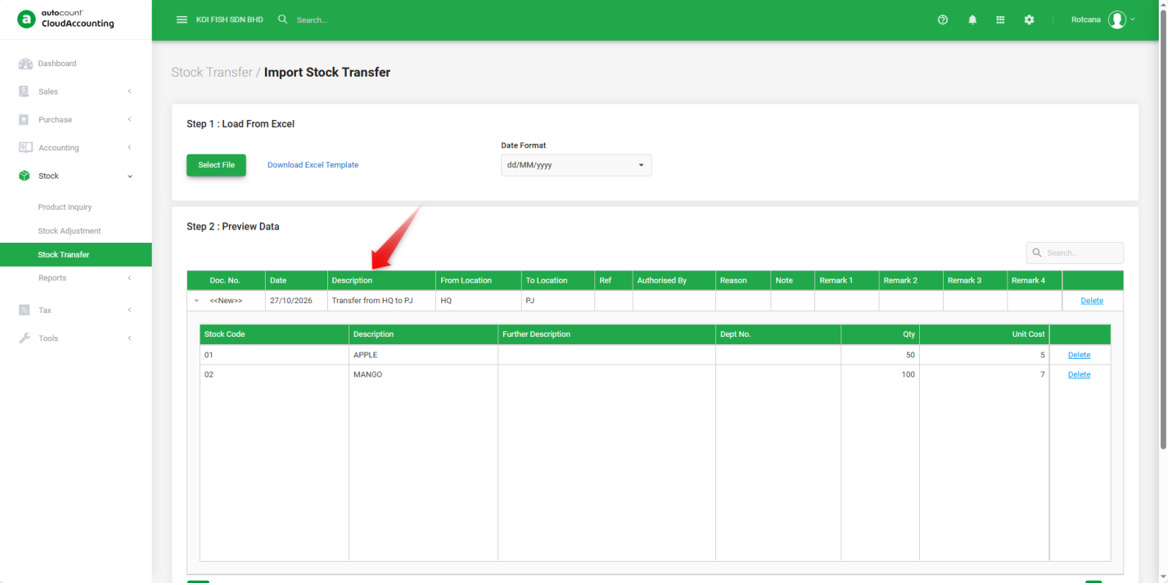
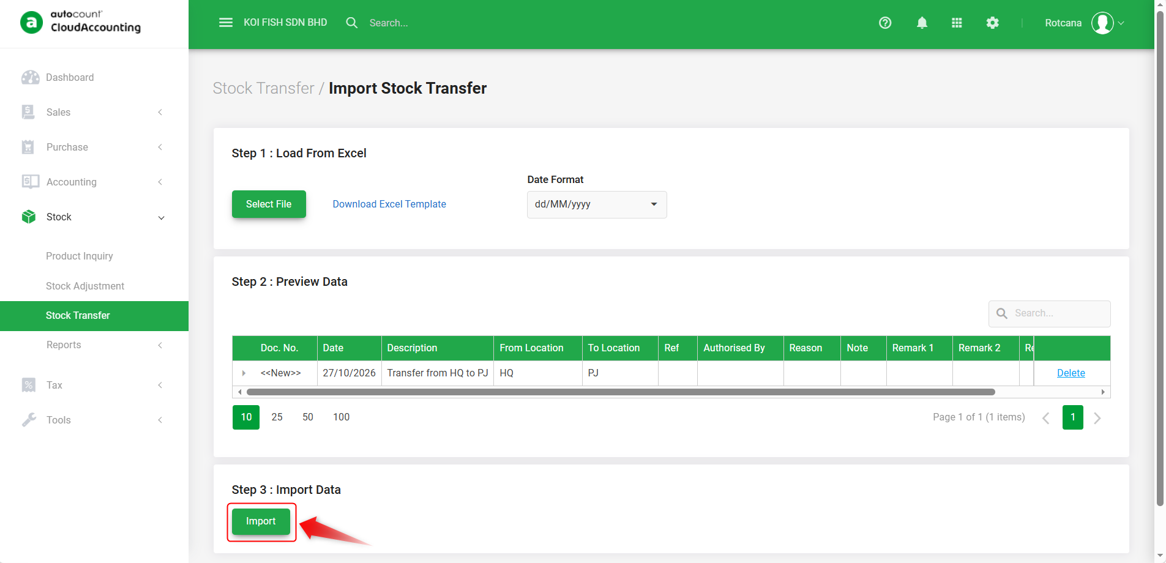
Step 4: Import Data
1. Click Import.
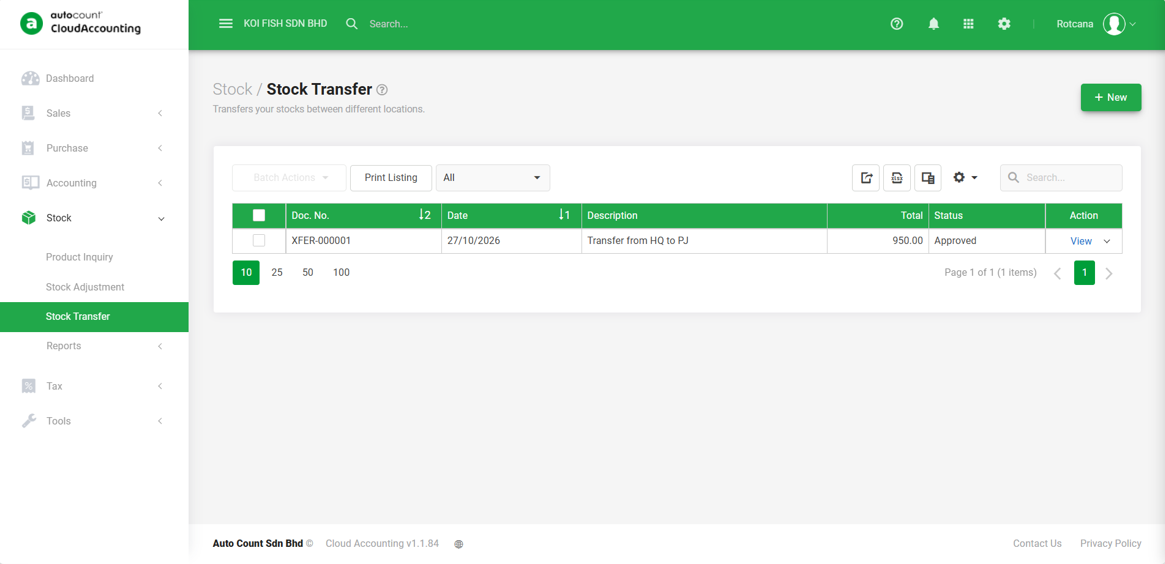
2. Once the import is complete, check the Stock Transfer listing to confirm the records were created as expected.
Required fields:
Master Columns: DocNo, DocDate, FromLocation, ToLocation .
Details Columns: While not strictly marked as required by the system, StockCode and Qty should be filled in for the transfer to be meaningful.
By: Rotcana 261118, Lay Swan 261125