
Search terms: show void on invoice, show void on transaction, voided invoice printout, cancelled wording on report, void wording report design, mark document as void when printing
Question:
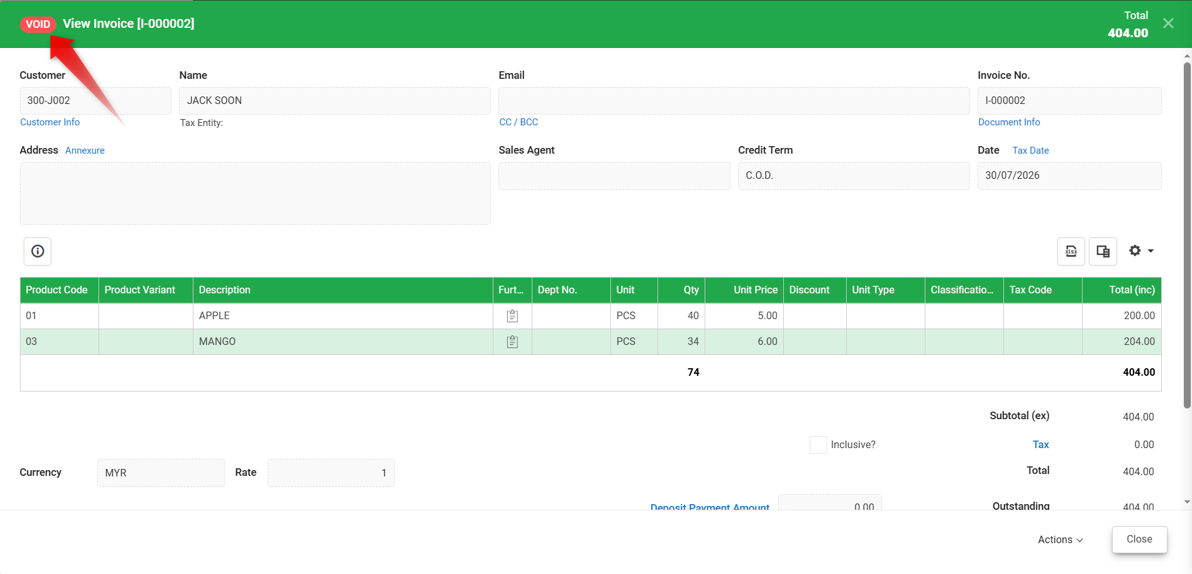
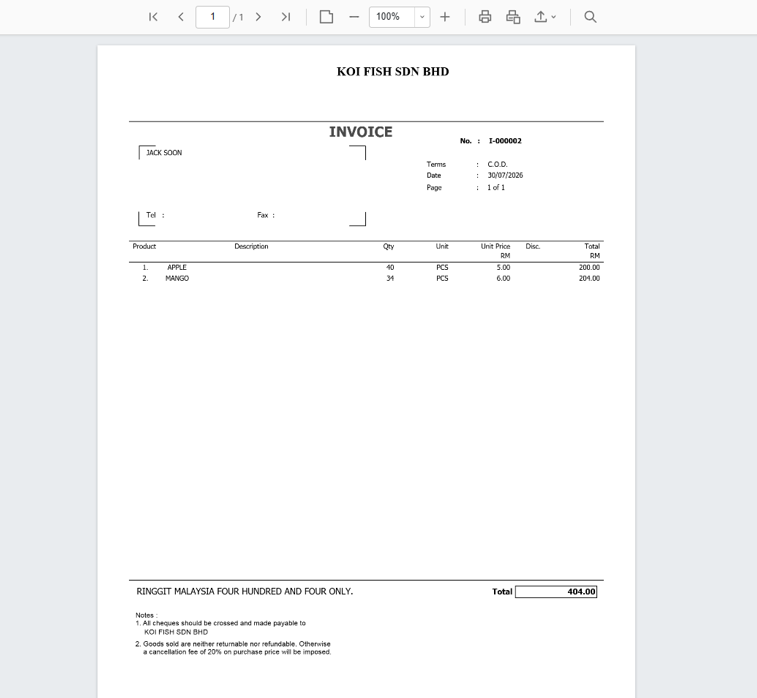
I voided a transaction (such as Invoice or Purchase Invoice), but the printed report looks the same as a normal one. How do I show the word “VOID” on a voided transaction?
The screenshots below use the Invoice report as an example. The steps are the same for other transactions.
Answer:
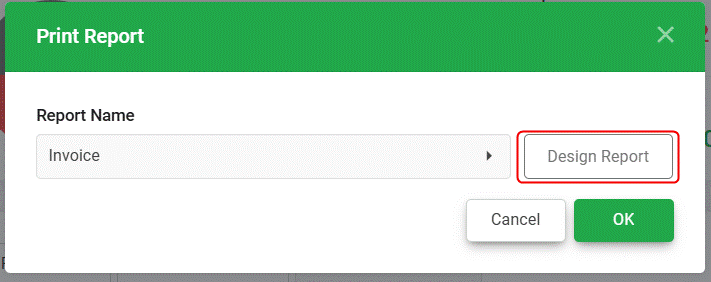
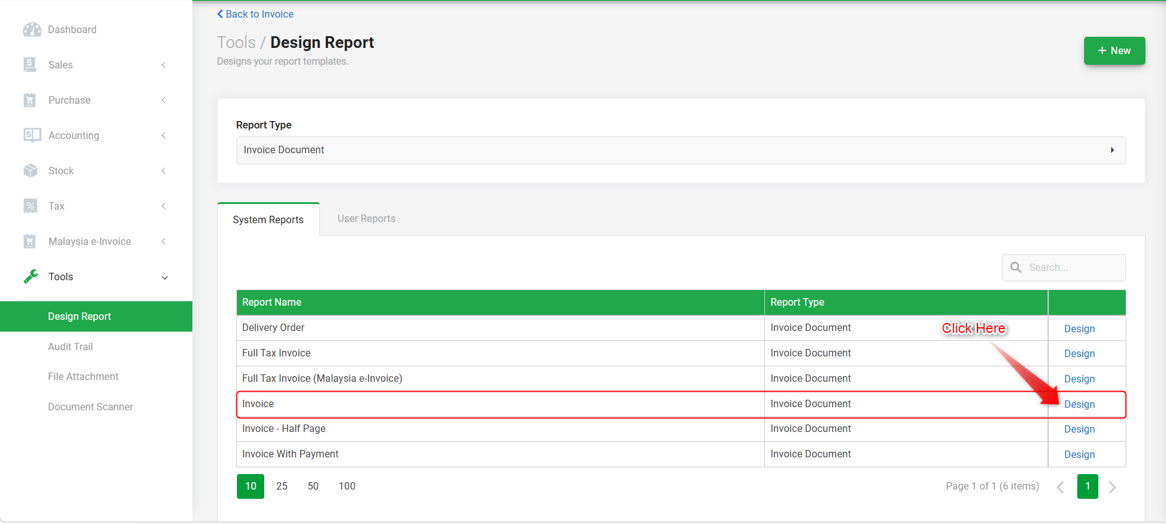
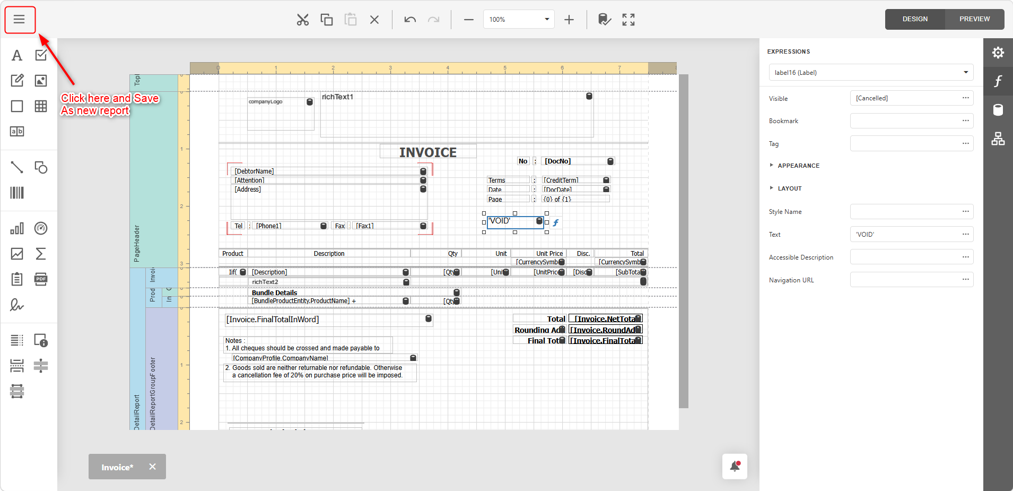
1. To design the report, click Print and click 'Design Report' button on the right side. Click 'Design' at the report that you would like to amend.
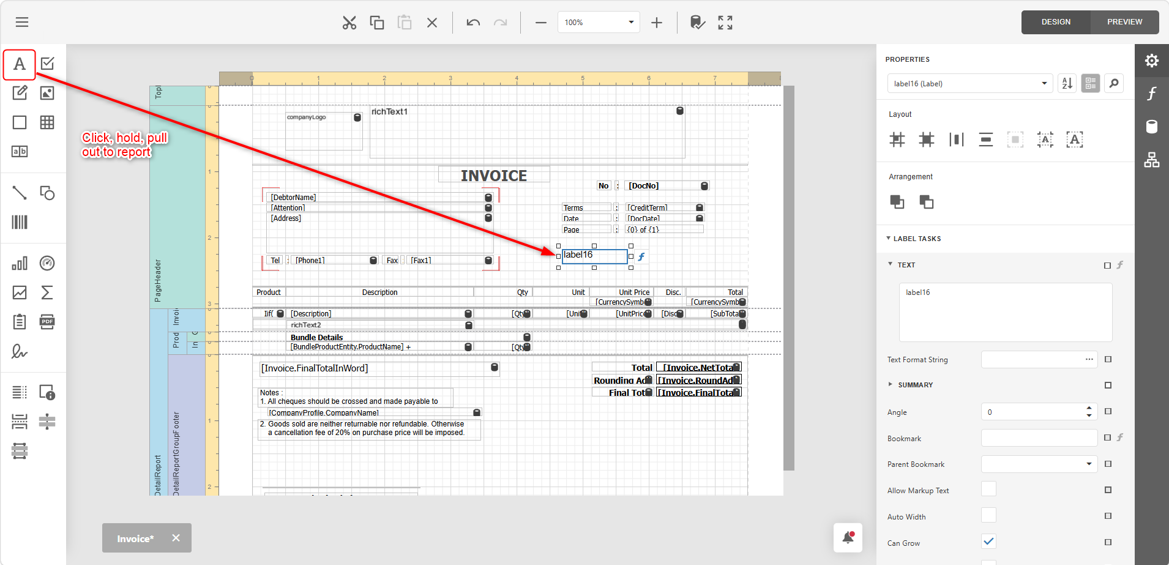
2. In the Design Report, add a Label to the report and place it where you want “VOID” to appear.
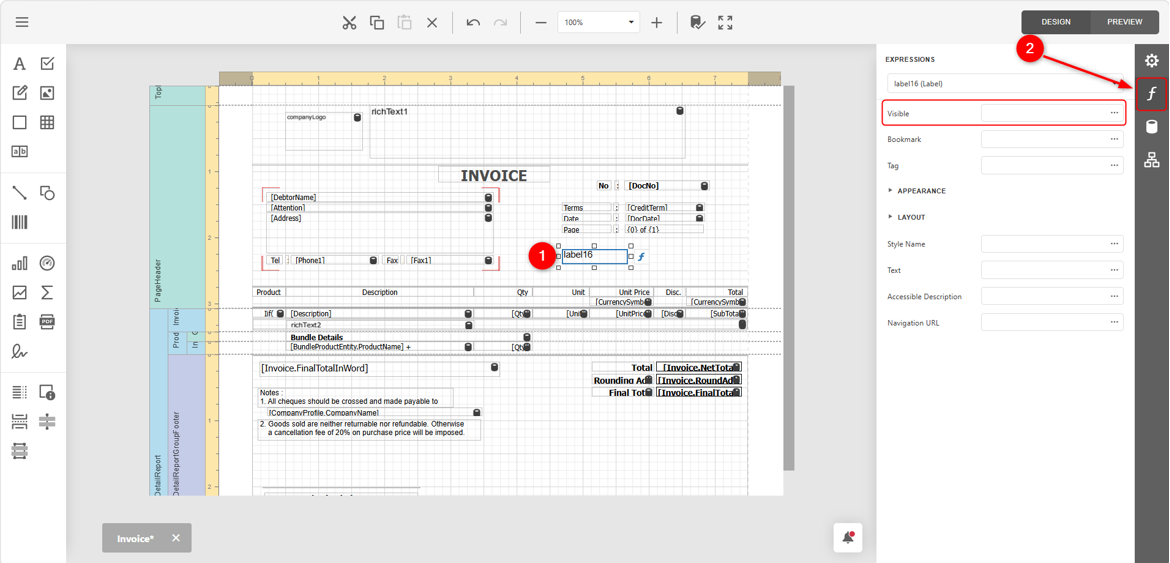
3. Click the label. Then click on the Expressions icon (symbol 'f') and click on the ellipsis (...) at Visible.
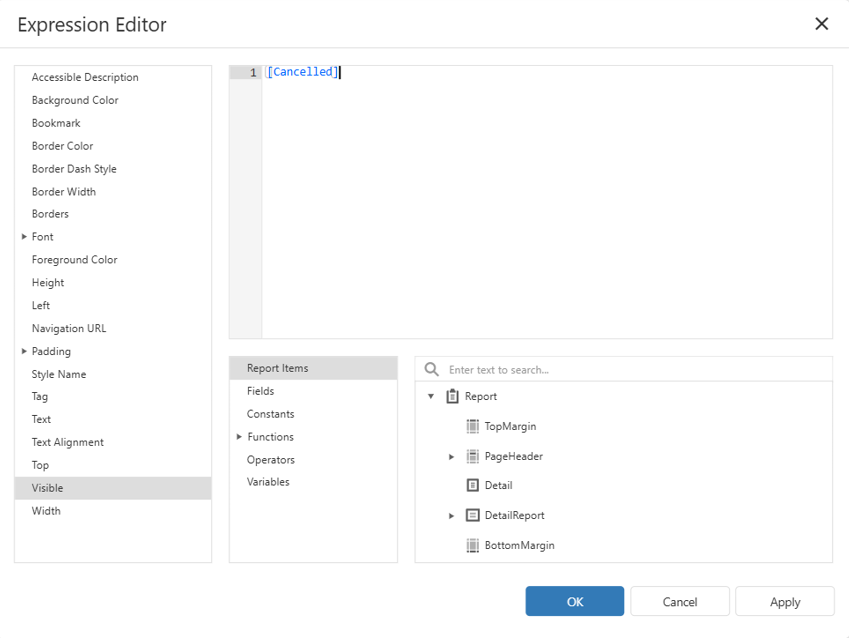
4. It will prompt Expression Editor, key in [Cancelled] then click on OK.
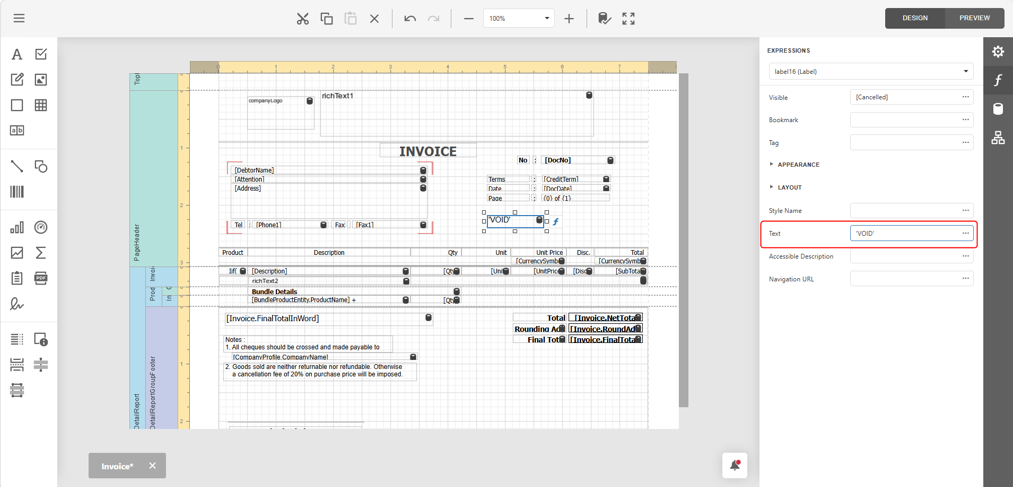
5. Under Text, key in the wording 'VOID'.
6. Click the Menu on the top left, click Save As and rename the new report, as the original system report is not allowed to amend and save.
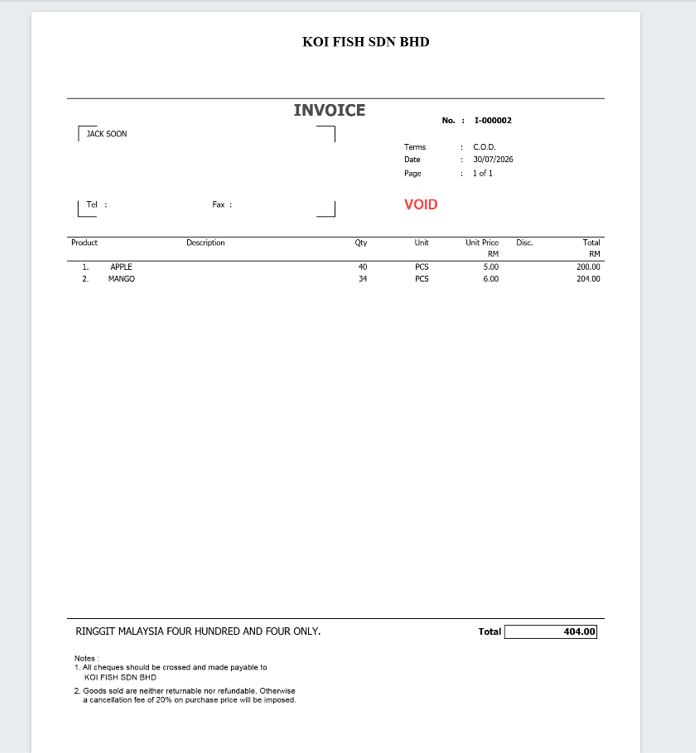
7. When you print a voided transaction using this report, you will see VOID displayed on the report.
Note:
- The report field is called Cancelled, while the action on the transaction is Void.
- Each report is designed separately. Adding VOID to the Invoice report does not add it to other reports, so repeat these steps for each report you want to change.
- To change Font Name, Size, Colour etc, refer to: How to change Report Font Name and Font Size
By: Rotcana 261118, Lay Swan 261127