
Search terms: purchaselocation is empty, saleslocation is empty, location is empty when importing, import error location, what to enter for location when importing
Question:
When importing a Sales or Purchase document from Excel (such as Sales Invoice, Credit Note or Purchase Invoice), the Preview Data shows the error “PurchaseLocation is empty.” or “SalesLocation is empty.” and the location column is highlighted in red. Why does this happen?
The screenshots below use Sales Invoice as an example.
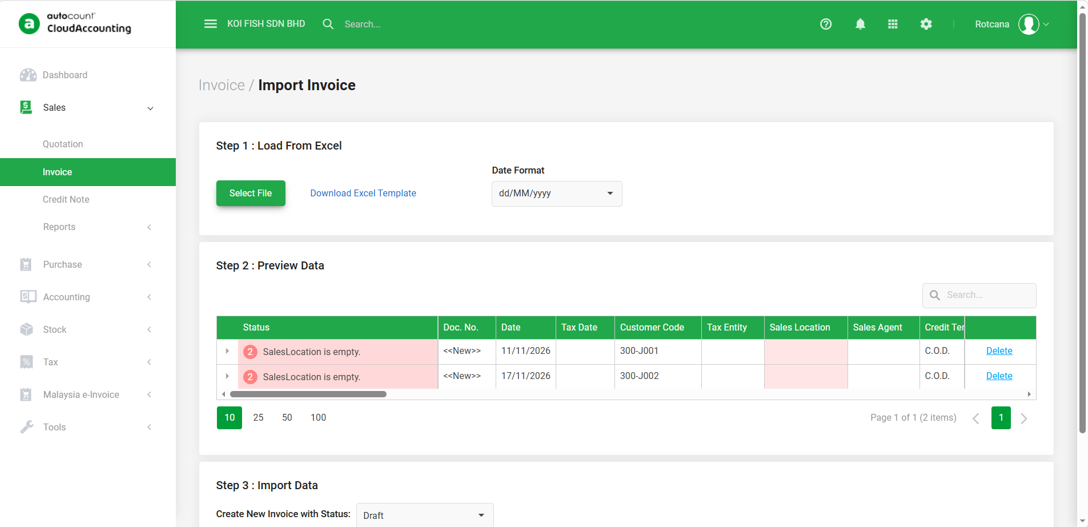
Possible Reason:
Location is a required column in the import template: SalesLocation for sales documents and PurchaseLocation for purchase documents. The import shows this error when it is blank.
This usually happens for one of two reasons:
- Your account book does not use the Multi-Location module, so the location was left blank. However, a location is still required. The default location is HQ, which is created automatically for every account book.
- Your account book uses the Multi-Location module, but the location was not filled in the Excel file.
Solution:
1. Open your Excel file and fill in the SalesLocation column (or PurchaseLocation for purchase documents). Enter it on the first row of each document, because it is a Master column.
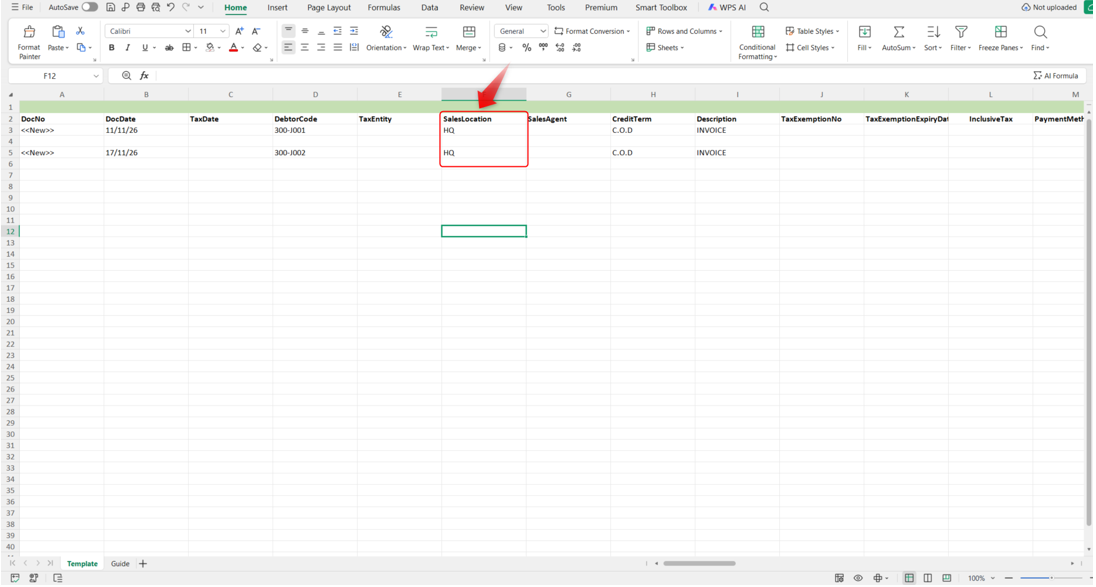
2. If you do not use Multi-Location module, enter HQ. If you use Multi-Location module, enter the location needed for that document.
3. Click Select File and choose the corrected Excel file to proceed with the import again. You should be able to complete the import successfully.
Note: If only one or two documents are affected, you can also click the highlighted location column in the Preview Data and select the location.
By: Rotcana 261118, Lay Swan 261128