
Search terms: cannot change product type, non-inventory to inventory product, product type locked, product being used error, can't delete stock because it has transactions
Question:
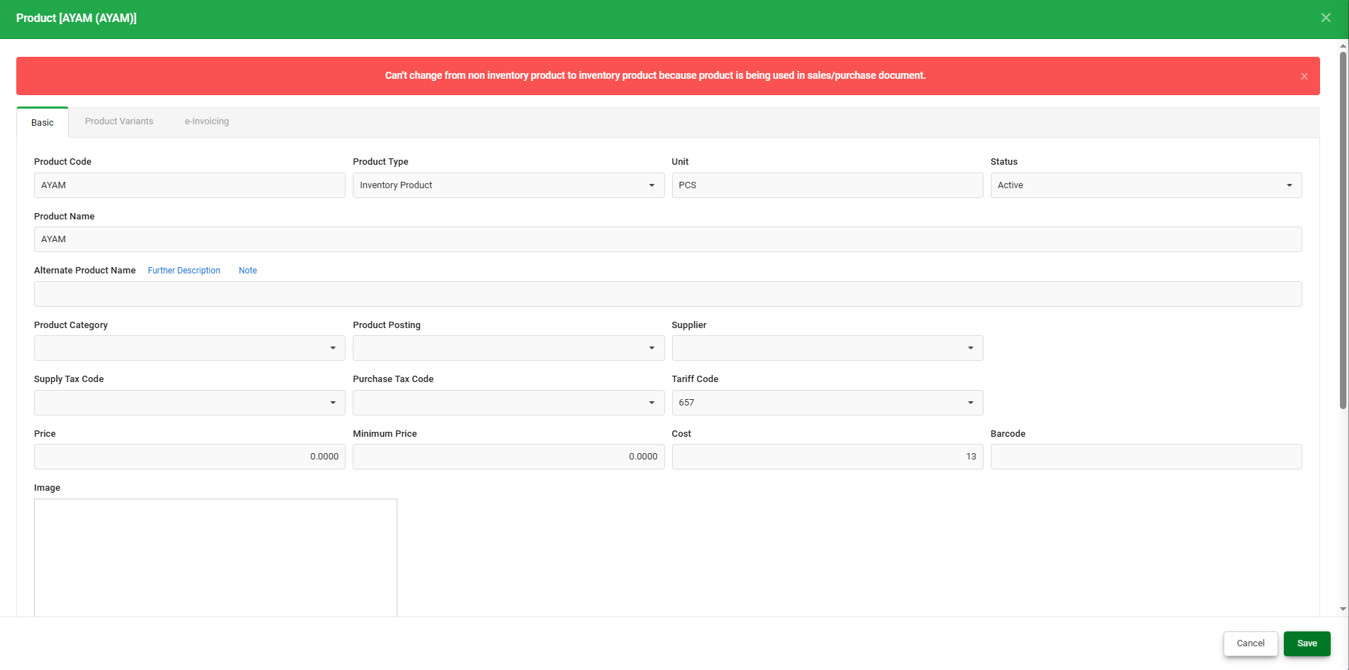
When trying to change a Product Type from Non-Inventory Product to Inventory Product, the system shows the error: "Can't change from non inventory product to inventory product because product is being used in sales/purchase document."
Possible Reason:
A Product Type cannot be changed while the product is referenced in an existing transaction. This restriction exists because Inventory Products track stock quantities and costs, whereas Non-Inventory Products do not. Switching the type while transactions still reference it would create inconsistent or inaccurate stock and costing records.
This restriction applies to any change involving Inventory Product (Inventory ↔ Non-Inventory or Inventory ↔ Service), since Inventory Product is the only type that affects stock. Switching between Non-Inventory Product and Service Product is not restricted.
Note: This error may also appear as "Can't delete Stock because it has transactions" when changing from Inventory to Non-Inventory Product, same cause, same fix below.
Solution:
There is no direct way to change the Product Type while it is still referenced in a transaction. Choose one of the following, depending on the number of affected transactions:
Step 1: Check Which Transactions Used the Product
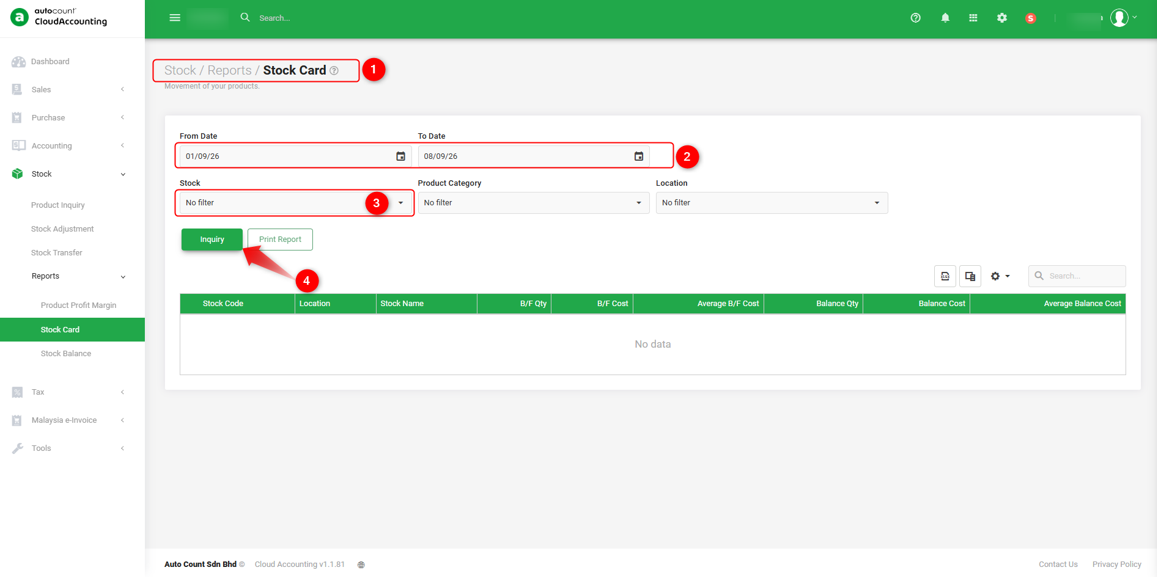
1. Go to Stock > Reports > Stock Card.
2. Set the From Date and To Date to cover the relevant period.
3.Under Stock, select the specific product (or leave as "No filter" to review all).
4. Click Inquiry.
5. Review the list to identify every transaction referencing this product.
Step 2: Resolve Based on Transaction Volume
If there are only a few transactions:
1. Open each document listed in the Stock Card and change the Product Code on the line to a different existing product.
2. Save the transaction(s). so the original product is no longer referenced.
3. Go to Master Data > Product, open the original product, and change its type to Inventory Product.
4. Click Save.
If there are many transactions:
Updating every transaction individually is not practical. Instead:
1. Create a new Product with a new Product Code, and set its type to Inventory Product from the start.
2. Use this new product for all future transactions going forward.
3. Keep the original product record to preserve past transaction history. Optionally, set its Status to Inactive so it can no longer selectable in new transactions.
By: Rotcana 260918, Lay Swan 260930